


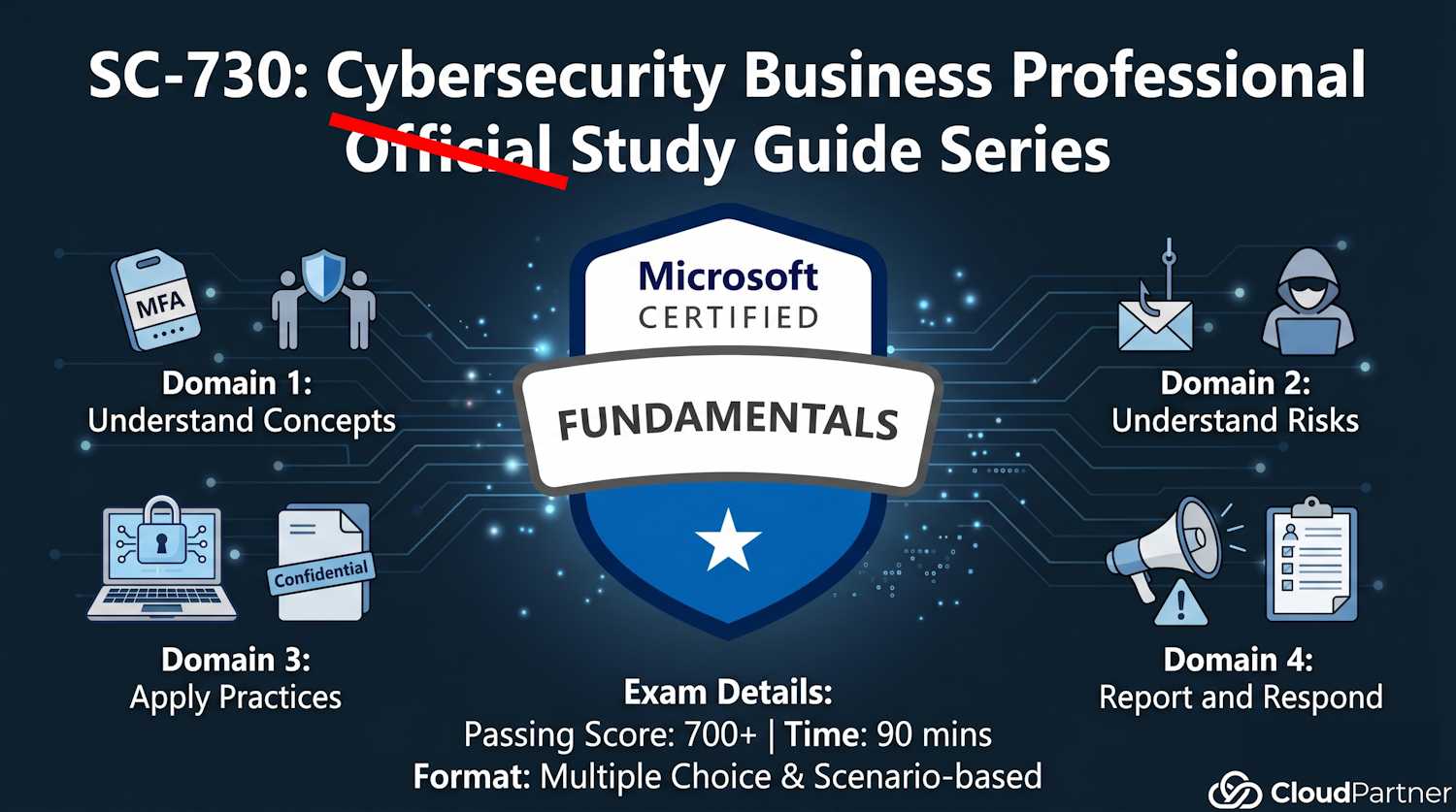
Introduction to Part 3
Part 3 focuses on defensive security controls. You've learned the threats; now learn how to defend. This part is split into two pages: Part 3a (device and data access) and Part 3b (data handling and recovery).
Core principle: Defense-in-depth. No single control is perfect. Multiple overlapping controls make you much harder to compromise.
Implement Device Security Controls
Core Device Security Measures
Your device is your primary gateway to company data, personal accounts, and sensitive information. A compromised device can lead to stolen credentials, financial fraud, identity theft, and corporate data breaches. The controls below work in layers (defense in depth): if one fails, others still protect you. Real-world breach reports show most data theft succeeds because at least one device control was missing or disabled.
- Full-disk encryption (BitLocker, FileVault, LUKS): If device is stolen or lost, the hard drive is useless without the decryption key. A thief with physical access cannot extract files, passwords, or private keys. This is your strongest defense against physical device loss. Cost: negligible (OS-included). Impact: extreme.
- Strong, unique passwords: Weak passwords (password123, CompanyName2024) are guessed in seconds by automated tools. Use a password manager (Bitwarden, 1Password, KeePass) to generate random 16+ character passwords with mixed case, numbers, and symbols. Reuse is the second biggest mistake after weakness: if LinkedIn password hash leaks, attackers try it everywhere.
- Multifactor authentication (MFA): Second factor (phone via SMS/app, USB security key, TOTP) is required to log in. Even if your password is compromised in a data breach, attackers cannot access your account without the second factor. MFA blocks 99.9% of account takeover attempts. Organizations increasingly mandate MFA for VPN, email, and cloud systems.
- Regular backups: If device is destroyed (hardware failure, ransomware, fire), backups let you recover. The 3-2-1 rule (covered in Part 3b) ensures backups themselves survive. Many ransomware attacks now target backups first, so backup security is as important as backup frequency.
- Antivirus/anti-malware software: Detects and removes malware before it steals credentials or installs remote access tools. Keep definition files updated daily. Real-time scanning catches malicious downloads. Note: antivirus catches known malware; zero-day exploits may bypass it. No tool is 100% protective.
- Firewall (personal or OS-level): Blocks unauthorized inbound connections from the network. Windows Firewall and macOS firewall are enabled by default; they work silently in background. Inbound rules should be restrictive (default: deny, permit only needed services). Outbound is typically unrestricted but advanced users can block exfiltration by unknown processes.
- Screen lock and timeout: Lock device with Windows+L (or equivalent) when stepping away. Configure auto-lock after 5-10 minutes of inactivity. Prevents shoulder surfing (watching over your shoulder), unauthorized access if you leave device unattended, and casual data theft. Many breaches begin with unlocked workstations in public spaces.
- USB port controls (if available): Disable USB ports or require password to use external drives. Prevents badUSB (malicious USB devices), malware injection, unauthorized data copying. BYOD (Bring Your Own Device) organizations often enforce this via MDM.
- Device tracking (Find My, Windows Laptop Locator): Locate lost/stolen device remotely. Erase data remotely if recovery is impossible. Reduces impact of theft. Some tracking requires iCloud/Microsoft account linkage; ensure it's enabled before device is lost.
Mobile Device Security
Mobile devices (phones, tablets) have a different attack surface than laptops. They're always connected, often used in untrusted locations (coffee shops, airports, trains), and users are less careful with them than desktops. Mobile malware is growing 40%+ annually. Organizations see mobile breach attempts 10x more frequently than laptop attempts. However, modern phones (iOS 14+, Android 12+) have excellent built-in security if properly configured.
- Screen timeout (1-5 minutes): Auto-lock when not in use. Prevents unauthorized access if device is left on desk or in meeting. A 1-minute timeout is stronger security (less time for casual access) but more annoying. Many organizations mandate 5 minutes as compromise.
- App permission controls: Apps request permissions (camera, location, contacts, microphone, storage, calendar). Grant only necessary permissions for app functionality. Spyware and malicious apps often request excessive permissions (e.g., calculator app requesting location). Review permissions quarterly; revoke unused ones. iOS: Settings > Privacy. Android: Settings > Apps > Permissions.
- App updates: Keep all apps updated. Updates include security patches for known vulnerabilities. Organizations often enforce automatic updates via MDM. Outdated apps are low-hanging fruit for attackers (known exploits are publicly documented).
- Disable Bluetooth when not in use: Bluetooth is broadcast wireless with limited range. Vulnerabilities include man-in-the-middle (intercepting pairing), bluesnarfing (copying files), and bluejacking (unauthorized commands). Turn off Bluetooth in Control Center / Quick Settings when not actively using it. Never pair with unknown devices.
- Use corporate VPN for mobile: Mobile devices on public Wi-Fi are targeted by packet sniffing and Wi-Fi spoofing attacks. Corporate VPN encrypts all traffic from device to company network. Some organizations enforce MDM (Mobile Device Management) profiles that mandate VPN for corporate network access. Always disconnect from public Wi-Fi and use VPN instead.
- MDM policies: If organization uses MDM (Microsoft Intune, Apple Business Manager, Samsung Knox), comply with policies. MDM enforces: encryption, screen lock timeout, app whitelisting, remote wipe capability, passcode complexity. These policies protect both you (prevents breach of your device) and organization (prevents lateral movement to corporate network). Non-compliance can result in network access revocation.
Protect Your Accounts
Account Access Practices
Account compromise = attacker access to your email, files, and systems. Defend rigorously:
- Complex passwords: Minimum 12-16 characters, mixed case, numbers, symbols. "MyPassword123" is weak. "Tr0pic@l-Sunset#42" is strong.
- Unique passwords per account: If one service is breached, only that account is compromised. Password reuse means one breach = multiple account compromises. Use password manager.
- After a breach: If you learn of data breach affecting service you use, CHANGE PASSWORD immediately. Attacker may already have your old password.
- Enable MFA everywhere:** Every account that supports MFA (email, banking, social media, password manager) should have MFA enabled. This is the most important control after strong passwords.
- Security questions: If you must set security questions, use non-obvious answers. "First pet name?" - don't use "Fluffy". Use something only you know (even if nonsensical).
Recovery process: If your account is compromised, change password first (to lock attacker out), then monitor for fraudulent activity, enable security alerts, review active sessions and revoke unfamiliar ones.
Secure Your Workspace
Physical and Network Security in Shared Spaces
Home office, coffee shop, or office space—workspace security matters:
- Physical security: Lock doors/windows. Don't leave device unattended on desk. Prevent tailgating (unauthorized entry when door opens). Don't leave printed documents on desk.
- Network security: Use WPA3 encryption on home Wi-Fi (not WEP or default router password). At work, use corporate network. In public, use VPN.
- Privacy screen (anti-glare screen protector): Prevents shoulder surfers from reading your screen from side angles. Essential in coffee shops and open offices.
- Separate user profiles/accounts: Don't use admin account for daily work. Use limited user account. If compromised, damage is limited. Admin account is only for OS maintenance.
- Webcam/microphone management:** Cover webcam when not in use (tape). Disable microphone in OS settings when not needed. Malware can access these.
Understand Data Classification and Labeling
Data Classification Tiers
Organizations classify data by sensitivity. Each level gets appropriate protection:
| Classification | Examples | Protection Level |
|---|---|---|
| Public | Marketing materials, published blog posts, public announcements | Minimal. Okay if disclosed. Can post on internet. |
| Internal | Employee directory, internal communications, general company info | Moderate. Should not be public. For internal use only. |
| Confidential | Financial data, customer lists, proprietary processes, contracts | High. Restrict to need-to-know. Encrypt if shared outside. |
| Restricted | Passwords, PII (SSN, credit cards), health records, legal files | Maximum. Highly restricted access. Encrypt at rest and in transit. Audit all access. |
Apply Sensitivity Labels
Modern tools (Microsoft 365, Google Workspace) let you label documents with classification:
- Automatic encryption: Labeling as "Confidential" automatically encrypts the file. Only authorized people can open it.
- Usage restrictions:** Label as "Do Not Forward" = recipient can view but can't forward/share. Forces document through organizational channels.
- Audit trails:** Every access to labeled document is logged. Who opened it, when, from where. Accountability for sensitive data.
- Watermarking:** "CONFIDENTIAL" watermark on printed pages or screen. Visual reminder to user and visible in screenshots.
- DLP policies (Data Loss Prevention): Automatic detection. If you try to send Restricted data to external email, DLP blocks it. System prevents accidental data leak.
Rights Management and Data Access Controls
Even after sharing data, you can control what recipient can do:
- View-only: Recipient can read but can't edit. Protects document integrity.
- Edit: Recipient can modify (if appropriate for collaboration).
- Expiration dates:** File access expires automatically on set date. Prevents old sensitive data from lingering.
- No forwarding/downloading:** Recipient can view in web browser but can't save locally or share. Limits data spread.
- Offline restrictions:** File is only accessible while online. If copied to USB and accessed offline, decryption fails.
- Watermarking: "Shared with: John@external.com" watermark on PDF. Identifies who leaked it if found on dark web.
- Revoke access:** After sharing, you can revoke access immediately. Previously shared file becomes inaccessible to recipient.
Key Takeaways from Part 3a
Device security is foundational: encryption, MFA, strong passwords, regular backups, antivirus, firewall.
Mobile devices need protection too: screen timeout, app permissions, VPN, MDM compliance.
Unique, complex passwords + MFA on every account = account compromise prevention.
Data classification ensures appropriate protection levels. Label data correctly and respect existing labels.
Ready for Part 3b?
You've learned to protect devices and data access. Part 3b covers the data lifecycle: how to handle data securely, perform backups, and recover from disaster.