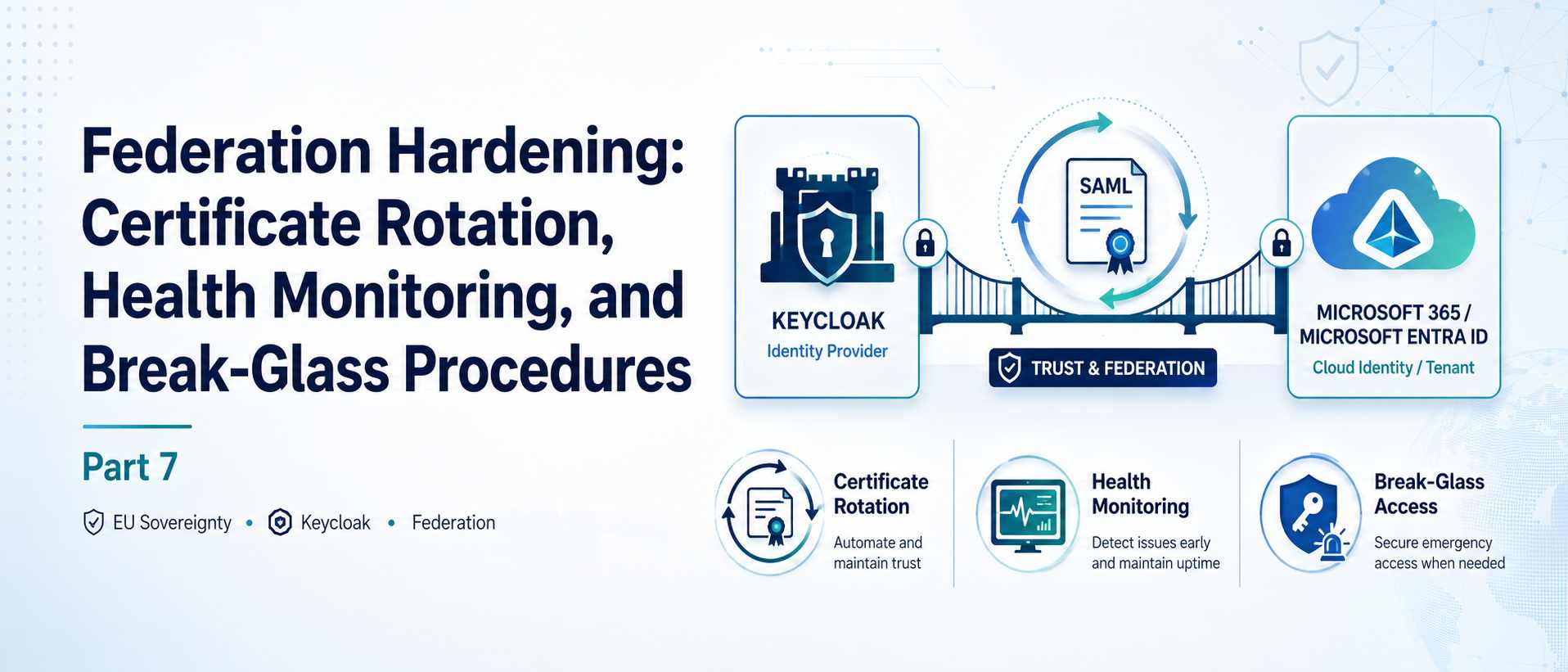
Parts 4, 5, and 6 covered the architecture: converting an Entra ID domain to federated, wiring Keycloak as the primary identity provider, and keeping both directories in sync via SCIM. If you've followed along and deployed this, you have a working setup. What you don't have yet is a plan for the day things go sideways.
There are three operational scenarios that will eventually hit every deployment running this design. First, SAML signing certificates expire — typically after one to two years — and rotating them wrong locks everyone out of M365 simultaneously. Second, you'll want to know when the federation is degraded before your users start filing tickets. Third, when Keycloak goes down for maintenance or an unexpected reason, every user on the federated domain loses access to M365 until it comes back, unless you've thought about this in advance.
This post works through all three. The sequence matters for certificate rotation specifically — skip a step and you cause an outage — so I'll go through it in order.
Why the SAML signing certificate is a problem
When Keycloak generates a SAML assertion for a user signing in to M365, it signs the assertion with its private RSA key. Entra ID, on the other side, validates that signature using the public certificate you registered when you set up the federation in Part 5. If the certificate Entra ID has stored no longer matches the key Keycloak is actively signing with, Entra ID rejects every SAML assertion. Every sign-in fails. Everyone on the federated domain gets a generic authentication error.
The standard rotation mistake is this: you generate a new RSA key in Keycloak, activate it immediately, then update the federation config in Entra ID. But between the moment Keycloak starts signing with the new key and the moment Entra ID knows about the new cert, there's a gap — and any login attempt during that gap fails. With proper sequencing, you can make that gap zero.
Entra ID's federation configuration supports a nextSigningCertificate
field alongside the primary signingCertificate. When a
nextSigningCertificate is set,
Entra ID accepts SAML assertions signed by either cert. The safe rotation sequence uses this:
register the new cert in Entra ID first,
then switch Keycloak's active signing key, then clean
up the old cert.
Safe certificate rotation, step by step
Step 1 — Generate the new key in Keycloak without activating it
In the Keycloak admin console, go to Realm Settings → Keys → Providers. Add a new
RSA key provider. Give it a name like rsa-v2 and set the Priority
lower than your current active RSA key. This means Keycloak generates the key pair but doesn't use
it for signing yet — existing RSA keys with higher priority stay
active.
Once created, go to the Active tab. You'll see the current RSA key listed. The new one appears in the All tab. Click the certificate fingerprint to view the full certificate value — a base64 string you'll need in the next step.
You can also retrieve it via the Keycloak Admin API:
# Get a token (replace values for your realm) KC_TOKEN=$(curl -s -X POST \
 "https://keycloak.company.com/realms/master/protocol/openid-connect/token" \
 -d "client_id=admin-cli&grant_type=password&username=admin&password=$KC_ADMIN_PASS" \
 | jq -r '.access_token') # List all realm keys, filter for the inactive RSA key curl -s \
 -H "Authorization: Bearer $KC_TOKEN" \
 "https://keycloak.company.com/admin/realms/company/keys" \
 | jq -r '.keys[] | select(.algorithm == "RS256") | {kid: .kid, status: .status, certificate: .certificate}'
The output shows all RSA keys with their status. The new key will show status PASSIVE or
similar until its priority is raised. Copy the certificate value — this is
base64-encoded DER, which is exactly what Entra ID's nextSigningCertificate field
expects.
Step 2 — Register the new cert in Entra ID as nextSigningCertificate
Use the Microsoft Graph API to update the federation configuration for your domain. You need the federation configuration ID first:
# Get the federation configuration ID for the domain DOMAIN="company.com"
            TENANT_ID="your-tenant-id"

            az rest --method GET \
 --url "https://graph.microsoft.com/v1.0/domains/$DOMAIN/federationConfiguration" \
 --headers "Content-Type=application/json" \
 | jq '.'

            # The response contains an id field — note it down FED_CONFIG_ID="<id-from-above>"
Then patch the federation configuration to add the new cert as nextSigningCertificate:
NEW_CERT="<base64-cert-from-keycloak>"

            az rest --method PATCH \
 --url "https://graph.microsoft.com/v1.0/domains/$DOMAIN/federationConfiguration/$FED_CONFIG_ID" \
 --headers "Content-Type=application/json" \
 --body "{\"nextSigningCertificate\": \"$NEW_CERT\"}"
After this, Entra ID accepts SAML assertions signed by either the old or the new key. Sign in with a test user on the federated domain and confirm it still works.
Step 3 — Switch Keycloak's active signing key
Back in Keycloak, go to Realm Settings → Keys → Providers. Edit the new RSA key
provider (rsa-v2) and raise its priority above the old one. The moment you save,
Keycloak starts signing new SAML assertions with the new key. Entra ID accepts these because the
nextSigningCertificate is already registered.
Test immediately. Sign out a test user and sign back in through the M365 portal. The login should succeed, and the SAML assertion is now signed by the new key.
Step 4 — Promote and clean up in Entra ID
Once you've confirmed the new key is working, update Entra ID to promote
nextSigningCertificate to the primary position and clear the old one:
az rest --method PATCH \
 --url "https://graph.microsoft.com/v1.0/domains/$DOMAIN/federationConfiguration/$FED_CONFIG_ID" \
 --headers "Content-Type=application/json" \
 --body "{
 \"signingCertificate\": \"$NEW_CERT\",
            \"nextSigningCertificate\": \"\"
        }

        "
Note: Don't delete the old Keycloak key provider immediately. Existing sessions may still reference tokens signed with the old key. Wait at least 24 hours, confirm there are no authentication errors in Entra ID sign-in logs, then remove the old key provider from Keycloak.
Automated expiry alerting
You don't want to find out your cert expired by reading support tickets. Set up a scheduled check using the Keycloak Admin API:
# !/bin/bash # cert-expiry-check.sh — run daily via cron or Azure Automation KC_TOKEN=$(curl -s -X POST \
 "https://keycloak.company.com/realms/master/protocol/openid-connect/token" \
 -d "client_id=admin-cli&grant_type=password&username=admin&password=$KC_ADMIN_PASS" \
 | jq -r '.access_token') CERT_B64=$(curl -s \
 -H "Authorization: Bearer $KC_TOKEN" \
 "https://keycloak.company.com/admin/realms/company/keys" \
 | jq -r '.keys[] | select(.algorithm == "RS256" and .status == "ACTIVE") | .certificate' \
 | head -1) # Write cert to temp file in PEM format printf "-----BEGIN CERTIFICATE-----\n%s\n-----END CERTIFICATE-----\n" \
 "$(echo "$CERT_B64" | fold -w 64)" > /tmp/kc-active-cert.pem # Get expiry date EXPIRY=$(openssl x509 -noout -enddate -in /tmp/kc-active-cert.pem | cut -d=-f2) EXPIRY_EPOCH=$(date -d "$EXPIRY" +%s) NOW_EPOCH=$(date +%s) DAYS_LEFT=$(((EXPIRY_EPOCH - NOW_EPOCH) / 86400)) echo "Keycloak SAML cert expires in $DAYS_LEFT days ($EXPIRY)"

        if [ "$DAYS_LEFT" -lt 30 ]; then echo "WARNING: cert expires in less than 30 days — begin rotation"
        # Send alert here (webhook, email, etc.) exit 1 fi
Monitoring federation health
Certificate expiry is a predictable failure mode. The less predictable ones are configuration drift, Keycloak version mismatches after updates, and networking issues between Entra ID and your Keycloak endpoint. You need visibility into federation failures before users start escalating.
Entra ID sign-in logs
Entra ID logs every sign-in attempt, including SAML federation failures. The most useful query in Log Analytics:
 // Sign-in failures via SAML federation — last 24 hours
        SigninLogs | where TimeGenerated > ago(24h) | where AuthenticationProtocol in ("saml20", "wsfed") | where ResultType !=0 | summarize FailureCount=count(),
        SampleError=any(ResultDescription) by ResultType, bin(TimeGenerated, 1h) | order by TimeGenerated desc, FailureCount desc
The error codes most relevant to federation problems:
| Error code | Meaning | Likely cause |
|---|---|---|
| 50132 | SAML assertion validation failed | Cert mismatch or signature invalid — check rotation state |
| 500011 | Resource principal not found | Wrong audience URI in Keycloak SAML client config |
| 50144 | User's Active Directory session expired | Keycloak session timed out; user must re-authenticate |
| 53003 | Access blocked by Conditional Access | Policy blocked sign-in (location, device, risk, or session control) |
| 50133 | Session invalid due to password change | Expected after forced re-auth; not usually a problem |
Set up an alert rule in Log Analytics that fires when ResultType 50132 (signature
validation failed) appears more than five times in a ten-minute window. That's the cert mismatch
signature —
it means a rotation either went wrong or is in progress.
Keycloak health monitoring
Keycloak exposes health endpoints such as /health and /health/ready on the
management interface by default. If you're running Keycloak on
Azure VMs or containers, make the readiness endpoint part of your internal load balancer health
probe or monitoring path:
# Basic availability check (add to monitoring script or Prometheus scraper) curl -sf "http://keycloak-node-01:9000/health/ready" > /dev/null \
 && echo "OK" \
 || echo "KEYCLOAK NOT READY"

        # Check metrics endpoint (must be enabled in keycloak.conf: metrics-enabled=true) curl -s "https://keycloak.company.com/metrics" \
 | grep "keycloak_request_duration_seconds_count"
The metrics that matter for federation health specifically:
# Count of SAML login events per minute (should be non-zero during work hours) curl -s "https://keycloak.company.com/metrics" \
 | grep "keycloak_logins_total.*type=\"saml\""

        # Count of SAML login failures (should stay near zero) curl -s "https://keycloak.company.com/metrics" \
 | grep "keycloak_failed_login_attempts_total"
If you're using Azure Monitor, configure a custom metric alarm via an
availability test hitting the Keycloak /health/ready endpoint every 60 seconds. An
alert on three consecutive failures gives you roughly three minutes before users start seeing M365
errors.
Synthetic login test
Health endpoints confirm Keycloak is running. A synthetic login test confirms the full federation path works end to end. Create a dedicated monitoring service account in Keycloak and Entra ID, then run a scripted SAML SP-initiated login flow against the M365 portal periodically. The simplest version uses Playwright or Puppeteer against a headless browser and alerts on login failure.
For a lighter weight approach, use the Microsoft Graph API to check token acquisition health by running a silent OAuth flow with the monitoring account (this won't test the Keycloak path directly, but verifies Entra ID is healthy on its side):
# Verify Entra ID can still acquire tokens for a known user # (Uses client credentials on behalf of a service principal, not a test of federation itself,
            # but confirms Entra ID availability on your side) az account get-access-token --tenant "$TENANT_ID" --resource "https://graph.microsoft.com" \
 | jq -r '.accessToken' | cut -c1-20 # If this fails, Entra ID itself has a problem unrelated to Keycloak
Conditional Access under domain federation
Conditional Access in a federated environment has some important limitations that aren't obvious. The most critical one was already covered in Part 5: CAE behavior can vary across clients and services in federated setups, so token revocation should be treated as explicit operational work, not a guaranteed immediate control. That shapes what you can and can't enforce.
What works under federation
- Location-based conditions — evaluated by Entra ID on the sign-in, based on the IP Entra ID sees. Works the same as non-federated.
- Sign-in risk policies — Entra ID Identity Protection evaluates sign-in risk independently of where authentication happened. Still applies.
- MFA requirement (with caveats) — If Keycloak asserts the MFA claim in the SAML
response, Entra ID treats it as satisfied. The correct
AuthnContextClassRefvalue isurn:oasis:names:tc:SAML:2.0:ac:classes:MultiFactor. See Part 5 for the Keycloak config. - Session controls — Sign-in frequency and persistent session settings apply to the Entra ID token lifetime, not the Keycloak session. You can force Entra ID to issue shorter-lived tokens regardless of how long the Keycloak session is valid for.
What doesn't work, or behaves differently
- Compliant device requirement — Entra ID checks device compliance at token issuance. If the device isn't Intune-enrolled or hybrid Microsoft Entra hybrid joined, the token is denied. This can work, but the device must be registered with Entra ID independently of how the user authenticates. Federated login doesn't break device compliance checks, but it also doesn't help with device registration.
- Continuous Access Evaluation — CAE can enforce supported events near real time
for supported Microsoft services and clients, but it is still resource and client dependent.
Don't design your offboarding process as if every federated client flow terminates instantly.
Revoking a federated user's session still requires
calling
revokeSignInSessionsand disabling the user where appropriate. - Token lifetime policies — You can configure these, but they interact with federated session lifetimes in ways that sometimes produce unexpected behaviour. Keep Keycloak session timeouts and Entra ID token lifetimes aligned.
Recommended CA policy configuration
For a Keycloak-federated environment, a practical baseline is:
- Require MFA for all cloud apps, with the expectation that Keycloak satisfies the MFA claim — not that Entra ID re-prompts.
- Block sign-ins from outside your expected countries/regions.
- Require sign-in frequency of 4–8 hours for sensitive apps (e.g. Exchange Online, SharePoint). This forces Keycloak re-authentication periodically without breaking normal working patterns.
- Never use CA policies that would apply to break-glass accounts — exclude your emergency accounts from all CA policies.
Break-glass procedures
This is the bit most teams skip until they need it. If Keycloak is unavailable — a failed upgrade, a VM crash, a database connection problem — every user whose UPN is on the federated domain cannot sign in to M365. Entra ID redirects them to your Keycloak SAML endpoint, gets no response, and returns an authentication error. No email, no Teams, no SharePoint.
Maintain cloud-only break-glass admin accounts
The first line of defence is having admin accounts that never touch the federated domain. Create
these accounts on your tenant's
*.onmicrosoft.com domain, not on the federated custom domain:
# Create break-glass admin via Graph az rest --method POST \
 --url "https://graph.microsoft.com/v1.0/users" \
 --headers "Content-Type=application/json" \
 --body '{
 "accountEnabled": true,
        "displayName": "Break Glass 01",
        "mailNickname": "breakglass01",
        "userPrincipalName": "breakglass01@yourtenant.onmicrosoft.com",
        "passwordProfile": {
            "forceChangePasswordNextSignIn": false,
            "password": "'"$BG_PASSWORD"'"
        }
        }

        '
These accounts need:
- Global Administrator role
- Excluded from all Conditional Access policies (explicitly, by user exclusion — not by group, since group membership can be changed accidentally)
- FIDO2 hardware security key as the only authentication method — no phone, no OTP app, no password alone
- Monitored: any sign-in from these accounts should trigger an immediate alert in Entra ID
Store the FIDO2 key in a physically secured location separate from day-to-day admin hardware. Test that the accounts work at least monthly — break-glass accounts that fail when you need them are worse than having none.
Restoring access for specific users
If Keycloak is down and a specific user needs urgent M365 access (an executive who can't wait for the
service to recover), you can temporarily move their UPN
to the onmicrosoft.com domain and set a temporary password. They'll be able to sign in
directly through Entra ID while Keycloak is
down:
USER_ID="<user-object-id>"

            # Move the user's UPN off the federated domain temporarily
 az rest --method PATCH \
 --url "https://graph.microsoft.com/v1.0/users/$USER_ID" \
 --headers "Content-Type=application/json" \
 --body '{
 "userPrincipalName": "firstname.lastname.temp@yourtenant.onmicrosoft.com",
            "passwordProfile": {
                "forceChangePasswordNextSignIn": false,
                "password": "'"$TEMP_PASSWORD"'"
            }
        }

        '

        # After Keycloak recovers, restore their UPN az rest --method PATCH \
 --url "https://graph.microsoft.com/v1.0/users/$USER_ID" \
 --headers "Content-Type=application/json" \
 --body '{
 "userPrincipalName": "firstname.lastname@company.com"
        }

        '
Important: Temporarily changing a user's UPN does not
affect their onPremisesImmutableId. The ImmutableID anchor stays intact, so the
user's M365 data and mailbox remain attached to the
same account. When you restore the original UPN, everything reconnects cleanly. Don't change the
ImmutableID during this process.
Emergency domain conversion (last resort)
If Keycloak is down for an extended period and you need to restore access for all users, you can convert the domain back from federated to managed. This is a last-resort option — it's slow, it requires all users to have passwords set in Entra ID (they typically don't if they've only ever authenticated via federation), and it takes time to propagate.
The Graph API call to remove federation from a domain:
# This converts the domain back to managed — use only in an emergency # Users on this domain will not be able to sign in until passwords are set az rest --method DELETE \
 --url "https://graph.microsoft.com/v1.0/domains/$DOMAIN/federationConfiguration/$FED_CONFIG_ID"
Before Keycloak downtime becomes a problem long enough to reach this step, your monitoring should have fired an alert. The realistic scenarios where you'd get this far are extended database failures, a bad Keycloak upgrade, or infrastructure loss in your primary region. Having a secondary Keycloak instance in another availability zone or region is the operational answer to most of these.
High availability basics
Keycloak supports active/active clustering via its Infinispan distributed cache. The minimum production HA setup is two Keycloak nodes behind a load balancer, sharing a PostgreSQL database. The Keycloak documentation covers the clustering configuration. For an Azure deployment, the typical pattern is:
- Two or more Keycloak VMs in an Availability Set or across Availability Zones
- Azure Load Balancer (or Application Gateway) in front, with health probes against the management
/health/readyendpoint - Azure Database for PostgreSQL Flexible Server with zone-redundant HA enabled
- Keycloak's built-in Infinispan-based distributed cache configured correctly for multi-node operation; for multi-site designs, evaluate an external Infinispan/Data Grid deployment rather than Redis
With this setup, a single node failure doesn't interrupt authentication. The break-glass procedures are then primarily for scenarios where the whole cluster fails, the database fails, or a bad deployment takes down both nodes at once.
What's left, and what's worth asking
At this point, the implementation arc is complete. Parts 4 through 7 have covered domain federation setup, Keycloak as a SAML IdP for M365, SCIM provisioning to keep both directories in sync, and the operational hardening to run it safely long-term. You have a working architecture, a cert rotation procedure, health monitoring, and a break-glass plan.
The question worth asking now is whether you should run this architecture at all — for your specific organisation, at your specific scale, with your specific compliance requirements. Building and maintaining this is real work. The infrastructure costs money. Someone needs to be on call for Keycloak incidents and Keycloak upgrades (which have a history of breaking things between major versions). That person needs to understand both Keycloak and Entra ID well enough to diagnose problems at 2am.
In Part 8 I'll go through the cost and complexity picture honestly — what this architecture actually costs to run, how it compares to simply using Entra ID's native features at scale, and which types of organisations have a genuine compliance requirement that justifies the overhead versus which ones are solving a problem they don't actually have.
Archives
Share this: