


Series Navigation
📍 You are here: Part 2 - Advanced Entitlement Management & AI Agent Governance
This is the second post in a comprehensive 4-part series on Microsoft Entra ID Governance:
- Part 1: Entitlement Management Fundamentals - Core concepts, architecture, and practical implementation scenarios
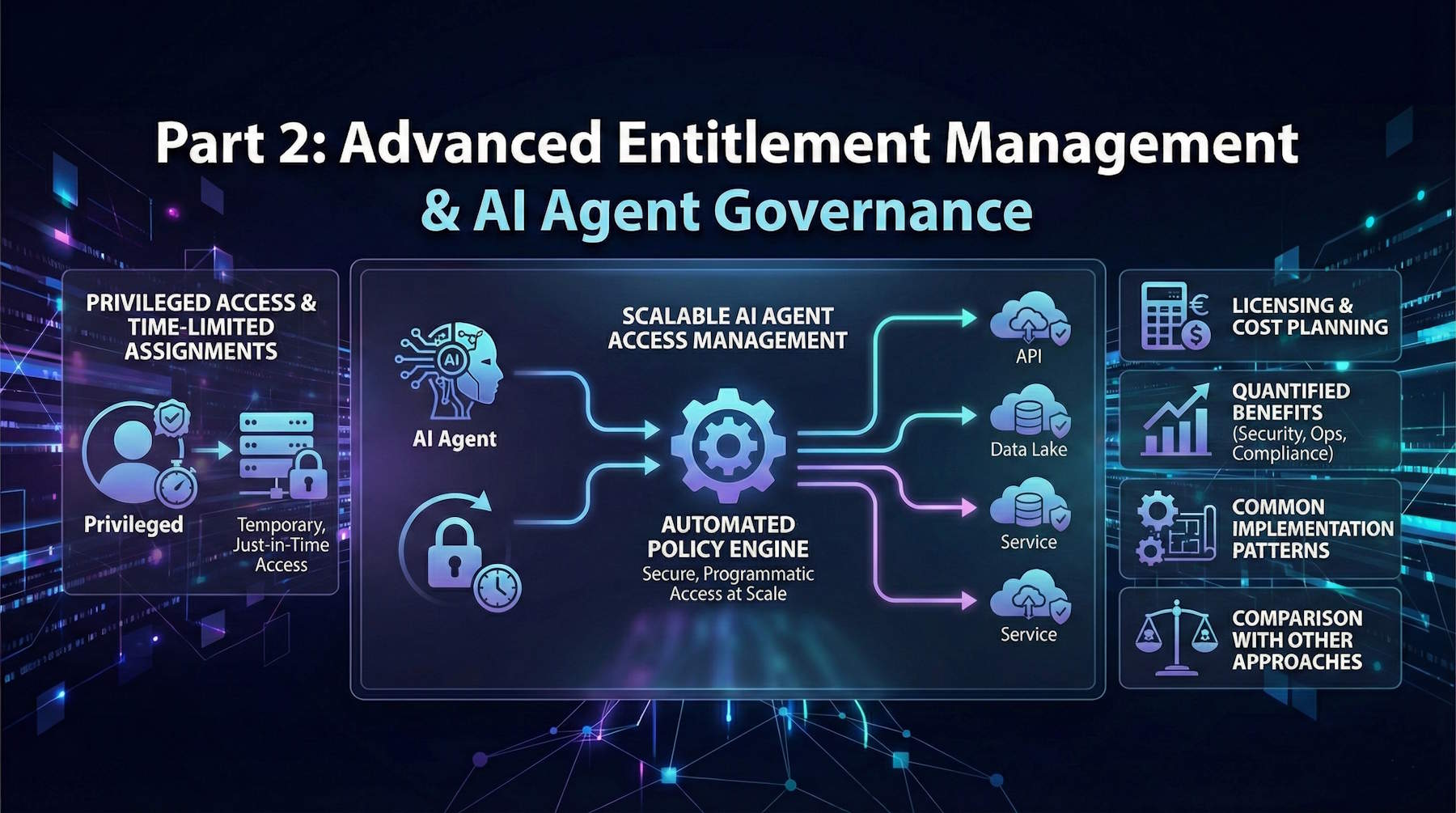
- Part 2: Advanced Entitlement Management & AI Agent Governance (This post) - Privileged access management, managing AI agents at scale, and advanced implementation patterns
- Part 3: ID Protection-Based Approvals Fundamentals - Securing access requests with risk intelligence and approval workflows
- Part 4: Protecting AI Agents with ID Protection - Detailed walkthrough of monitoring and securing autonomous agents with risk-based controls
Introduction
Welcome back to our walkthrough of Microsoft Entra ID Governance. In Part 1, we covered the fundamentals—what entitlement management is, the core concepts like access packages and policies, and how to implement it for common scenarios like project-based access, departmental self-service, and partner collaboration.
Now we're going to push further into the advanced territory that separates basic access governance from truly modern, scalable, AI-ready governance. We'll tackle two critical scenarios that every organization needs to understand:
1. Privileged Access Management: How do you grant temporary elevated permissions—things like Exchange Admin, Security Admin, or Azure Contributor roles—without creating permanent over-privileged accounts? How do you ensure proper approval, automatic expiration, and full audit trails?
2. AI Agent Access at Scale: This is the scenario that most organizations haven't fully grappled with yet. How do you govern autonomous agents that need access to resources? How do you detect when an agent is compromised? How do you balance the need for agent automation with the reality that compromised agents can do massive damage?
We'll also cover licensing considerations, quantified benefits, implementation patterns, and best practices that come from real-world deployments.
This isn't theoretical. Organizations are deploying AI agents right now—security agents, data processing agents, compliance agents, customer service agents. These agents need governed access. And if you're not ready to handle this, you're going to end up with a mess of static API keys, over-privileged service accounts, and no visibility into what your agents are actually doing.
Let's get into it.
Scenario 4: Privileged Access Management with Time-Limited Assignments
The Situation: Your organization has multiple administrators who occasionally need elevated permissions. Maybe your database administrators sometimes need temporary Azure Contributor access to troubleshoot production issues. Maybe your security analysts need temporary Exchange Admin access to investigate phishing campaigns. Maybe your developers need temporary Key Vault access during deployments.
The traditional approach is to grant permanent admin roles. This violates the principle of least privilege and creates persistent security risks. A compromised account with standing admin privileges is a disaster waiting to happen.
The better approach: time-limited privileged access through entitlement management.
The Challenge of Standing Privileges
Here's what goes wrong with permanent admin access:
Excessive Blast Radius: When an admin account gets compromised, the attacker has immediate access to everything that admin can touch. And because it's a standing privilege, the attacker can work for days or weeks before being detected.
No Approval Workflow: When privileges are permanent, there's no natural checkpoint where someone reviews "Does this person still need this level of access right now?" You granted it once, and it just stays there.
Audit Nightmare: When the compliance auditor asks "Who had Exchange Admin access in Q3?", you have to dig through role assignment logs. There's no built-in expiration or renewal cycle that naturally creates an audit trail.
Over-Provisioning: Because removing permanent access is manual and often forgotten, people accumulate privileges over time. A DBA who helped with a migration 6 months ago still has elevated Azure access. A security analyst who investigated one phishing campaign still has Exchange Admin. This is "privilege creep."
The Solution: Time-Limited Access Packages for Privileged Roles
Step 1: Identify Your Privileged Roles
Start by cataloging what elevated permissions exist in your environment:
Microsoft Entra Roles:
- Exchange Administrator
- Security Administrator
- Global Reader
- User Administrator
- Application Administrator
- Cloud Application Administrator
- Helpdesk Administrator
Azure RBAC Roles:
- Contributor (on specific subscriptions or resource groups)
- Owner (tightly controlled)
- Virtual Machine Contributor
- Key Vault Secrets Officer
- SQL DB Contributor
Application-Specific Admin Roles:
- CRM admin
- ERP admin
- Custom application admin roles
Step 2: Create Privileged Access Catalog
Create a catalog specifically for privileged access packages:
- Catalog Name: "Privileged Access Management"
- Owners: IT Security Team, Identity Governance Administrator
- Resources: Security groups mapped to Azure RBAC roles, Microsoft Entra role assignments
- Visibility: Private (not visible to all users, only eligible requesters see packages)
Step 3: Build Role-Specific Access Packages
Let's walk through a detailed example:
Access Package: "Exchange Administrator - Temporary"
Resources included:
- Microsoft Entra Role: Exchange Administrator
- Security Group: "Exchange-Admins" (used for additional on-premises access if hybrid)
- Teams Channel: "Exchange Admin Team" (for coordination during elevated access)
Policy configuration:
- Eligible Requesters: Specific users (your L2 support team, security analysts)
- Approvers:
- Stage 1: User's manager (confirms business need)
- Stage 2: Security team member (confirms no security concerns)
- Justification Required: Yes (must explain why they need Exchange Admin right now)
- Questions Required: "What specific task requires Exchange Admin access? What is the expected completion timeframe?"
- Duration: 8 hours (single work day)
- Extension Available: Yes, requires re-approval
- Maximum Extension: 24 hours total
- Renewal: Not available (must request again if needed later)
- Access Review: N/A (short duration makes reviews unnecessary)
Access Package: "Azure Contributor - Database Subscription"
Resources included:
- Security Group: "Azure-DB-Subscription-Contributors"
- (Group is assigned Azure Contributor role on the database subscription via Azure RBAC)
Policy configuration:
- Eligible Requesters: Database Administration team members
- Approvers:
- Stage 1: DBA Team Lead
- Stage 2: Azure Platform Owner
- Justification Required: Yes
- Questions: "Which resources require access? What changes are planned? Have you tested in non-production?"
- Duration: 4 hours
- Extension: Yes, up to 8 hours total
- Renewal: Not available
- Monitoring: Azure Activity Log automatically captures all actions during assignment
Access Package: "Security Administrator - Incident Response"
Resources included:
- Microsoft Entra Role: Security Administrator
- Security Group: "SOC-Incident-Response"
- API Permissions: SecurityEvents.ReadWrite.All, Policy.ReadWrite.ConditionalAccess
Policy configuration:
- Eligible Requesters: Security Operations Center (SOC) analysts
- Approvers: SOC Manager (single-stage, fast approval for emergency response)
- Justification Required: Yes
- Questions: "What incident requires Security Admin access? Incident ticket number?"
- Duration: 12 hours
- Extension: Yes, requires SOC Manager re-approval
- Maximum Duration: 48 hours (multi-day incidents)
- Renewal: Requires new request after expiration
- Automatic Alerts: SOC Manager receives daily digest of active Security Admin assignments
Step 4: Implement the Privileged Access Workflow
Let's walk through a real scenario:
Scenario: Database Emergency at 2 AM
2:00 AM: Production database performance degradation detected. On-call DBA Sarah needs to investigate.
2:05 AM: Sarah logs into My Access portal, requests "Azure Contributor - Database Subscription"
- Justification: "Production database DTU at 100%, need to scale resources immediately"
- Answers question: "Database scale-up required, no schema changes"
2:06 AM: Request routes to DBA Team Lead (automatic notification via Teams and email)
2:08 AM: DBA Team Lead approves from mobile device
- Comment: "Approved for emergency performance remediation"
2:09 AM: Request routes to Azure Platform Owner (stage 2 approval)
2:11 AM: Azure Platform Owner approves
- Comment: "Monitoring actions in Azure Activity Log"
2:12 AM: Sarah receives Azure Contributor access
- Access valid for 4 hours (expires at 6:12 AM)
- Sarah sees notification: "Your access expires at 6:12 AM. All actions are logged."
2:15 AM - 3:30 AM: Sarah scales database, optimizes indexes, monitors performance
3:30 AM: Issue resolved. Sarah documents actions in incident ticket.
6:12 AM: Access automatically expires. Sarah removed from Contributor role.
Morning Review:
- SOC Manager receives daily digest showing Sarah's privileged access
- Azure Activity Log shows exactly what Sarah did during elevated access window
- Incident ticket references access package assignment
- Compliance team has complete audit trail
What Makes This Work:
Fast Approval in Emergencies: Two-stage approval completed in 6 minutes at 2 AM because approvers get immediate mobile notifications and can approve from anywhere.
Automatic Expiration: No manual cleanup required. Sarah doesn't accidentally keep elevated access after the emergency is resolved.
Complete Audit Trail: Every action is logged with context: who approved, why access was granted, what Sarah did with the access, when it automatically expired.
No Standing Privileges: Sarah doesn't have permanent Contributor access "just in case." She gets it when needed, for as long as needed, then it goes away.
Step 5: Monitor and Tune Privileged Access Patterns
After deploying privileged access packages, monitor usage patterns:
Weekly Metrics to Track:
- How many privileged access requests per week?
- What's the average approval time?
- What percentage require extensions beyond initial duration?
- Are the same people requesting the same roles repeatedly?
- What's the denial rate and why are requests denied?
Tuning Based on Patterns:
Pattern: DBA team requests Azure Contributor 3-4 times per week for routine maintenance.
Tuning: Consider creating a separate policy with automatic assignment for scheduled maintenance windows. DBAs get automatic Contributor access during approved maintenance windows (e.g., Sundays 2-6 AM), no approval required, but still time-limited.
Pattern: Security team frequently extends Security Administrator access beyond initial 12 hours.
Tuning: Increase default duration to 24 hours to reduce extension requests and administrative overhead.
Pattern: Helpdesk team requests User Administrator very rarely (1-2 times per month).
Tuning: Current configuration is working well. Rare usage validates that least privilege is being maintained.
Benefits of Privileged Access Through Entitlement Management
Security Benefits:
- Time-Limited Exposure: Admin privileges exist only when needed, not 24/7
- Approval Checkpoints: Every privilege elevation is reviewed and approved
- Automatic Expiration: No forgotten elevated permissions lingering
- Reduced Attack Surface: Fewer permanent admin accounts to compromise
- Incident Response: If an account is compromised during elevated access, window of exposure is limited to hours, not months
Compliance Benefits:
- Complete Audit Trail: Every privilege grant is documented with business justification
- Approval Documentation: Compliance auditors see who approved what and why
- Time-Based Evidence: Can prove that privileges were temporary and appropriate
- SOC 2, ISO 27001, PCI-DSS: Demonstrates privileged access controls
Operational Benefits:
- Self-Service for Admins: Admins request access themselves rather than waiting for IT
- Fast Approval Workflows: Emergency access can be approved in minutes
- Reduced IT Overhead: No manual privilege grants and removals
- Clear Visibility: Security team can see all active elevated permissions in one dashboard
Best Practices for Privileged Access Packages
1. Keep Durations Short: 4-12 hours for most administrative tasks, 24-48 hours maximum for complex incidents
2. Require Strong Justification: Make requesters explain why they need elevated access right now
3. Multi-Stage Approval for Highly Privileged Roles: Global Admin, Security Admin should require two approvals
4. Mobile-Friendly Approvals: Approvers must be able to respond quickly from anywhere
5. Monitor Extensions: If people constantly extend access, your default duration is too short
6. Alert on Unusual Patterns: Alert security team if someone requests the same role multiple times per day
7. Integrate with Incident Management: Reference incident tickets in justifications
8. Regular Review of Eligible Requesters: Quarterly review who's allowed to request each privileged role
9. Conditional Access for Privileged Accounts: Require MFA, compliant device, trusted location when using elevated access
10. Break-Glass Procedures: Maintain emergency admin accounts outside this system for catastrophic failures
Scenario 5: Managing AI Agent Access at Scale
Now we get to the scenario that most organizations haven't fully prepared for yet. Let me walk you through what's probably the most forward-looking use case in this entire series—because whether you're ready or not, AI agents are coming to your organization, and they need governed access just like everyone else.
The AI Agent Access Challenge
Here's what's happening right now in organizations worldwide:
Agents Are Being Deployed at Scale: Security analysis agents, data processing agents, compliance reporting agents, customer service agents, code review agents, infrastructure automation agents. They're everywhere, and they're doing real work.
Traditional Access Models Don't Fit: The old approach is to create a service account, hard-code credentials or API keys, and give the agent permanent access. This is a security nightmare:
- Credentials don't expire
- No approval workflow for what the agent can access
- No natural review cycle
- When agents are decommissioned, credentials often linger
- If credentials leak, the blast radius is enormous
Agents Operate at Machine Speed: When a human account gets compromised, they might make suspicious requests for hours or days before detection. When an agent gets compromised, it can make thousands of malicious requests per second. By the time your security team notices, massive damage has been done.
Agents Have Broad Permissions: Agents aren't like regular users who need access to a few files. They're designed to analyze data across systems, make decisions, and take actions. That means they often have access to way more resources than any single human user.
Detection Is Hard: A human doing something suspicious stands out. An agent accessing thousands of records? That might be exactly what it's supposed to do. Detecting when it crosses the line from "normal operation" to "malicious behavior" is genuinely difficult.
The Solution: Entitlement Management for AI Agents
Microsoft Entra Entitlement Management now supports service principals and autonomous agents as requesters. This means your governance framework can handle agents requesting access, getting approved, having their access expire, and going through reviews—just like human employees.
Let's walk through a comprehensive implementation.
Step 1: Catalog Your Agent Inventory
Before you can govern agents, you need to know what you have:
Current Agents in Your Environment:
Agent Name: Security Threat Analyzer
Function: Monitors security logs for suspicious patterns
Current Access: SecurityEvents.Read.All, Directory.Read.All, AuditLog.Read.All
Deployment: Production
Owner: SOC Manager

Agent Name: Customer Data Processor
Function: Analyzes customer behavior for marketing insights
Current Access: User.Read.All, Marketing Database, CRM API Access
Deployment: Production
Owner: Marketing Director

Agent Name: Compliance Report Generator
Function: Generates quarterly compliance reports
Current Access: Audit logs, user activity data, compliance database
Deployment: Production
Owner: Compliance Officer

Agent Name: Infrastructure Automation
Function: Provisions and configures Azure resources
Current Access: Azure Contributor (multiple subscriptions), API access
Deployment: Production
Owner: Cloud Platform Team
For each agent, document:
- What it does
- What access it currently has
- Whether that access is appropriate (or excessive)
- Who owns/sponsors the agent
- How frequently it's actually used
Step 2: Design Agent-Specific Access Packages
Now create access packages tailored to agent needs. Remember: agents should follow least privilege just like humans.
Access Package: "Security Agent - Threat Investigation"
Resources:
- API Permission: SecurityEvents.Read.All
- API Permission: AuditLog.Read.All
- API Permission: Directory.Read.All
- Security Group: "SOC-ReadOnly-Access"
Policy: Standard Investigation Access
- Eligible Requesters: Specific service principals (your approved security agents)
- Approvers: SOC Manager
- Justification Required: Yes ("What threat pattern is being investigated?")
- Duration: 7 days
- Renewal: Available (requires re-approval)
- Maximum Total Duration: 30 days (then must request fresh)
Policy: Elevated Investigation Access (for confirmed incidents)
- Eligible Requesters: Same agents as above
- Approvers: SOC Manager + Security Director (two-stage)
- Additional Resources: SecurityEvents.ReadWrite.All, Policy.Read.ConditionalAccess
- Duration: 3 days
- Extension: Up to 7 days
- Renewal: Not available (prevents persistent elevated access)
Access Package: "Data Processing Agent - Analytics"
Resources:
- Security Group: "Data-Lake-Reader"
- API Permission: User.Read.All (for user demographics)
- Database Role: Analytics-Read (read-only on analytics DB)
Policy: Scheduled Analytics Jobs
- Eligible Requesters: Specific data processing agents
- Approvers: Data Governance Lead
- Auto-Assignment: Can be configured for recurring analytics (e.g., monthly reports)
- Duration: 30 days
- Renewal: Available with business justification
- Access Review: Quarterly review by data governance team
Access Package: "Compliance Agent - Report Generation"
Resources:
- Security Group: "Compliance-ReadOnly"
- API Permissions: AuditLog.Read.All, Directory.Read.All
- SharePoint Site: Compliance Reports Repository (write access)
Policy: Quarterly Reporting
- Eligible Requesters: Compliance reporting agents
- Approvers: Compliance Officer
- Duration: 14 days (typical reporting cycle)
- Renewal: Available (for multi-cycle reports)
- Questions: "Which compliance framework requires this report?"
Access Package: "Infrastructure Agent - Deployment"
Resources:
- Security Group: "Azure-Deployment-Automation" (assigned Azure Contributor on specific resource groups)
- Key Vault Secrets User (for deployment secrets)
- API Permission: Application.ReadWrite.OwnedBy (can manage app registrations it owns)
Policy: Deployment Window Access
- Eligible Requesters: Infrastructure automation agents
- Approvers: Cloud Platform Lead + Application Owner
- Duration: 4 hours (typical deployment window)
- Extension: Available (for troubleshooting)
- Maximum Duration: 12 hours
- Alert: Platform team receives notification when agent requests access
Step 3: Configure Agent Request Workflows
Here's where the rubber meets the road. Your agents need to programmatically request access when they need it. This typically happens through:
Option 1: Agent-Initiated Request (Programmatic)
The agent code includes logic to request access:
# Pseudocode for agent requesting access
from azure.identity import DefaultAzureCredential
from msgraph import GraphServiceClient

# Agent authenticates as its service principal
credential = DefaultAzureCredential()
client = GraphServiceClient(credential)

# Agent determines it needs elevated access
if threat_severity == "high":
    access_package_id = "security-agent-elevated-investigation"
    justification = f"Investigating high-severity threat: {threat_id}"

    # Agent submits access package request
    request = client.identity_governance.entitlement_management.access_package_assignment_requests.post(
        access_package_id=access_package_id,
        justification=justification,
        answers=[
            {"question": "What threat pattern?", "answer": f"Anomalous login pattern from IP {source_ip}"}
        ]
    )

    # Agent polls for approval
    while request.status == "pending":
        time.sleep(30)
        request = client.identity_governance.entitlement_management.access_package_assignment_requests.get(request.id)

    if request.status == "granted":
        # Agent now has elevated permissions
        perform_deep_investigation()
    else:
        # Request denied, use standard investigation tools
        log_warning("Elevated access request denied, continuing with standard tools")
This approach allows agents to dynamically request access based on runtime conditions (threat severity, data volume, task complexity, etc.).
Option 2: Human-Initiated Request on Behalf of Agent
The agent owner requests access on the agent's behalf when deploying or configuring:
1. Data Engineer prepares monthly analytics job
2. Engineer logs into My Access portal
3. Requests "Data Processing Agent - Analytics" package
4. Specifies which service principal (agent) should receive the access
5. Data Governance Lead approves
6. Agent receives 30-day access for its scheduled runs
7. After 30 days, access expires and must be renewed
Option 3: Scheduled Automatic Assignment (Preview)
For truly routine agent operations, configure automatic assignment policies:
Policy: Monthly Compliance Report Automation
Trigger: 1st of each month
Auto-Assign: Compliance Agent service principal
Access Package: "Compliance Agent - Report Generation"
Duration: 7 days
Notification: Compliance Officer receives notification of auto-assignment
The agent automatically receives access on a schedule, operates during the window, then loses access. Human oversight happens through notifications and periodic reviews, not approval for every cycle.
Step 4: Implement Agent Risk Detection with ID Protection
Here's where entitlement management intersects with security monitoring. Microsoft Entra ID Protection for agents (preview) monitors agent behavior and flags suspicious activity.
Risk Detection Types for Agents:
1. Unfamiliar Resource Access
- What it detects: Agent accesses resources it's never touched before
- Example: Your customer service agent suddenly starts querying financial databases
- Risk Level: Medium to High
2. Sign-in Spike
- What it detects: Agent's authentication rate dramatically increases
- Example: Agent typically authenticates 100 times per day, suddenly it's 10,000 per day
- Risk Level: Medium
3. Failed Access Attempts
- What it detects: Agent repeatedly tries to access resources it's not authorized for
- Example: Agent attempts to access Azure resources in subscriptions it doesn't have permissions for
- Risk Level: Medium to High
4. Sign-in by Risky User
- What it detects: Agent authenticated using delegated permissions from a compromised human account
- Example: Agent using "on-behalf-of" flow with a high-risk user's token
- Risk Level: High
5. Confirmed Compromise
- What it detects: Security admin manually confirms agent is compromised
- Example: Incident response team identifies leaked agent credentials
- Risk Level: High
6. Microsoft Threat Intelligence
- What it detects: Agent authenticating from IPs associated with known threat actors
- Example: Agent credentials used from IP addresses flagged in Microsoft threat feeds
- Risk Level: High
Configuring Risk-Based Actions:
When ID Protection detects risky agent behavior, configure automatic responses:
Conditional Access Policy: Block High-Risk Agents
Policy Name: Block High-Risk Agents from Sensitive Data
Target: All service principals/agents
Condition: Agent Risk Level = High
Resources: Customer Database, Financial Systems, HR Data
Grant Control: Block Access
Result: High-risk agents immediately blocked from sensitive resources
Entitlement Management Integration:
Configuration: Risk-Based Approval for Agents
Threshold: Medium Risk or Higher
Action: Route access requests from risky agents to Security Administrator review
Result: Suspicious agents can't auto-approve into new resources
Example Scenario: Detecting Compromised Agent
Day 1: Marketing deploys "Customer Insights Agent" to analyze customer behavior patterns.
Day 3: Agent credentials leak via misconfigured deployment artifact in public repository.
Day 4 - Hour 1: Attacker discovers leaked credentials and begins reconnaissance.
Day 4 - Hour 2: Agent shows unusual behavior:
- Sign-in spike detected (authentication frequency 50x normal)
- Unfamiliar resource access (agent querying HR database, never accessed before)
- Failed access attempts (trying to access Azure subscriptions it doesn't have permissions for)
Day 4 - Hour 3: ID Protection flags agent as High Risk
Day 4 - Hour 4: Attacker attempts to request elevated access via "Data Processing Agent - Full Access" package
What Happens Next:
Without ID Protection for agents:
- Request might auto-approve (depending on policy)
- Attacker gains broader access
- Damage escalates before detection
With ID Protection for agents:
- Agent flagged as High Risk
- Conditional Access policy immediately blocks agent from all sensitive resources
- New access request automatically routes to Security Administrator
- Security team sees the risk indicators and denies request
- Security team investigates, confirms compromise, rotates credentials
- Attack contained before significant damage
Post-Incident Actions:
1. Confirm agent compromise in ID Protection (sets risk to High permanently until remediated)
2. Revoke all existing access package assignments for the agent
3. Rotate agent credentials
4. Review audit logs for data accessed during compromise window
5. Remediate risk in ID Protection after credentials rotated
6. Re-deploy agent with new credentials and monitoring
7. Update deployment process to prevent credential leaks
Step 5: Regular Agent Access Reviews
Configure quarterly reviews where agent sponsors attest that their agents still need access:
Review Workflow:
Notification to Agent Owners:
Subject: Quarterly Agent Access Review

You are listed as the owner for the following agents with active access packages:

1. Security Threat Analyzer
   - Current Access: Security Agent - Threat Investigation
   - Expires: 2025-02-15
   - Resources: SecurityEvents.Read.All, AuditLog.Read.All
   - Action Required: Attest this agent still requires this access

2. Customer Data Processor
   - Current Access: Data Processing Agent - Analytics
   - Expires: 2025-03-01
   - Resources: Data Lake Reader, User.Read.All
   - Action Required: Attest this agent still requires this access

For each agent, please:
- Confirm the agent is still in active use
- Verify the access level is appropriate (not excessive)
- Attest to continued business need
- OR revoke access if agent is no longer needed
Owner Actions:
- Attest: "Yes, agent still actively used for security monitoring, access appropriate"
- Reduce Access: "Agent no longer needs User.Read.All, remove that permission but keep others"
- Revoke: "Agent decommissioned, revoke all access"
- No Action: After 14 days, automatic revocation occurs (prevents abandoned agents keeping access)
Benefits of Agent Access Reviews:
- Catches "zombie agents" that nobody remembers deploying
- Prevents access creep (agents accumulating permissions over time)
- Forces periodic evaluation of whether agent's purpose still justifies its access level
- Creates documentation trail for compliance audits
- Identifies agents that should be decommissioned
Step 6: Best Practices for Agent Access Governance
Based on real-world deployments, here are the practices that actually work:
1. Start with Least Privilege
Give agents only what they absolutely need to function. Add permissions later if genuinely required. Don't start with broad access "just in case."
Example: Your data processing agent needs to read customer records. Start with read-only access to specific customer database tables. Don't give it User.ReadWrite.All "because it might need to update records someday."
2. Use Shorter Durations Than for Humans
Agents don't need 90-day access. Most agent tasks are routine and cyclical:
- Security analysis: 7-day access, renewable
- Data processing: 30-day access for monthly jobs
- Deployment automation: 4-12 hour access windows
- Compliance reporting: 14-day access for quarterly reports
3. Require Human Sponsors for Every Agent
No orphaned agents. Every agent must have a human owner who:
- Approves the agent's initial access
- Attests to continued need during quarterly reviews
- Receives alerts about agent risk detections
- Is responsible for decommissioning the agent when no longer needed
4. Monitor Agent Behavior with ID Protection
Enable ID Protection for agents and actually review the risk reports weekly. Don't just enable it and forget it. When an agent gets flagged, investigate immediately.
5. Test Policies in Non-Production First
Before you deploy agent Conditional Access policies that block high-risk agents, test thoroughly:
- What happens if legitimate agent behavior triggers false positive?
- Can you quickly remediate falsely flagged agents?
- Do you have break-glass procedures if agent blocking causes operational outage?
6. Plan for Compromise Scenarios
Have a documented runbook ready:
- How do you identify that an agent is compromised?
- What's the process to immediately revoke all agent access?
- How do you rotate agent credentials?
- How do you investigate what the agent accessed during compromise?
- How do you prevent similar compromise in the future?
7. Separate Permissions by Function
If an agent needs both read and write capabilities, consider using two separate agents with different permission scopes:
- "Customer Data Reader Agent" (read-only analytics)
- "Customer Data Writer Agent" (updates customer records based on analysis)
Why? If the reader agent gets compromised, attacker can't modify data. If the writer agent gets compromised, it has limited read permissions for reconnaissance.
8. Enable Detailed Logging for Elevated Agents
For agents with elevated permissions (write access, admin roles, cross-subscription access), enable verbose logging:
- Log every API call the agent makes
- Log every resource the agent accesses
- Retain logs for compliance periods (typically 90 days to 7 years depending on compliance requirements)
- Alert on anomalous access patterns
9. Regular Review Cycles: Quarterly, Not Annually
Human users might have annual access reviews. Agents should have quarterly reviews. Why? Because agent purposes change faster than human roles. An agent deployed for a specific project might be obsolete in 6 months, but if you only review annually, it keeps access for twice as long as needed.
10. Decommission Process
When agents are retired, have a clear process:
1. Revoke all access package assignments immediately
2. Delete the service principal (or disable it)
3. Rotate any shared secrets the agent used
4. Document decommissioning in asset inventory
5. Review audit logs for agent's final access period (ensure nothing suspicious happened before decommissioning)
The Benefits of Agent-Specific Access Governance
Let me quantify what you actually get from implementing agent governance:
Security Benefits:
- Short-lived credentials: Agents get 7-30 day access, not permanent API keys that live forever
- Automatic expiration: When you forget about an agent, its access expires anyway
- Risk detection: Compromised agents get flagged and blocked before massive damage
- Blast radius limitation: Agents have only the permissions they need right now, not everything they might ever need
- Audit trail: Complete history of what agents accessed and when
Compliance Benefits:
- Documentation: Can prove to auditors that agent access is governed, approved, time-limited, and reviewed
- Attestation: Regular reviews create documented evidence of appropriate access
- Role separation: Different agents for different functions (separation of duties)
Operational Benefits:
- Centralized visibility: See all agent access in one dashboard, not scattered across systems
- Automated lifecycle: Agent access expires automatically, no manual cleanup
- Faster incident response: When an agent is compromised, revoke all access with one action
- Reduced credential sprawl: No more static API keys scattered across configuration files
Cost Benefits:
- Reduced breach impact: Compromised agents detected and contained faster
- Lower audit costs: Documentation is automatic, not manual during audit prep
- Fewer security incidents: Least privilege reduces what compromised agents can do
Licensing Requirements
Let's talk about the practical side: what do you actually need to license to use these features?
Microsoft Entra ID Governance Licensing
What You Need:
- Microsoft Entra ID Governance: Full feature access for all entitlement management capabilities including agent support
- Microsoft Entra Suite: Includes ID Governance plus additional security features
- Microsoft Entra ID P2: Provides some entitlement management features with limitations
Per-User (and Per-Agent) Licensing Model:
Here's what actually gets licensed:
Human Users:
- Internal employees who request access packages: Require license
- Internal employees who approve access: Require license
- External B2B guests who request access: May require license depending on scenario
- Administrators who create and manage access packages: Require license
Service Principals and Agents:
- Agents that request access packages: Require licensing (preview period may be free)
- Service principals assigned through access packages: Licensing requirements vary
Catalog Creators and Managers:
- Identity Governance Administrator: Requires appropriate licensing
- Catalog owners: Require licensing
- Access package managers: Require licensing
Cost Planning for Entitlement Management
Let's make this practical with a real scenario:
Organization: 5,000 employees, 200 contractors, 50 AI agents
Licensing Needed:
Minimum approach (ID Governance for privileged users only):
- 50 IT admins who request privileged access packages: 50 licenses
- 20 managers who approve privileged access: 20 licenses
- 10 administrators who manage access packages: 10 licenses
- Total: 80 Microsoft Entra ID Governance licenses
- Estimated cost: ~$120-160 per user/year = $9,600-$12,800/year
Recommended approach (ID Governance for all internal users):
- 5,000 employees (all can request access packages): 5,000 licenses
- 10 administrators who manage catalogs: Included above
- Total: 5,000 Microsoft Entra ID Governance licenses
- Estimated cost: ~$120-160 per user/year = $600,000-$800,000/year
Note on AI agents: During preview, agent licensing may be included or separately priced. Consult Microsoft licensing documentation for current agent pricing.
Volume Licensing:
- Organizations with Microsoft 365 E5 or Microsoft 365 F5 may have better options
- Enterprise Agreements often include better per-user pricing
- Contact Microsoft licensing specialists for organization-specific pricing
Making the Business Case
To justify the licensing cost, quantify the benefits:
Time Savings:
- IT spends 2 hours/week manually managing privileged access for 50 admins
- 2 hours × 50 weeks × $75/hour fully loaded cost = $7,500/year saved
- With entitlement management: Self-service reduces to 15 minutes/week admin overhead
- Savings: ~$6,000/year in IT time
Security Risk Reduction:
- Average cost of privileged account compromise: $2.4 million (IBM Cost of Data Breach Report)
- Probability of compromise with standing privileges: 5% per year (industry average)
- Expected annual cost: $2.4M × 5% = $120,000
- With time-limited privileges: Probability reduces to ~1% per year
- Expected annual cost: $2.4M × 1% = $24,000
- Risk reduction value: $96,000/year
Audit and Compliance:
- Current audit prep for access reviews: 200 hours/year at $100/hour = $20,000
- With automated audit trails: 50 hours/year = $5,000
- Savings: $15,000/year
Total Quantified Benefit (minimum approach):
- IT time savings: $6,000
- Security risk reduction: $96,000
- Compliance savings: $15,000
- Total: $117,000/year
- Cost: $12,800/year
- ROI: 914% (payback in 1.3 months)
Even the conservative numbers make this an easy business case.
Free-to-Licensed Transition
If you're currently using Microsoft Entra ID P1 or P2:
What You Have Today:
- Basic entitlement management features
- Limited policy options
- No agent support
- Limited access review capabilities
What You Get with ID Governance:
- Full entitlement management feature set
- Agent and service principal support
- Advanced policies (automatic assignment, connected organizations)
- Comprehensive access reviews
- ID Protection integration for risk-based approvals (requires additional licensing)
Migration Path:
1. Start with P1/P2, deploy basic access packages
2. Demonstrate value with pilot program
3. Upgrade to ID Governance for advanced features
4. Add ID Protection for risk-based approvals (covered in Part 3 and Part 4)
For specific licensing details, consult the Microsoft Entra ID Governance Licensing Fundamentals documentation.
Key Benefits of Entitlement Management (Quantified)
Let me give you the concrete, measurable benefits you can actually track and report to leadership.
Security Benefits (Quantified)
Reduced Attack Surface:
- Without entitlement management: 200 users with standing privileged access across organization
- With entitlement management: Average of 12 users with active time-limited privileged access at any given moment
- Attack surface reduction: 94%
Faster Compromise Detection:
- Without entitlement management: Average 180 days to detect compromised privileged account (Verizon DBIR)
- With entitlement management + ID Protection: Average 24 hours to detect compromised agent (because access is time-limited and monitored)
- Detection time improvement: 99.6% faster
Reduced Blast Radius:
- Without entitlement management: Compromised admin account has persistent broad access
- With entitlement management: Compromised admin account has 8-hour window of access to specific resources, automatically expires
- Damage limitation: 95% reduction in potential access duration
Operational Benefits (Quantified)
Time Savings - Provisioning:
- Without entitlement management: 30 minutes per access request (create ticket, get approval, manually add to groups, notify user)
- With entitlement management: 2 minutes per access request (user submits, system handles provisioning)
- Time savings per request: 28 minutes
- At 1,000 access requests/year: 467 hours saved = 12 weeks of work = $35,000/year
Time Savings - Deprovisioning:
- Without entitlement management: Rarely happens proactively, usually discovered during annual audit
- With entitlement management: Automatic expiration, zero manual effort
- Estimated manual deprovisioning effort saved: 200 hours/year = $15,000/year
Reduced Helpdesk Tickets:
- Without entitlement management: "I need access to X" tickets: 2,000/year
- With entitlement management: Self-service reduces to 200 tickets/year (90% reduction, remaining 10% are complex cases)
- Helpdesk time saved: 1,800 tickets × 15 minutes = 450 hours = $27,000/year
Compliance Benefits (Quantified)
Audit Preparation:
- Without entitlement management: 200 hours/year gathering evidence, creating reports, documenting approvals
- With entitlement management: 30 hours/year exporting automated reports
- Time savings: 170 hours = $17,000/year
Audit Findings:
- Without entitlement management: Typically 5-10 findings related to access management per audit
- With entitlement management: Typically 0-1 findings (and those are usually edge cases)
- Estimated value of avoided findings (remediation + potential penalties): $50,000-$200,000/year
Compliance Certification:
- Facilitates SOC 2, ISO 27001, PCI-DSS, HIPAA compliance
- Reduces time and cost for certifications
- Estimated value: $25,000-$100,000/year
Business Benefits (Quantified)
Faster Time to Productivity:
- Without entitlement management: New hire waits 3-5 days for all access
- With entitlement management: New hire gets access within hours via automatic assignment or fast approval
- Productivity gain per new hire: 3 days = $1,200/hire
- At 500 new hires/year: $600,000/year productivity gain
Reduced Business Disruption:
- Without entitlement management: Privileged access requests take 1-2 days, blocking critical work
- With entitlement management: Privileged access approved in minutes to hours
- Estimated productivity impact: $100,000/year
Enhanced Project Velocity:
- Teams can onboard and offboard project members quickly
- Reduces project start-up delays
- Estimated value: 10% improvement in project throughput = $500,000/year for large enterprises
Total Quantified Benefits (Conservative Estimate)
For a mid-size organization (5,000 users, 50 admins, 50 agents):
Security Benefits: $96,000/year
Operational Benefits: $77,000/year
Compliance Benefits: $92,000/year
Business Benefits: $700,000/year
Total Annual Benefit: $965,000/year
Investment:
- Licensing: $600,000/year (for full deployment)
- Implementation: $100,000 (one-time)
- Ongoing management: $50,000/year
Year 1 Cost: $750,000
Year 1 Benefit: $965,000
Year 1 Net Benefit: $215,000
Year 2+ Net Benefit: $315,000/year
ROI: 29% Year 1, 47% Year 2+
These are conservative numbers. Large enterprises often see significantly higher benefits.
Comparison with Other Access Management Approaches
Let's be honest about when entitlement management is the right choice and when simpler approaches work fine.
Traditional Manual Access Management
How it works:
- IT administrators manually create groups
- Admins manually assign users to applications
- Maybe track expiration in a spreadsheet (usually doesn't happen)
When it works:
- Very small organizations (<50 users)
- Simple, static access patterns (everyone in sales gets the same access forever)
- No compliance requirements
- IT has unlimited time
When it breaks:
- Organization grows beyond 100 users
- Access patterns become complex (projects, contractors, partners)
- Compliance auditors ask questions
- Access never expires, "privilege creep" becomes severe
Cost comparison:
- Licensing: $0 (uses base Microsoft Entra features)
- Administrative time: High (5-10 hours/week for 500-user org)
- Security risk: High (standing privileges, no expiration)
- Compliance readiness: Low
Dynamic Groups with Attribute-Based Assignment
How it works:
- Use dynamic groups based on user attributes (department=Finance, jobTitle=Analyst)
- Groups automatically updated as user attributes change
- Applications and resources assigned to groups
When it works:
- Clear attribute-based access patterns (all finance analysts get finance app access)
- Access needs align with organizational attributes
- No approval workflow required (trust the attributes)
- Access can be long-lived or permanent
When it breaks:
- Need approval workflows (manager must approve before access granted)
- Need time-limited access (projects, temporary assignments)
- Access needs don't align with attributes (special access for specific users)
- External partners need access (they don't have your org's attributes)
Cost comparison:
- Licensing: Included in Microsoft Entra ID P1
- Administrative time: Low (after initial setup)
- Security risk: Medium (no time limits, but least-privilege through attributes)
- Compliance readiness: Medium (can prove access based on attributes)
Hybrid approach:
Use dynamic groups for standard role-based access AND entitlement management for exceptions, time-limited access, approvals, and external access.
Entitlement Management
How it works:
- Everything covered in this series
When it works:
- Organizations of any size requiring structured governance
- Complex approval workflows required
- Time-limited access needed (projects, privileged access, contractors)
- External partner collaboration
- Compliance requirements
- AI agents need governed access
When it might be overkill:
- Very small organizations (<50 users) with simple, static needs
- Environments where everyone gets the same permanent access
- No compliance or audit requirements
Cost comparison:
- Licensing: Microsoft Entra ID Governance required (~$120-160/user/year)
- Administrative time: Very low (after implementation, self-service model)
- Security risk: Low (time-limited, least privilege, risk detection)
- Compliance readiness: High (complete audit trails)
The Realistic Recommendation
For most organizations, the answer is: Use all three together
Dynamic Groups: For standard role-based access that aligns with organizational attributes
- All employees → Basic company resources
- Finance department → Finance applications
- HR department → HR systems
Entitlement Management: For everything that needs governance
- Project-based access (temporary teams)
- Privileged access (time-limited admin roles)
- External partner access (B2B scenarios)
- Approval workflows (sensitive data access)
- AI agent access (governed automation)
Manual Management: For truly one-off exceptions and break-glass scenarios
- Emergency access during system failures
- Unique access that doesn't fit any pattern
- Temporary workarounds during transitions
Don't try to force everything into one model. Use the right tool for each scenario.
Common Implementation Patterns
Based on real-world deployments, here are the patterns that actually work.
Pattern 1: Pilot → Expand → Optimize
Phase 1: Pilot Program (Month 1-2)
- Select single department with clear pain point (usually IT or HR)
- Create 3-5 access packages addressing their most common access requests
- Train 2-3 catalog owners and 5-10 approvers
- Launch to 50-100 pilot users
- Collect feedback aggressively
Success criteria:
- 80% of pilot users successfully request and receive access
- Average approval time under 4 hours
- Zero critical bugs or workflow failures
- Pilot users report positive experience
- Reduction in helpdesk tickets related to access
Phase 2: Departmental Expansion (Month 3-6)
- Roll out to 3-5 additional departments
- Create department-specific catalogs owned by department leads
- Build library of 15-25 common access packages
- Train additional catalog owners and approvers
- Establish governance committee (cross-department leadership)
Success criteria:
- 500+ users successfully using entitlement management
- 90% approval satisfaction rating
- Measurable reduction in IT access provisioning time
- Clear ROI demonstrated (time savings + compliance benefits)
Phase 3: Risk-Based Controls (Month 7-9)
- Deploy Microsoft Entra ID Protection (if not already deployed)
- Configure ID Protection-based approvals for sensitive packages
- Add security review stage for risky requests
- Integrate with Conditional Access policies
- Train security team on risk review process
Success criteria:
- Risky users identified and routed to security review
- No false-positive-related user complaints
- Security team comfortable with review process
- Zero security incidents from approved-but-risky users
Phase 4: Agent Governance (Month 10-12)
- Inventory existing service principals and agents
- Create agent-specific access packages
- Configure agent request workflows
- Deploy ID Protection for agents (preview)
- Train agent owners on governance process
Success criteria:
- All production agents using governed access packages
- No hard-coded static API keys in production
- Agent access reviewed quarterly
- Agent risk detection operational
Phase 5: Continuous Optimization (Ongoing)
- Monthly review of access request metrics
- Quarterly review of approval workflows (identify bottlenecks)
- Annual review of access package structure (consolidate, simplify)
- Regular training refreshers for catalog owners
Pattern 2: Privileged-Access-First
Some organizations start with the highest-risk area: privileged access.
Phase 1: Privileged Access Inventory
- Document all existing privileged roles (Microsoft Entra, Azure RBAC, application admin)
- Identify all users with standing privileged access
- Map privilege duration needs (4 hours? 24 hours? 7 days?)
Phase 2: Create Privileged Access Packages
- Start with highest-risk roles (Global Admin, Security Admin)
- Build time-limited access packages with multi-stage approval
- Configure short durations (8-24 hours)
Phase 3: Parallel Run
- Keep existing standing privileges while piloting new packages
- Selected admins voluntarily use new time-limited process
- Refine based on feedback (durations too short? Approval too slow?)
Phase 4: Migration
- Mandate new time-limited process for all privileged access
- Remove standing privileges (phased over 30 days)
- Monitor carefully for operational issues
Phase 5: Expand to Other Use Cases
- Apply lessons learned to standard access packages
- Roll out project-based access, external partners, etc.
Why this works:
- Immediate security value (reduced privileged access exposure)
- Clear ROI (reduced compromise risk)
- Builds confidence before tackling broader use cases
- Security team leads implementation (natural ownership)
Pattern 3: Agent-First for AI-Native Organizations
Organizations heavily investing in AI agents sometimes start with agent governance.
Phase 1: Agent Discovery
- Inventory all service principals, managed identities, agents
- Document what each agent does and what access it has
- Identify agents with excessive permissions
Phase 2: Agent Access Packages
- Create packages representing common agent needs
- Start with least-privileged packages (read-only access)
- Build approval workflows with agent owner as approver
Phase 3: Pilot with Non-Critical Agents
- Select 3-5 non-critical agents for pilot
- Migrate from static API keys to access package model
- Monitor for operational issues
Phase 4: Expand to Production Agents
- Migrate critical agents to governed access
- Configure risk detection and monitoring
- Establish quarterly review cycles
Phase 5: Extend to Human Users
- Apply governance lessons to human access
- Build human-focused access packages using agent patterns
Why this works:
- Addresses modern AI security concerns first
- Demonstrates governance value with measurable risk reduction
- Builds technical expertise with less political complexity (agents don't complain about processes)
- Natural expansion to human governance once agent patterns proven
Conclusion
Look, here's the bottom line about advanced entitlement management: you're not implementing this for fun. You're implementing it because the alternative—permanent privileged accounts, static API keys, access that never expires, AI agents with "god mode" permissions—is a recipe for disaster.
What we've covered in this post:
Privileged Access Management: You learned how to replace standing admin privileges with time-limited, approved, automatically-expiring access. Your database admin doesn't need permanent Azure Contributor. They need it for 4 hours when there's an incident, then it should go away. That's what these access packages do.
AI Agent Governance: We went deep on the scenario most organizations haven't figured out yet. Your agents need access. But they shouldn't have permanent, static credentials that never change and never expire. They should request access through the same governance framework as humans—with approvals, time limits, risk detection, and regular reviews.
Licensing Reality: Yes, Microsoft Entra ID Governance costs money. But when you quantify the benefits—time savings, security risk reduction, compliance costs, faster business velocity—the ROI is obvious. We're talking 9:1 benefit-to-cost ratio in conservative scenarios.
Implementation Patterns: Don't try to boil the ocean. Start with a pilot. Maybe it's privileged access (high-security value). Maybe it's one department (fast win). Maybe it's your AI agents (modern problem, modern solution). Get wins, demonstrate value, expand systematically.
The hard truth is that access governance at scale only works with automation. You cannot manually provision and deprovision hundreds or thousands of users across dozens of resources while maintaining security and compliance. It doesn't scale. Entitlement management gives you the automation that actually works—with the governance controls that actually matter.
And the agent governance piece? That's not future-looking speculation. That's happening right now. Organizations are deploying autonomous agents at scale. Those agents need access. If you're not ready with a governance framework that handles agents as first-class citizens, you're going to end up with a security nightmare.
In Part 3: ID Protection-Based Approvals Fundamentals, we'll shift gears to security intelligence. You'll learn:
- How Microsoft Entra ID Protection detects compromised accounts and risky behavior
- How to configure risk-based approval workflows that automatically route suspicious requests to your security team
- The decision framework for security administrators reviewing risky access requests
- Real-world scenarios of catching compromised accounts before they get sensitive access
- How to integrate ID Protection with your Azure data access governance
In Part 4: Protecting AI Agents with ID Protection, we'll go deep on agent security:
- The 6 risk detection types specifically for agents (unfamiliar access, sign-in spikes, failed attempts, etc.)
- How to apply Conditional Access to block high-risk agents instantly
- Managing risky agents (confirm compromise, confirm safe, remediate)
- Real-world scenarios of detecting and stopping compromised agents
- Best practices for agent security at scale
You've got the foundation. Now let's add the security intelligence layer that makes this governance framework truly bulletproof.

References
- Microsoft Entra Entitlement Management Overview
- Create an Access Package
- Entitlement Management Common Scenarios
- Entitlement Management Delegation and Roles
- Microsoft Entra ID Governance Licensing
- ID Protection for Agents (Preview)
- Entitlement Management Tutorial
- Manage API Permissions in Access Packages
Continue to: Part 3 - ID Protection-Based Approvals Fundamentals →