


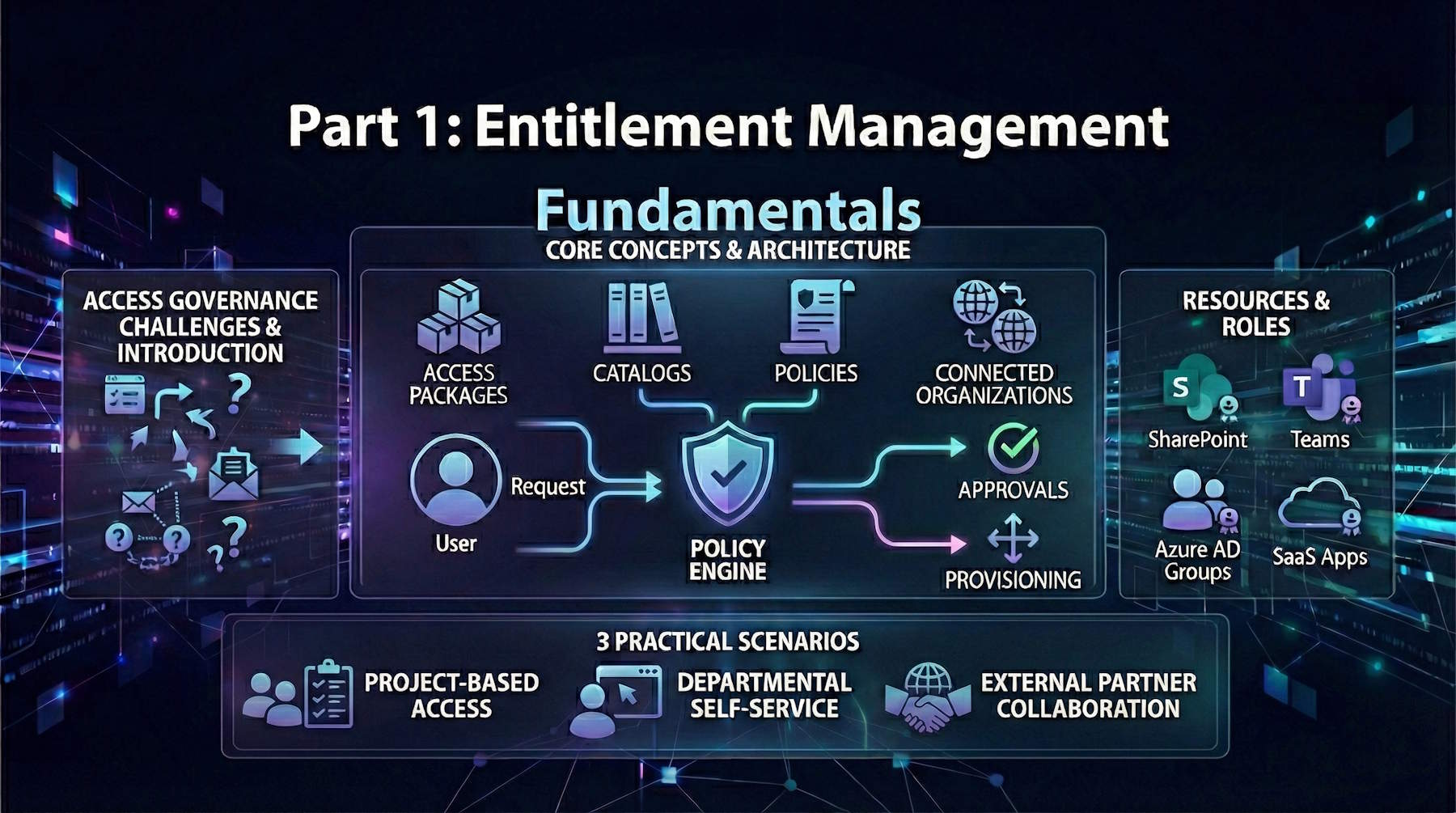
Series Navigation
📍 You are here: Part 1 - Entitlement Management Fundamentals
This is the first post in a comprehensive 4-part series on Microsoft Entra ID Governance:
- Part 1: Entitlement Management Fundamentals (This post) - Core concepts, architecture, and practical implementation scenarios
- Part 2: Advanced Entitlement Management & AI Agent Governance - Privileged access management, managing AI agents at scale, and advanced implementation patterns
- Part 3: ID Protection-Based Approvals Fundamentals - Securing access requests with risk intelligence and approval workflows
- Part 4: Protecting AI Agents with ID Protection - Detailed walkthrough of monitoring and securing autonomous agents with risk-based controls
Introduction
Let's talk about one of the messiest problems in modern IT: managing who gets access to what. If you're in a growing organization, you know exactly what I'm talking about. Employees need access to applications. Contractors need temporary access to project files. Partners need to collaborate on shared systems. And somehow, you're supposed to keep track of all of it, make sure the right people approve things, and—here's the kicker—actually remove access when people don't need it anymore.
Spoiler alert: manual processes don't scale. Spreadsheets break. Email approval chains get lost. Access that should expire in 30 days lingers for years. And when the compliance auditor shows up asking "Who approved this person's access to your financial system?", you better hope you've got an answer.
Microsoft Entra Entitlement Management is designed to fix this entire category of problems. It automates the complete access lifecycle—from the moment someone requests access through approvals, assignments, periodic reviews, and eventual expiration. Think of it as the governance framework that makes access management actually work at scale.
In this post, we'll cover the fundamentals: what entitlement management is, the core concepts you need to understand, and how to implement it for common scenarios. In Part 2, we'll dive deeper into advanced scenarios including privileged access management and—this is where it gets really interesting—governing autonomous AI agents that need access to your resources.
What is Entitlement Management?
Think of Entitlement Management as the backbone of modern access governance. It's a feature that automates the entire lifecycle of who gets access to what—from the initial request through approvals, assignments, periodic reviews, and eventual expiration. Instead of managing access through scattered systems, spreadsheets, or manual processes, you get a centralized, policy-driven platform that handles everything automatically.
It's especially powerful because it scales across departments and handles everything from simple scenarios to complex, multi-stage approval workflows. Whether you're managing access for employees, contractors, partners, or even autonomous agents (more on that in Part 2), it all works through the same consistent framework.
The Access Lifecycle Problem
Let's face it—managing access at scale is messy without the right tools. Here's what typically happens in organizations without structured entitlement management:
Discovery becomes a nightmare. Users don't know what access they should have or how to request it. Managers struggle to keep track of who actually has what. Access requests get lost in email chains, ticketing systems, and personal messages. Nobody has a clear picture of the full scope.
Access never expires. Once someone gets access to something—a project team, a shared file, an application—it often just stays there. People move jobs, projects end, vendors' contracts expire, but their access lingers on. This "access creep" creates a security nightmare.
External access is a mess. When you need to work with suppliers, partners, or contractors, provisioning their access is a manual, error-prone process. And deprovisioning? Even worse. You often have no idea who external users actually are or when their contracts ended.
IT becomes the bottleneck. Every access request flows through central IT or administrators. There's no way to delegate decision-making to department heads or project managers. As the organization grows, this creates massive delays and frustrated users waiting days or weeks for simple access requests.
Compliance audits become stressful. When the auditor asks "Who has access to this application?" or "Why does this person have access to the finance system?", you either can't answer or it takes weeks to figure out. There's no audit trail showing who approved what and when.
Entitlement Management solves all of these problems by automating and standardizing the entire process.
Core Capabilities of Entitlement Management
Self-Service Access Requests with Multi-Stage Approvals:
Users get a self-service portal where they can discover and request access. Behind the scenes, requests flow through approval workflows that you customize. Need manager approval? Done. Need security team sign-off for sensitive access? You've got it. Need both? Easy. And it all integrates with Azure AD groups, Microsoft 365 groups, Teams, SharePoint, and SaaS applications.
Automatic Expiration—Access Doesn't Last Forever:
Here's where it gets powerful. Every access assignment comes with an expiration date. When that date approaches, users get notified and can request renewal, which triggers approvals again. If they don't renew, the access automatically expires and they're removed from groups and applications. This eliminates the "orphaned access" problem that keeps security teams up at night.
Risk-Based Approvals with ID Protection:
You can integrate Microsoft Entra ID Protection into your approval workflow. If a user flagged as risky requests access, the system automatically escalates it to your security team for additional scrutiny. High-risk users might require enhanced approval steps. This means your security team focuses their efforts where they matter most. (We'll cover this in detail in Part 3 and Part 4 of this series.)
Delegate Management to Department Heads:
Stop funneling everything through IT. Department heads and project managers can own their own access policies and manage day-to-day access requests for their domain. This doesn't mean security goes out the window—you set the policies and guardrails, they execute them. Your IT team becomes an enabler, not a bottleneck.
B2B Guest Management That Actually Works:
Managing external users becomes straightforward. You define connected organizations (your partner companies), and when someone from those organizations requests access, they're automatically invited as a guest. When their access expires, their guest account is automatically removed. No more mystery guest accounts lingering in your directory.
Regular Access Reviews and Attestation:
You can configure regular access reviews where managers attest that their team members still need their access. Access that nobody attests to can be automatically removed. This creates a continuous validation process instead of a once-a-year audit nightmare.
Key Concepts and Terminology
Access Packages
An access package is the central concept in entitlement management. It's a bundled collection of all resources and permissions a user needs to work on a project, perform their role, or complete a task.
What goes in an access package?
- Microsoft Entra security group memberships
- Microsoft 365 group and Teams memberships
- Assignments to applications (SaaS and custom-integrated)
- SharePoint Online site memberships
- Microsoft Entra roles (for privileged access)
- API permissions (for modern applications and agents)
Access Package Example:
Imagine an organization has a project called "Project Neptune" that requires:
- Membership in the "Neptune Team" security group
- Access to the "Project Neptune" SharePoint site
- Access to the project management application "Monday.com"
- Temporary access to Azure resources for development work
Rather than manually assigning each of these resources separately, an administrator creates an access package called "Project Neptune Developer" that bundles all these resources together. When someone is approved for this access package, they automatically receive all the required resource assignments.
Think of access packages as pre-configured bundles that represent real-world roles or scenarios. Instead of "Give me access to these 7 different things," users say "I need to be a Project Neptune Developer," and the system handles the rest.
Catalogs
An access catalog is a container that organizes related access packages. Catalogs serve two primary purposes:
1. Organizational Structure: Catalogs help organize access packages by department, project, or business function
2. Delegation: Catalogs allow non-administrators to manage their own access packages
Catalog Owner Responsibilities:
- Add and remove resources from the catalog
- Create access packages within the catalog
- Delegate management to other catalog co-owners or access package managers
- Define policies for who can request access
Example Catalogs:
- HR Department Catalog: Contains access packages for HR tools, payroll systems, and employee data
- Finance Department Catalog: Contains access packages for accounting systems, GL access, and financial reporting tools
- IT Department Catalog: Contains access packages for administrative tools and infrastructure resources
- Project-Based Catalog: Temporary catalog for a specific project with expiring access packages
The catalog structure enables delegation at scale. Your HR director can manage all HR-related access packages without needing global administrator privileges. Your finance team manages finance access. IT manages infrastructure. Each department operates independently within the governance framework you've established.
Policies
A policy is basically the rulebook for an access package. It defines who can request access, who has to approve it, how long they get to keep it, and what happens when it expires. Each access package can have multiple policies, which means you can set different rules for different groups of requesters.
What Does a Policy Control?
- Who can request: Maybe it's all your internal employees, specific departments, external partners, or even autonomous agents
- Who approves: Does the manager approve? Security team? Multiple stages of review?
- How long: Does access last 30 days? 90 days? Forever? Can people extend it?
- Special conditions: Do requesters need to provide justification? Do they need to pass a verified ID check?
The Main Policy Approaches:
Self-Service Request Policies: Users discover access packages through the My Access portal and request what they need. Requests route through your approval workflow. This democratizes access—people don't have to ask IT, they can help themselves (within guardrails).
Direct Assignment Policies: Administrators or managers just assign access directly without a request step. This is useful when you're onboarding someone new and you know exactly what they need, or when you're automating access based on specific criteria like job title or department.
Automatic Assignment Policies (Preview): This is where automation really shines. You define conditions—maybe "anyone in the Finance department with a job title containing 'analyst'"—and access is automatically assigned when those conditions are met. No requests, no approvals needed. Just automatic, instant onboarding based on organizational metadata.
Think of policies as the bridge between "what resources are bundled" (the access package) and "who gets them and for how long" (the governance rules). You might have one access package called "Customer Support Agent" but three policies: one for full-time employees (90-day access, manager approval), one for contractors (30-day access, manager + security approval), and one for emergency responders (7-day access, security only).
Connected Organizations
A connected organization is an external Microsoft Entra directory or domain with which your organization has a relationship. Connected organizations are specified in policies to determine which external identities can request access.
Use Cases:
- Partner organizations collaborating on projects
- Suppliers and vendors needing resource access
- Customers in managed service provider scenarios
- Acquisition and merger scenarios requiring temporary external access
Benefits:
- Enables B2B scenarios without requiring individual invitations
- Provides self-service access provisioning for external users
- Automates provisioning and deprovisioning of B2B users
- Maintains consistent access governance for external identities
When you define a connected organization, you're essentially saying "Users from this external company can request access to specific resources according to our policies." The users authenticate with their home organization's credentials, but get governed by your access policies. When their access expires, their guest account in your directory can be automatically cleaned up.
Requesters: Humans and Beyond
Here's where modern entitlement management gets interesting. Historically, we thought about access governance as exclusively for human users—employees, contractors, partners. But in 2025, that's no longer the full picture.
Who Can Request Access?
- Specific users and groups you designate
- All members in your directory (excluding guests)
- All users including guests (B2B scenarios)
- Specific service principals (applications and services)
- All service principals in your directory
- All agents in your directory (preview) - This is the big change
The ability to extend entitlement management to service principals and autonomous agents means your governance framework works for both humans and machines. An AI agent analyzing security logs can request elevated permissions, get approved by your security team, work with the data it needs, and automatically lose access when the task completes. No static API keys. No permanent over-privileged service accounts. Just governed, time-limited access for everything—human or machine.
We'll explore this in much more detail in Part 2 when we cover managing AI agents at scale.
Resources and Resource Roles
Supported Resources
Entitlement Management can govern access to these resource types:
Microsoft Entra Security Groups:
- Control membership in security groups
- Groups can have member and owner roles
- Security groups are the foundation for many other access controls
Security groups remain one of the most powerful resources because so many other systems trust them. Azure RBAC, Microsoft 365, line-of-business applications—many use security group membership as the basis for access decisions. This means one security group assignment in an access package can cascade into access to dozens of systems.
Microsoft 365 Groups and Teams:
- Control membership in Office 365 unified groups
- Control team membership for Microsoft Teams
- Enables collaboration and communication platform access
When you include a Microsoft 365 group in an access package, users automatically get access to the associated SharePoint site, shared mailbox, Planner boards, and Teams collaboration space. It's a single assignment that opens up an entire collaboration environment.
Applications:
- SaaS applications with SAML/OIDC federation
- Custom-integrated applications supporting SSO
- Applications requiring provisioning/deprovisioning
- Both user assignment and group assignment supported
Applications integrated with Microsoft Entra SSO can be directly included in access packages. When a user receives the package, they're automatically provisioned into the application. When the access expires, they're deprovisioned. This works for thousands of SaaS applications in the Microsoft Entra gallery.
SharePoint Online Sites:
- Modern and classic SharePoint sites
- Site membership, site owner, and custom roles
- Access to both user and group principals
SharePoint sites can be directly included without needing to route through Microsoft 365 groups. This is particularly useful for departmental sites, project sites, or information repositories that don't need the full collaboration suite.
Azure Resources:
- Indirect access through security groups with Azure role assignments
- Groups assigned to Azure RBAC roles control resource access
- Supports time-limited privileged access
For Azure resources, you typically include a security group that's already assigned to Azure RBAC roles (like Contributor, Reader, or custom roles). Users in the access package join the group and inherit the Azure permissions. When access expires, they're removed from the group and lose the Azure permissions.
Microsoft Entra Roles:
- Direct role assignment management
- Assignment through groups to scale role management
- Support for both built-in and custom roles
- Time-limited role activation for privileged access
This is critical for privileged access scenarios. You can include roles like Security Administrator, Exchange Administrator, or custom administrative roles in access packages. Combined with short expiration periods, this creates just-in-time privileged access patterns. We'll explore this in detail in Part 2.
API Permissions (Preview):
Modern applications and agents often need API-level permissions rather than just group memberships or role assignments. You can now bundle specific Microsoft Graph permissions into an access package.
- Delegated permissions (representing user actions)
- Application permissions (for services and agents)
- Fine-grained control over API access
- Enables modern application and agent governance
When you select API Permissions as a resource type, you're granting specific scopes that control what an application or agent can do through Microsoft Graph API. For example:
| Permission Type | Example Permission | What It Does |
|---|---|---|
| Delegated | email |
Application can read user's email address |
| Delegated | offline_access |
Application can refresh tokens when user offline |
| Delegated | openid |
Enables OpenID Connect authentication |
| Application | User.Read.All |
Application can read all user profiles |
| Application | Mail.Send |
Application can send emails as any user |
| Application | SecurityEvents.Read.All |
Application can read security events across organization |
Delegated permissions represent the user's identity—the application can only access what the user themselves could access. Application permissions operate under the application's own identity and are typically more powerful, commonly used for background services and autonomous agents.
The beauty of including API permissions in access packages is that you can combine traditional access (group membership, Teams, SharePoint) with modern API-level permissions in one coherent governance model. We'll see how this works with AI agents in Part 2.
Resource Roles
Each resource supports different role types that define what permissions users have:
Security Group Roles:
- Member: Standard group membership
- Owner: Group management capabilities (can add/remove members, modify group settings)
Application Roles:
- Application-defined roles (typically Custom, Admin, User, etc.)
- Varies by application and custom integration
- Defined by the application developer
SharePoint Roles:
- Member: Read and contribute (can view, add, update, delete content)
- Owner: Full site management (can change settings, permissions, structure)
- Visitor: Read-only access (can view but not modify)
Microsoft 365 Group Roles:
- Member: Standard collaboration access (access to all group resources)
- Owner: Group management capabilities (can manage membership, settings)
Understanding resource roles is important because the same access package might grant different levels of permission depending on the role you assign. A "Finance Team Member" package might grant Member role to the Finance SharePoint site and Finance Microsoft 365 group, while a "Finance Team Lead" package grants Owner roles with management capabilities.
Architecture: How Entitlement Management Works
Understanding the flow of an access request through the entitlement management system helps you design effective policies and troubleshoot issues.
The Access Request Flow
Step 1: User Discovery and Request
- User accesses the My Access portal (https://myaccess.microsoft.com) or an integrated application
- Discovers available access packages based on their eligibility
- Submits request for access package, optionally providing business justification
The My Access portal shows users only the access packages they're eligible to request based on the policies you've configured. If your policy says "Only Finance department can request," users from other departments won't even see it. This prevents request spam and guides users to appropriate access.
Step 2: Eligibility Validation
- System checks if requester meets policy eligibility criteria
- Validates against connected organization membership if applicable
- Checks for user attributes matching automatic assignment rules
Before any approval workflow kicks off, the system validates that the requester is even allowed to ask. If you've configured a policy requiring specific department membership and the requester doesn't match, the request is denied immediately with a clear explanation.
Step 3: Risk Assessment (Optional)
- If ID Protection is configured, system checks user risk level
- High-risk or medium-risk users route to security administrator approval
- Low-risk users proceed through normal approval workflow
This is where risk intelligence enters the picture. We'll cover this extensively in Part 3 and Part 4, but the key concept is that compromised accounts don't just sail through normal approval workflows. The system automatically detects risk and adds security review steps.
Step 4: Approval Routing
- Request routes to designated approvers based on policy
- Multi-stage approvals proceed sequentially (Stage 1 completes before Stage 2 begins)
- Approvers review request details and make approval decisions
- Each approver can add comments explaining their decision
- Audit logs record all approval actions with timestamps
Approval workflows can be as simple or complex as needed. A basic access package might just need manager approval. A sensitive data access package might require manager approval, then department head approval, then security team approval. Each stage must complete successfully before proceeding to the next.
Step 5: Access Assignment
- Upon final approval, access package assignment is created
- User is added to all resource groups and applications in package
- Assignment receives expiration date per policy configuration
- User receives notification that access has been granted
- Audit logs record assignment creation with full details
This is where the magic happens. The system automatically provisions the user into every resource in the access package. If the package contains 5 security groups, 2 Microsoft 365 groups, 3 applications, and a SharePoint site, all 11 assignments happen automatically. No manual IT work required.
Step 6: Access Review and Renewal
- As expiration approaches, user receives renewal notification (typically 14 days before expiration)
- Manager or owner may be notified to attest continued need
- User can request renewal through My Access portal
- Renewal request triggers new approval workflow (can be same or different approvers)
- If approved, expiration date extends based on policy
This renewal process prevents access from becoming permanent by default. Users must actively request continuation and get re-approved. If a user has moved to a different project or role, the renewal request provides a natural checkpoint to remove access that's no longer needed.
Step 7: Access Expiration and Cleanup
- On expiration date, user is automatically removed from all resources in the package
- For B2B users with no remaining assignments, guest account may be automatically removed
- User receives notification that access has been revoked
- Audit logs record removal actions
- Compliance reporting captures complete lifecycle events
Expiration is automatic and requires no administrative action. The user is cleanly removed from all resources, eliminating "access creep" where permissions accumulate over time. This automatic cleanup is one of the most powerful features for maintaining security and compliance.
Request Processing with Multiple Policies
Access packages can have multiple policies for different requester populations. When a user submits a request, the system intelligently routes it through the appropriate policy:
Scenario: Access package "Customer Data Analytics" has three policies:
1. Policy 1: For internal Finance department members (90-day access, manager approval)
2. Policy 2: For internal IT department members (30-day access, manager + data governance approval)
3. Policy 3: For external auditors from connected organizations (14-day access, finance director + security approval)
When a user requests access, the system:
1. Determines which policy applies based on the requester's attributes
2. Routes through that policy's specific approval workflow
3. Applies that policy's expiration settings
4. Uses that policy's renewal rules
This allows tremendous flexibility. The same set of resources can have completely different governance rules depending on who's requesting access. You maintain security without creating separate access packages for every possible scenario.
Practical Implementation Scenarios
Let's walk through some real-world scenarios that demonstrate how entitlement management solves common problems.
Scenario 1: Project-Based Access
Situation: An organization runs multiple concurrent projects, each requiring different resource access. Team members join and leave projects frequently, and access should automatically expire when projects end.
Challenge: Without entitlement management:
- IT manually adds users to 5-10 different groups and applications per project
- Nobody tracks when project access should end
- When projects complete, access lingers indefinitely
- Audit reports show former project members still have access months later
Solution with Entitlement Management:
Step 1: Create Project Catalog
- Create catalog called "Active Projects"
- Assign project manager as catalog owner
- Add resources needed for projects (SharePoint, Teams, Azure DevOps, development tools)
Step 2: Create Project-Specific Access Packages
For "Project Phoenix":
- Access package includes:
- "Project Phoenix Team" security group
- "Project Phoenix" Microsoft 365 group and Teams team
- Azure DevOps project access
- SharePoint project site membership
- Development tools (Visual Studio subscription, Azure subscription access)
Step 3: Configure Policy
- Eligibility: Any internal employee can request
- Approvers: Project manager must approve
- Expiration: 6 months (aligned with project timeline)
- Renewal: Requires project manager approval
- Access reviews: Quarterly review by project manager
Step 4: Users Self-Service Request Access
- New team member joins project
- Goes to My Access portal, discovers "Project Phoenix Developer" package
- Submits request with justification: "Joining Phoenix team as backend developer"
- Project manager receives notification and approves
- User automatically provisioned to all project resources within minutes
Step 5: Automatic Lifecycle Management
- At 5.5 months, user receives renewal notification
- If project still active, user requests renewal, project manager approves, access extends
- If project completing, user doesn't renew, access automatically expires at 6 months
- User automatically removed from all project resources
- No manual cleanup required
Benefits:
- No manual provisioning: User gets all project access in one operation
- Automatic cleanup: Access expires when project ends
- Clear visibility: Project manager sees all current team members in one place
- Compliance reporting: Complete audit trail of who had access and when
- Reduced IT workload: Project manager handles approvals, IT just sets up the initial package
This pattern works for any temporary grouping: projects, task forces, special initiatives, crisis response teams, merger integration teams, etc.
Scenario 2: Departmental Self-Service
Situation: HR department wants to manage its own access policies without involving central IT. Different HR roles need different access levels and approval processes.
Challenge: Without entitlement management:
- Every HR access request goes through central IT ticketing
- IT doesn't understand HR-specific access needs
- Approvals are slow because IT must involve HR managers anyway
- HR can't see who has what access
- No structured process for temporary access (like covering someone's role)
Solution with Entitlement Management:
Step 1: Create HR Catalog
- Create catalog called "HR Department"
- Assign HR Director as catalog owner
- HR Director delegates to HR IT liaison as co-owner
- Add all HR resources to catalog:
- HRIS system access
- Payroll system access
- Benefits administration tools
- Employee data security groups
- HR SharePoint sites and teams
Step 2: Create Role-Based Access Packages
Package: "HR Generalist"
- Resources:
- Basic HRIS read access
- Employee directory access
- HR team SharePoint sites
- HR communication Teams
- Policy:
- Auto-assigned to anyone with job title containing "HR Generalist"
- No approval required (automatic)
- Indefinite access (while job title matches)
Package: "Payroll Processor"
- Resources:
- Payroll system write access
- Compensation data security group
- Payroll SharePoint site
- Financial reporting tools access
- Policy:
- Available to HR department members
- Requires Payroll Manager approval
- 1-year expiration with annual renewal
Package: "Benefits Administrator"
- Resources:
- Benefits administration system
- Insurance provider portals
- Benefits SharePoint site
- Employee benefits data access
- Policy:
- Available to HR department members
- Requires HR Director approval
- 1-year expiration with renewal
Package: "Temporary HR Coverage"
- Resources: (same as HR Generalist)
- Policy:
- Available to any employee (not just HR)
- Requires HR Manager approval with justification
- 30-day expiration
- Renewal requires re-justification
- Used when non-HR staff cover HR roles temporarily
Step 3: HR Manages Their Own Access
- New HR Generalist hired → automatic access package assignment based on job title
- Existing employee needs payroll access → requests through My Access, Payroll Manager approves
- Finance team member covering HR during leave → requests "Temporary HR Coverage," provides justification, HR Manager approves for 30 days
- All approvals handled by HR leadership, no IT involvement
Step 4: Quarterly Access Reviews
- System automatically triggers quarterly reviews
- HR managers review their team's access packages
- Attest that each person still needs their current access
- Remove access for anyone who's changed roles or no longer needs specific packages
Benefits:
- HR autonomy: HR manages their own access without IT bottlenecks
- Faster provisioning: New hires get access immediately via automatic assignment
- Temporary access handled correctly: 30-day temporary coverage actually expires
- Clear visibility: HR Director can see all access packages and current assignments
- Reduced IT workload: IT sets up framework once, HR operates it ongoing
- Better security: Access reviews ensure people don't accumulate unnecessary access
This pattern works for any department that wants ownership of their access governance: Finance, Legal, Operations, Marketing, Sales, etc.
Scenario 3: External Partner Collaboration
Situation: Organization regularly collaborates with supply chain partners who need temporary access to shared resources. Manual provisioning is slow and deprovisioning is inconsistent.
Challenge: Without entitlement management:
- Each external partner requires manual guest account creation
- IT manually adds them to relevant groups and shares
- Nobody tracks when partner contracts end
- Guest accounts linger indefinitely after partnerships end
- Audit reports show hundreds of orphaned guest accounts
- Security risk from unmanaged external access
Solution with Entitlement Management:
Step 1: Define Connected Organizations
- Add partner companies as connected organizations:
- "Contoso Manufacturing" (parts supplier)
- "Fabrikam Logistics" (shipping partner)
- "Adventure Works" (distribution partner)
- For each connected organization, specify their domain (contoso.com, fabrikam.com, adventureworks.com)
- When users from these domains request access, they're automatically recognized
Step 2: Create Partner Collaboration Catalog
- Create catalog called "Partner Collaboration"
- Assign Supply Chain Director as catalog owner
- Add resources for partner collaboration:
- "Partner Collaboration" SharePoint site
- "Supply Chain Partners" Microsoft 365 group and Teams
- Shared project workspaces
- Partner portal application access
Step 3: Create Partner Access Packages
Package: "Supplier Portal Access"
- Resources:
- Supplier portal application
- Read-only access to order system
- Supplier documents SharePoint site
- Policy:
- Available to users from Contoso Manufacturing and other supplier connected orgs
- Requires Supply Chain Manager approval
- 90-day expiration aligned with quarterly review cycles
- Renewal requires re-approval
Package: "Joint Project Collaboration"
- Resources:
- Project-specific Teams team
- Project SharePoint site
- Shared planning tools
- Policy:
- Available to users from any defined connected organization
- Requires Project Lead + Security Team approval (two-stage)
- 180-day expiration (typical project length)
- Renewal requires business justification
Step 4: Partner Self-Service Access
1. External partner employee (alice@contoso.com) needs access to supplier portal
2. Alice goes to organization's My Access portal URL (shared by Supply Chain Manager)
3. Alice sees "Supplier Portal Access" package (because she's from Contoso, a connected organization)
4. Alice requests access with justification: "Need to submit invoices and track orders"
5. Supply Chain Manager receives approval request
6. Supply Chain Manager verifies Alice is legitimate Contoso employee and approves
7. System automatically:
- Creates guest account for alice@contoso.com in organization's directory
- Adds Alice to supplier portal
- Adds Alice to SharePoint site with appropriate permissions
- Sets 90-day expiration
- Sends Alice welcome email with access instructions
Step 5: Automatic Cleanup
- At 90 days, system sends Alice renewal notification
- If Contoso contract still active, Alice requests renewal, Supply Chain Manager approves
- If partnership ended or Alice left Contoso:
- Access expires at 90 days
- Alice automatically removed from all resources
- If Alice has no other access packages, guest account automatically deleted
- Complete cleanup with zero manual work
Step 6: Reporting and Compliance
- Supply Chain Director views dashboard showing:
- Current partner access (who, what, expires when)
- Pending renewal requests
- Recently expired access
- Security team gets reports on external user access
- Audit team gets complete history of partner access approvals
Benefits:
- Self-service for partners: Partners request their own access instead of calling or emailing
- Automatic provisioning: Guest accounts and permissions created automatically
- Automatic deprovisioning: Access expires and gets cleaned up automatically
- Clear audit trail: Every external access decision is documented
- Reduced security risk: No orphaned guest accounts lingering forever
- Compliance ready: Can instantly answer "Who are our external users and why do they have access?"
This pattern is critical for any organization working with external partners, suppliers, contractors, consultants, or customers who need access to internal resources.
What's Next in This Series
In this post, we've covered the fundamentals of Microsoft Entra Entitlement Management: the core concepts, architecture, and three common implementation scenarios. You should now understand how access packages, catalogs, policies, and connected organizations work together to create automated, governed access lifecycles.
In Part 2: Advanced Entitlement Management & AI Agent Governance, we'll explore:
- Scenario 4: Privileged access management with time-limited assignments
- Scenario 5: Managing AI agent access at scale (detailed walkthrough)
- Licensing requirements and planning
- Key benefits quantified
- Comparison with other access management approaches
- Common implementation patterns and best practices
- How to govern service principals and autonomous agents requesting access
- API permissions as resources for modern applications
- Automatic assignment policies for zero-touch onboarding
In Part 3: ID Protection-Based Approvals Fundamentals, we'll dive into:
- Understanding the security challenge of compromised accounts
- What Microsoft Entra ID Protection is and how it detects risk
- How to configure ID Protection-based approvals
- The Security Administrator review process
- Integrating with Azure data access governance
- Real-world scenarios and decision frameworks
In Part 4: Protecting AI Agents with ID Protection, we'll cover:
- Why AI agents are different (and more dangerous) when compromised
- ID Protection for Agents risk detection capabilities
- Monitoring agent behavior and access patterns
- Applying risk-based approvals to agent access requests
- Managing and remediating risky agents
- Real-world scenarios of agent compromise and response
- Best practices for agent protection at scale

References
- Microsoft Entra ID Governance Overview
- What is entitlement management?
- Microsoft Entra ID Governance licensing fundamentals
- Create and manage a catalog of resources in entitlement management
- My Access Portal
Continue to: Part 2 - Advanced Entitlement Management & AI Agent Governance →