


In my previous post I looked at OIDC federation in Entra External ID and how it compares to traditional B2B guest accounts. That post focused on the external tenant side of the picture — consumer-facing identity and partner federation from an External ID tenant.
This time I want to cover the other scenario: collaboration between workforce tenants. When Contoso (your company) works with Fabrikam (a partner), both running full Microsoft Entra ID tenants, the control surface is cross-tenant access settings. These settings live under External Identities in the Entra admin center, but they're specifically for workforce-to-workforce tenant interactions — not for External ID external tenants.
The controls here are more granular than most admins realize. Let's walk through what they actually do.
What Are Cross-Tenant Access Settings?
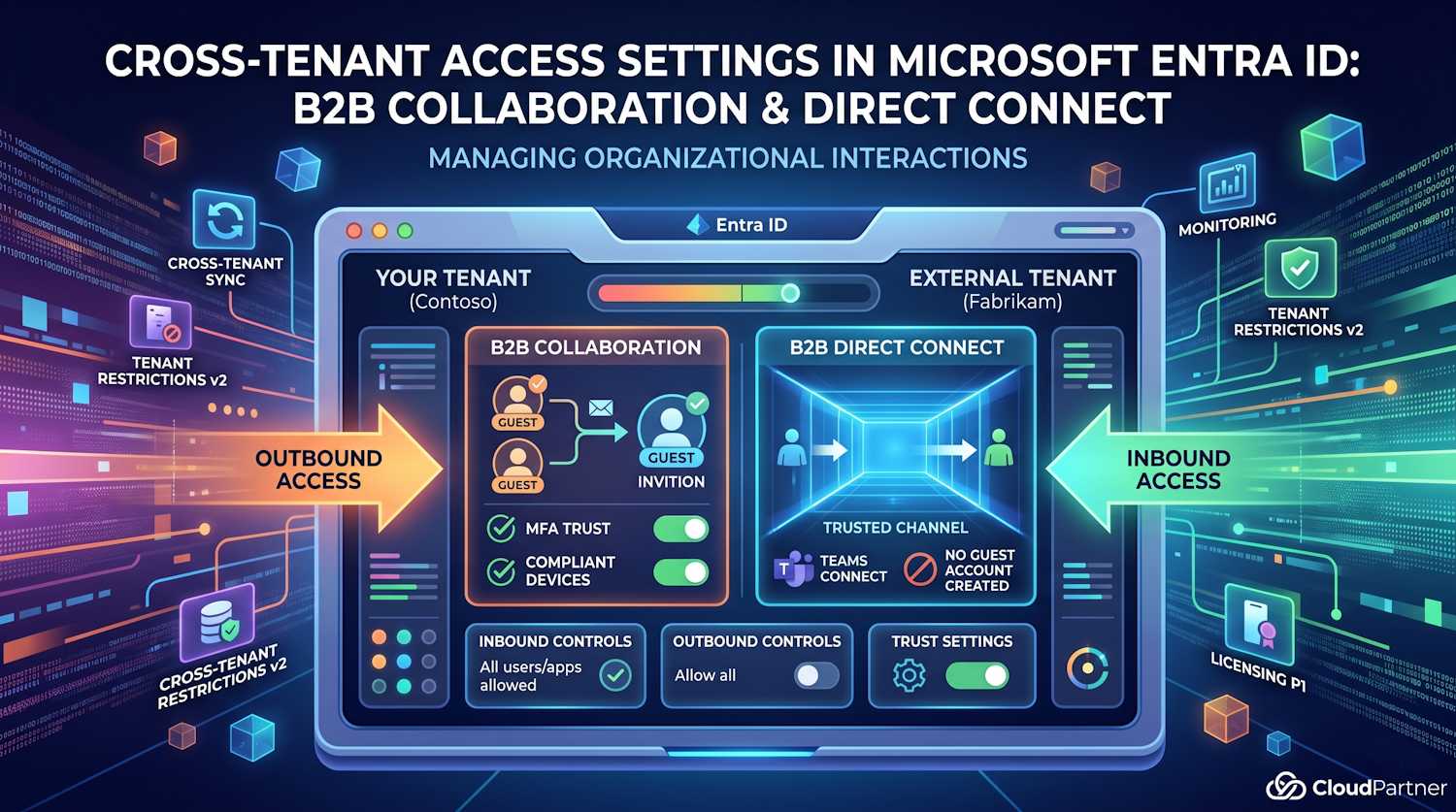
Cross-tenant access settings are a set of policies in your Microsoft Entra ID tenant that control how users in your tenant interact with other Microsoft Entra organizations, and vice versa. They apply in two directions:
- Outbound: controls which of your users can access resources in external organizations
- Inbound: controls which external users can access resources in your tenant
These settings apply to two distinct collaboration models: B2B collaboration (the classic guest model using invitations) and B2B direct connect (a newer model that creates a trusted channel without guest accounts). Both are configured through the same interface, but they behave quite differently.
You configure these settings in the Entra admin center under Identity > External Identities > Cross-tenant access settings. You need at least the Security Administrator role to make changes. Read access is available to Teams administrators, but they can't update settings.
What's Enabled by Default?
Before you configure anything, it's worth understanding the out-of-the-box state. A fresh tenant has:
- B2B collaboration inbound: Allowed — any Microsoft Entra user from any external org can be invited as a guest
- B2B collaboration outbound: Allowed — your users can accept invitations to any external org
- B2B direct connect inbound: Blocked — completely disabled
- B2B direct connect outbound: Blocked — completely disabled
- MFA trust: Not trusted — Entra ID will always challenge external users for MFA in your tenant, even if they already completed MFA at home
- Compliant device trust: Not trusted
- Hybrid joined device trust: Not trusted
- Organizational settings: None configured (default settings apply to all external orgs)
Important: If you're thinking about tightening defaults, first use the cross-tenant sign-in workbook in Azure Monitor to understand which external organizations your users are already interacting with. Blocking by default without that audit will break existing business-critical access.
B2B Collaboration vs B2B Direct Connect
These two models are often confused because they live in the same settings panel, but they work completely differently.
| Aspect | B2B Collaboration | B2B Direct Connect |
|---|---|---|
| Guest account created? | Yes — object in your tenant with UserType=Guest | No — user stays in their home tenant |
| Invitation required? | Yes (or cross-tenant sync) | No — mutual trust enables direct access without invitations |
| Default state | Allowed (both directions) | Blocked (both directions) |
| Setup requirement | One side invites, other accepts | Both orgs must explicitly enable each other |
| Current use cases | Broad — SharePoint, Teams, apps, cross-tenant sync | Teams Connect (shared channels) |
| Licensing for granular control | P1 for scoping to specific users/groups/apps | P1 required in both tenants |
| Cross-cloud support | Yes (with cloud settings configured) | No — same cloud only |
In practice, most organizations only use B2B collaboration. B2B direct connect is primarily relevant if you're working with Microsoft Teams shared channels across organizations, which requires both orgs to have it enabled for each other explicitly.
Default vs Org-Specific Settings
Cross-tenant access settings have two tiers: default settings that apply to all external organizations you haven't specifically configured, and organizational settings for named partners.
The default settings tab is your global baseline. If you do nothing, everyone inherits those settings. Organizational settings let you say "for Contoso's partner Northwind, use these specific rules instead." Org-specific settings override defaults entirely for that tenant.
To add an organization, you go to the Organizational settings tab and add the partner's domain name or tenant ID. At that point the org inherits default settings, and you can then customize from there.
Note: You can't target specific users or groups in inbound default settings — that granularity is only available at the organizational settings level. Default settings apply all-or-nothing.
Inbound Access Controls
Inbound settings control who from external organizations can access your resources. For B2B collaboration, this means which external users can be invited as guests and which of your applications those guests can access.
For each direction you have two tabs to configure:
- External users and groups: which users from the external org are allowed in (all, or specific user/group IDs — the latter requires P1)
- Applications: which of your apps those users can reach (all, or specific app IDs — also requires P1 for scoping)
One thing that catches people out: if you block all external users and groups, you also need to block all applications. And if you block all applications, you also need to block all users. The two tabs have to be consistent — you can't leave one open while closing the other.
When scoping to specific applications for an allowlist scenario, remember to include the Microsoft apps that guests need just to function. If you restrict to only SharePoint Online but forget to allow the My Apps portal or the MFA registration app, guests won't be able to register for MFA in your tenant when required. The most critical ones to allow:
- My Apps (
2793995e-0a7d-40d7-bd35-6968ba142197) — landing page after invitation redemption - Microsoft App Access Panel
(
0000000c-0000-0000-c000-000000000000) — needed for MFA registration flows - My Sign-ins (
19db86c3-b2b9-44cc-b339-36da233a3be2) — required if guests need to register for MFA in your tenant - My Profile (
8c59ead7-d703-4a27-9e55-c96a0054c8d2) — My Groups, My Access portals
Some of these can't be added through the admin center and require a Graph API PATCH request. For example:
PATCH https://graph.microsoft.com/v1.0/policies/crossTenantAccessPolicy/partners/<partner-tenant-id>
{
  "b2bCollaborationInbound": {
    "applications": {
      "accessType": "allowed",
      "targets": [
        { "target": "2793995e-0a7d-40d7-bd35-6968ba142197", "targetType": "application" },
        { "target": "0000000c-0000-0000-c000-000000000000", "targetType": "application" },
        { "target": "8c59ead7-d703-4a27-9e55-c96a0054c8d2", "targetType": "application" },
        { "target": "19db86c3-b2b9-44cc-b339-36da233a3be2", "targetType": "application" }
      ]
    }
  }
}
Important: A PATCH to the applications list overwrites whatever's there. Before sending it, run a GET on the same endpoint to retrieve the current config and include all existing entries in your update.
Trust Settings
This is where things get practically useful. Trust settings let you accept MFA and device state claims from external organizations, so your Conditional Access policies don't demand re-authentication from guests who've already passed those checks at home.
There are three trust options:
- Trust MFA from external tenants: If the user already completed MFA in their home tenant, Entra ID accepts that claim and won't re-challenge them. Without this, guests get an MFA prompt in your tenant regardless of what they did at home.
- Trust compliant devices: Accept the partner org's Intune compliance claim. A device that's compliant in Fabrikam's tenant is treated as compliant in yours.
- Trust Microsoft Entra hybrid joined devices: Accept hybrid-join claims from the partner's domain.
None of these are enabled by default. Enabling MFA trust in particular makes a real difference to the guest experience — without it, guests from a well-managed partner organization will still face MFA prompts every session in your tenant, even after completing MFA at home. That's double friction for no additional security if you already trust the partner's MFA setup.
Note on GDAP: If an external user signs in through granular delegated admin privileges (GDAP) — typical for Cloud Service Provider technicians — MFA trust doesn't apply. MFA is always required in the user's home tenant for GDAP access, and it's always accepted in the resource tenant. The settings above don't affect that flow.
Trust settings require Microsoft Entra ID P1 to configure. Free tier tenants see the options but can't set them.
Automatic Redemption
Automatic redemption is a paired setting — it has to be enabled on both sides to take effect. When both your tenant and a partner tenant check the "automatically redeem invitations" box for each other, users won't see a consent prompt or receive an invitation email when they first access resources through:
- Cross-tenant synchronization
- B2B collaboration
- B2B direct connect
This is useful for managed internal-external collaboration within a company group or between known partners. Without it, every new guest gets an email they have to click through, and every first-time access prompts a consent screen. With it, the whole thing just works without user friction.
You configure automatic redemption under Trust settings at the organizational level (not available in default settings). You need to set it on both the inbound side in your tenant and the outbound side of the partner tenant — or vice versa. Both directions have to have it checked.
Redemption Order
When a guest accepts an invitation, Entra ID has to decide which identity provider to send them to for authentication. The redemption order tab lets you control that sequence.
The default order is: Microsoft Entra ID (home tenant) → SAML/WS-Fed federation → social identity providers. The fallback providers (if none of the primary ones match) are Microsoft accounts and email one-time passcode.
You can change this order, and you can also disable specific fallbacks. If you want to prevent guests from using a Microsoft personal account to redeem an invitation, you can disable the MSA fallback — but you must leave email OTP enabled, since at least one fallback has to remain active.
For partners who have set up SAML/WS-Fed direct federation with you, you can move that provider to the top of the order so they always authenticate through their own IdP rather than through Entra ID.
Redemption order is also configurable via the Graph API:
PATCH https://graph.microsoft.com/beta/policies/crossTenantAccessPolicy/default
{
  "invitationRedemptionIdentityProviderConfiguration": {
    "primaryIdentityProviderPrecedenceOrder": ["ExternalFederation", "AzureActiveDirectory"],
    "fallbackIdentityProvider": "defaultConfiguredIdp"
  }
}
Outbound Access Controls
Outbound settings mirror inbound, but from your perspective: which of your users can access external organizations, and which external apps they can reach.
Most organizations leave outbound settings open (allow all) and focus on inbound. But there are legitimate reasons to restrict outbound — for example, if you want to prevent specific groups of users (contractors, interns, temp staff) from taking your data to external tenants by sharing via B2B collaboration.
Outbound also has the automatic redemption option (at the organizational settings level), and this is the side you need to configure when a partner tenant has set up automatic redemption for inbound from you.
Note: Users with SMS-based authentication configured can't be targeted in outbound settings through the admin center. Use the Graph API to add their object IDs directly, or put them in a group and target the group instead.
Cross-Tenant Synchronization
The inbound settings for an organizational partner include a Cross-tenant sync tab. This is where the target tenant (the one receiving synchronized users) allows the source tenant to push users in.
Cross-tenant synchronization is a one-way service that automates creating, updating, and deleting B2B collaboration users across tenants in a multi-tenant organization. Think of a company with separate Entra tenants for different regions or subsidiaries — cross-tenant sync keeps users visible to each other without manual guest invitations.
The setting on the inbound cross-tenant sync tab is simply a checkbox: "Allow users sync into this tenant." The source tenant configures the sync job; the target tenant enables receiving it here. Without that checkbox enabled in the target, the sync will fail even if the source is configured correctly.
Tenant Restrictions v2
Tenant restrictions are a separate but related feature. While cross-tenant access settings control what external users can do in your tenant, tenant restrictions control what accounts your users can access on managed devices — regardless of which tenant those accounts belong to.
The problem it solves: a user on a corporate device opens a browser, signs into a personal Microsoft account or a competitor's Entra tenant, and starts moving data around. Without tenant restrictions, you can't stop this at the network level. Tenant restrictions v2 lets you block authentication to any tenant except the ones you explicitly allow — the enforcement happens at the OS or proxy layer.
This is configured independently of cross-tenant access settings. They're complementary: cross-tenant access controls the B2B collaboration policies; tenant restrictions control what happens on managed devices at the authentication layer.
Microsoft Cloud Settings
If your organization needs to collaborate with a partner in a different Microsoft cloud — say, Azure Government (GCC-High or DoD) or Azure operated by 21Vianet — there's a dedicated Microsoft cloud settings configuration step.
B2B collaboration can work cross-cloud, but it doesn't happen automatically. Both organizations need to configure cloud settings to allow it. The steps are the same: one admin enables the cross-cloud collaboration from their side, and the admin at the other org does the same.
B2B direct connect doesn't work cross-cloud at all. If you need cross-cloud collaboration, B2B collaboration is the only option.
Licensing Requirements
This is the part that surprises people. The basic B2B collaboration defaults — allow everyone or block everyone — work with a free Entra ID plan. But as soon as you want any granularity, you need licenses.
| Feature | License needed | Where? |
|---|---|---|
| Scope B2B collab to specific users/groups | Entra ID P1 | Inbound or outbound |
| Scope to specific applications | Entra ID P1 | Inbound or outbound |
| MFA trust / device trust settings | Entra ID P1 | Trust settings tab (inbound) |
| B2B direct connect (any use) | Entra ID P1 in both tenants | Both orgs |
| Scope B2B direct connect to specific users/groups/apps | Entra ID P1 in configuring tenant | Inbound settings |
So if you're planning to restrict B2B collaboration to only specific users or apps on a per-partner basis, P1 is a requirement. Free and P2 tenants do get P2's superset of P1 features, but if you're on the Microsoft 365 Business Standard plan without a separate Entra license, you'll hit these limits.
Practical Gotchas
A few things that aren't obvious from reading the docs:
Don't block apps required for MFA registration. If you restrict inbound
applications to a specific allowlist, any app not on that list is blocked. This includes
the authentication registration portals. If your Conditional Access policy requires
guests to register for MFA in your tenant (because you're not trusting their home
tenant's MFA), and you've blocked the registration app, they'll be stuck in a loop —
Conditional Access requires MFA, but they can't register for MFA because the app is
blocked. Include app ID 0000000c-0000-0000-c000-000000000000 to prevent
this.
For Rights Management / Office Message Encryption: If you use Azure
Rights Management or Microsoft Purview Message Encryption, you need to allow the Rights
Management Services app ID (00000012-0000-0000-c000-000000000000) in your
outbound settings. Otherwise encrypted emails can't be opened by external recipients who
are accessing decryption keys from your tenant.
SharePoint and OneDrive have their own list. If you use SharePoint or OneDrive's native sharing features (with Entra B2B integration enabled), the external collaboration settings domain allow/block list is checked at invitation time in addition to cross-tenant access settings. Even if you've added a partner org in cross-tenant settings, invitations from SharePoint can still fail if that domain isn't on the external collaboration allowlist.
Removing an org from organizational settings just reverts it back to default settings — it doesn't block them. If you want to actually block a previously-configured partner, you need to set block access in the default settings, or configure a blocking org-specific setting before removing.
Cross-tenant access settings and allow/block lists are both checked on invitation. If a domain is on your allowlist in external collaboration settings, users from that domain can be invited — unless that domain is explicitly blocked in cross-tenant access settings. If the domain is on your blocklist in external collaboration settings, they can't be invited regardless of cross-tenant settings.
Monitoring and Audit
A few tools help you understand what's actually happening across tenant boundaries:
- Audit logs: Filter by category
CrossTenantAccessSettingsto see configuration changes - Cross-tenant access activity workbook in Azure Monitor: Shows inbound and outbound sign-in patterns across external orgs
- MSIdentityTools PowerShell module: Has cmdlets for querying cross-tenant sign-in activity
- Get-MgAuditLogSignIn: Graph SDK cmdlet for programmatic access to sign-in logs including cross-tenant activity
The workbook is particularly useful before you start tightening defaults — it shows you which external tenants your users are actively signed into, and which external users are signing into your resources. Run it before making any restricting changes.
Protected Actions and Custom Roles
If you're running a mature Entra governance setup, two more features are worth knowing about:
Protected actions: You can require Conditional Access step-up authentication before cross-tenant access settings can be changed. This means even a Security Administrator would need to satisfy a specific CA policy (e.g., phishing-resistant MFA) before modifying these settings. It's a useful control for preventing accidental or unauthorized changes to cross-tenant trust configuration.
Custom roles: You can create custom Entra ID roles scoped specifically to managing cross-tenant access settings. This is handy if you want to delegate this to a team without giving them full Security Administrator rights.
Further Reading
The Microsoft Learn documentation covers each piece in detail: