


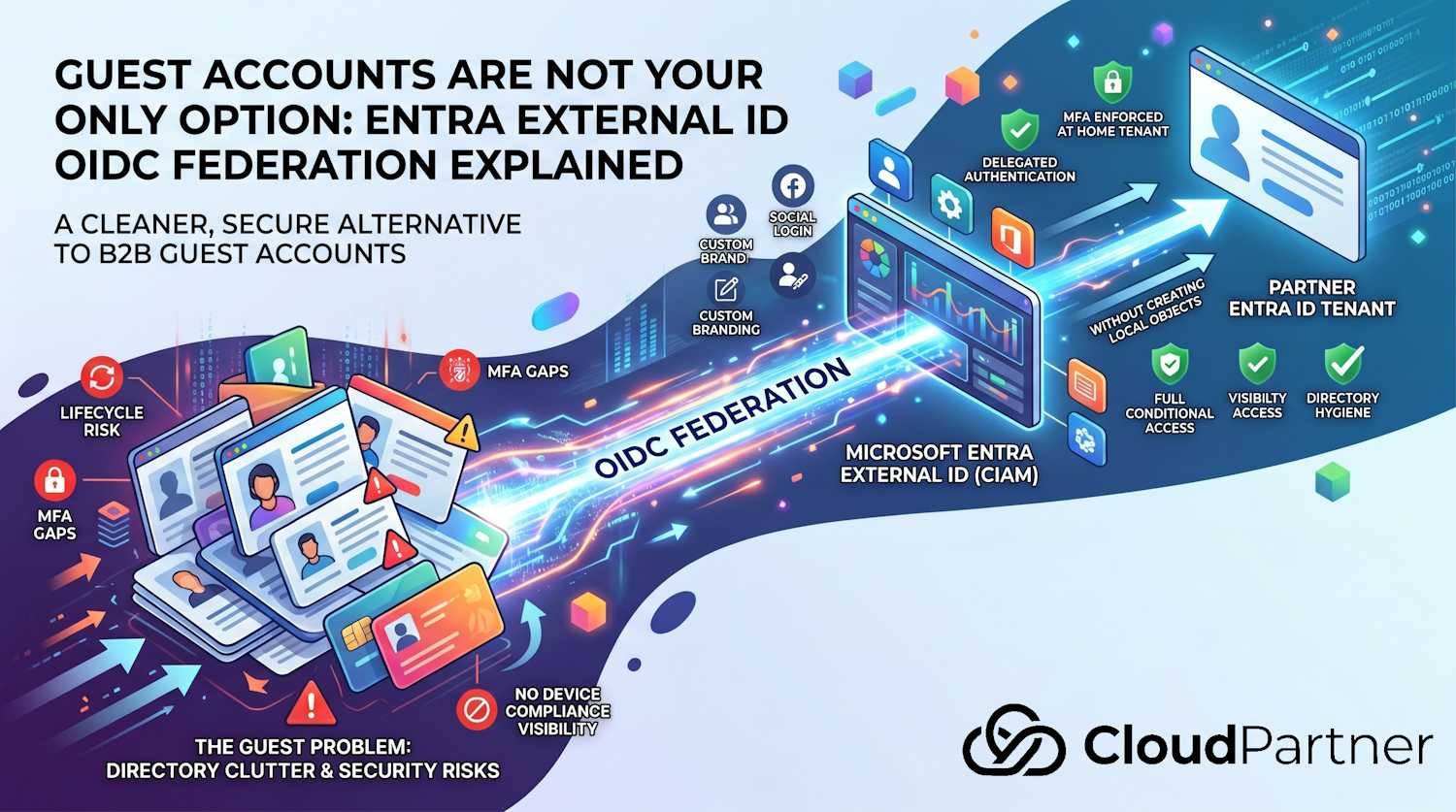
Guest accounts are one of those features that everyone ends up using by default because they're the path of least resistance. Partner needs access? Invite them as a guest. Contractor needs to join a Teams call? Guest. Auditor needs to review SharePoint? Guest. Before long, your tenant has hundreds of external user objects, most of them touched once and then forgotten.
There's a better model for a specific set of scenarios: OIDC federation between your Microsoft Entra External ID external tenant and another Entra ID tenant. Microsoft published a preview guide for setting this up, and I want to use it as a hook to explain both what guest accounts actually are, why they create security problems, and when federation is the cleaner answer.
What Are Guest Accounts?
A B2B guest account is an object created in your Entra ID tenant that
represents an external user. When you invite someone from another organization, Entra ID
creates a user record in your tenant with UserType = Guest. Their
authentication can happen one of two ways:
- Federated to their home tenant: The user is redirected to sign in at their own organization, and your tenant receives a claim that they authenticated successfully. The guest object in your tenant acts as a reference point.
- One-time passcode (OTP): If the user's home tenant isn't recognized as a trusted provider, Entra ID falls back to sending a temporary code to their email address.
Either way, you end up with a user object in your directory. That object has a lifecycle: it was created when the invitation was sent, it needs to be governed, it needs access reviews, and it needs to be cleaned up when the relationship ends. Most organizations are not doing any of that reliably.
Why Guest Accounts Exist (The Legitimate Cases)
Guest accounts make sense when you need to give an external person first-class access to your tenant's resources: Teams channels, SharePoint sites, Microsoft 365 apps, Power BI workspaces. The guest model integrates cleanly with Microsoft 365's collaboration features because the guest object participates in the tenant's group memberships and permissions model.
They also make sense for small-scale, short-term scenarios. If you have a handful of partners who genuinely work inside your environment on an ongoing basis, managing guest accounts is reasonable overhead.
Where it breaks down is at scale, in customer-facing applications, or anywhere the external users are not really "working inside your tenant"—they just need to authenticate to access something you're publishing.
The Security Problems Guest Accounts Bring
Stale Account Accumulation
Guest accounts don't expire automatically. The invitation is sent, the account is created, and the person authenticates. Then the project ends, the contractor moves on, the partner changes contacts. The guest object stays. Six months later it's still there, still potentially usable, and probably not in anyone's access review scope.
I've seen tenants with thousands of guest accounts where fewer than 10% showed any sign-in activity in the past 90 days. That's a large attack surface of accounts that nobody is actively watching.
The MFA Gap
This one catches people. When a guest account authenticates, the MFA check happens at the resource tenant (yours) or the home tenant (theirs), depending on your Conditional Access setup and the trust configuration. The default behavior is that your Conditional Access policies apply to guests, but the MFA claim can be satisfied by MFA that was performed at the home tenant.
The problem: you don't control the home tenant's MFA standards. A guest from a small partner organization with no Conditional Access policy, using SMS-based MFA, can satisfy your MFA requirement with a weaker authentication method than you'd require from your own users.
You can configure cross-tenant access settings to explicitly require your own MFA (rather than trusting the home tenant's claim), but this isn't the default, and most tenants don't configure it. It also adds friction for the guest because they may need to register for your tenant's MFA even though they already have their own.
No Device Compliance Visibility
If your Conditional Access policies require compliant devices for access, those policies become complicated for guests. A guest's device is managed by their organization, not yours. Their MDM is Intune (maybe), or JAMF, or something else entirely, and their device compliance signals aren't visible to your tenant's Conditional Access engine unless you've explicitly configured cross-tenant device trust.
In practice, many organizations carve out exceptions in their Conditional Access policies for guests specifically to avoid blocking them. That exception becomes a permanent condition that nobody revisits.
Directory Clutter and Governance Overhead
Every guest account is a user object in your tenant. For a large enterprise with active partner relationships, this can be thousands of objects. They show up in user listings, they consume license capacity in some scenarios, and they require governance tooling (access reviews in Entitlement Management, ideally) to manage properly.
Access reviews work, but they require someone to own them. The reviewer sees a list of guest accounts and is asked "does this person still need access?" — and often the reviewer doesn't know who half these people are anymore.
The Mixed Branding Sign-In Experience
This is more of a UX problem than a security problem, but it matters for customer-facing applications. When a B2B guest authenticates, they see a sign-in page that mixes your branding and Microsoft's, with prompts that reference both the home tenant and the resource tenant. For internal users this is fine. For customers using an application your company publishes, it's confusing and unprofessional.
What Is Entra External ID?
Before getting to federation, it's worth being clear about what Microsoft Entra External ID is and when you'd use it.
Entra External ID is Microsoft's CIAM (Customer Identity and Access Management) platform. You create an external tenant—a special tenant type separate from your workforce tenant—and configure it for customer sign-up and sign-in. Your customer-facing applications register in this external tenant, and your users authenticate through it.
This is the right answer when:
- You're building an application for customers, not employees
- You want to offer social login (Google, Facebook, Apple) alongside enterprise identity
- You want to control the sign-in branding completely
- You don't want customer identities polluting your workforce tenant
Guest accounts in your workforce tenant are the wrong tool for this. External ID is the right one.
Adding Another Entra ID Tenant as an OIDC Identity Provider
Here's where the Microsoft Learn page the user referenced comes in. You might have an external tenant for your customer-facing applications, but some of your customers are companies with their own Entra ID tenants—not individual consumers with Google accounts. Their employees use work accounts from their Entra ID tenant and they'd prefer to sign in to your application using those credentials.
The naive approach: invite each of those people as B2B guests to your external tenant. That brings all the problems listed above into your External ID setup.
The better approach: configure their Entra ID tenant as an OIDC identity provider in your external tenant. When their users hit your sign-in page, they click a button ("Sign in with Contoso"), get redirected to their own Entra ID tenant, authenticate there under their own CA policies, and come back to your application with a valid token. No guest objects in your tenant. No MFA gap. No device compliance workarounds.
What Actually Changes With Federation
| Dimension | B2B Guest Account | OIDC Federation via External ID |
|---|---|---|
| Authentication occurs at | Home tenant, but guest object exists in resource tenant | Home tenant entirely — full OIDC redirect |
| Guest objects in your directory | Yes — one per invited user | No — auth delegates to home tenant |
| MFA enforcement | Resource tenant CA (with optional home-tenant trust) | Home tenant's CA and MFA — enforced as if native sign-in |
| Conditional Access policies | Partial — device compliance is hard | Full — home tenant applies all its policies |
| Sign-in branding | Mixed (your org + Microsoft branding) | Clean redirect to home tenant's sign-in page |
| Account lifecycle ownership | You own it — you need to clean it up | Home tenant owns it — deprovisioned there, gone everywhere |
| Directory accumulation risk | High — guest objects persist | Low — no long-lived objects created |
| Multiple partner tenants | Yes — each person gets a separate guest object | Yes — configure each Entra ID tenant as a separate OIDC IdP |
The key security point in the Microsoft Learn FAQ puts it well: because authentication always occurs in the user's home Entra ID tenant, the home tenant's Conditional Access policies, MFA requirements, and device-based controls are enforced exactly as they are for native sign-ins. You're not bypassing anything. You're not trusting a weaker authentication method. You're delegating authentication to the organization that owns the identity—which is the right model.
How to Set It Up
The setup involves three steps across two tenants. Here's the high-level flow:
Step 1: Register the External Tenant in the Home (IdP) Tenant
In the Entra ID tenant that will act as the identity provider—the partner or customer's workforce tenant—register an application that represents your external tenant. The key settings:
- Supported account types: Accounts in this organizational directory only (single-tenant app, not multi-tenant)
- Redirect URI type: Web, with these two values:
https://<tenant-subdomain>.ciamlogin.com/<tenant-ID>/federation/oauth2
https://<tenant-subdomain>.ciamlogin.com/<tenant-subdomain>.onmicrosoft.com/federation/oauth2
If your external tenant uses a custom domain, add a third redirect URI with that domain substituted in.
After registering the app, add a client secret (record the value, not
just the ID), add the email, openid, profile, and
User.Read delegated Graph permissions with admin consent, and optionally
configure token optional claims if you need additional attributes passed through.
Note on the
Step 2: Configure the Identity Provider in Your External Tenant
In your External ID external tenant, add a new custom OIDC identity provider using these values:
| Field | Value |
|---|---|
| Display name | What users see on the sign-in page, e.g. "Sign in with Contoso" |
| Well-known endpoint | https://login.microsoftonline.com/organizations/v2.0/.well-known/openid-configuration |
| OpenID Issuer URI | https://login.microsoftonline.com/<tenant-ID>/v2.0 |
| Client ID | Application (client) ID from the app registration in the IdP tenant |
| Client Authentication | client_secret |
| Client Secret | The secret value (not the secret ID) from Step 1 |
| Scope | openid profile |
| Response type | code |
Note the Issuer URI uses the specific <tenant-ID> of the partner's
Entra ID tenant, not the /organizations/ wildcard. This matters because it
ties the federation to exactly one tenant. If you need multiple partner tenants, you add
each one as a separate OIDC identity provider with its own Issuer URI.
Step 3: Add the Identity Provider to a User Flow
Configuring the identity provider in the tenant doesn't automatically make it available for sign-in. You need to add it to the specific user flow that your application uses. Once added, a button for that identity provider appears on the sign-in page for any application using that flow.
From there, test it: navigate to your external tenant's admin center, find the user flow, and run it. On the sign-in page you should see the button you configured. Click it, sign in with an account from the partner tenant, and verify the redirect and return work correctly.
Current Limitations Worth Knowing
This feature is in Preview as of the documentation publish date (April 2026). A few things that aren't fully supported yet:
- Automatic home-realm discovery by email domain: You can't yet
automatically redirect a user to their home tenant purely based on the email address
they type in. You need to use explicit IdP buttons on the sign-in page, or pass a
domain_hintparameter from your application when initiating sign-in. - Suppressing the domain hint confirmation dialog: When you pass
domain_hint, a domain confirmation dialog appears that can't currently be suppressed. It's a security control, but it adds a click. - External ID Conditional Access MFA registration: If your external tenant has a CA policy that requires MFA registration, that policy won't be honored by the home tenant. The home tenant handles authentication, and it doesn't see your external tenant's CA requirements for MFA setup.
When to Use Each Model
These two approaches aren't competing—they cover different scenarios. Here's how I'd frame the decision:
Use B2B guest accounts when:
- You need the external person to actually work inside your Microsoft 365 tenant—Teams channels, SharePoint, Planner, etc.
- The collaboration is ongoing and you're managing a small, known set of partners
- You're already running Entitlement Management and access reviews and can govern the guest lifecycle
Use Entra External ID with OIDC federation when:
- You're building a customer-facing application and some customers are companies with their own Entra ID tenants
- You want authentication fully owned by the partner's IT team, not your tenant
- You need clean directory hygiene with no stale guest account problem
- You want the partner's own MFA and device compliance policies applied without any trust gaps
- You have multiple enterprise customers each with their own Entra ID tenants and you'd rather configure each as a federation trust than manage thousands of guest accounts
The full technical walkthrough is in the Microsoft Learn documentation. The adjacent article on custom OIDC federation generally is worth reading alongside it — most of the configuration is the same, and that article has the known limitations documented more completely.