



I first wrote about this in 2024 after testing how a user’s PIM for Groups activation could flow through SCIM into AWS. The core idea still works: keep privileged group membership eligible in Microsoft Entra ID, then let the provisioning service carry an active membership to AWS IAM Identity Center. In 2026, the new provisioning interface makes group mappings, scope, and on-demand membership tests easier to inspect. I'll cover those group provisioning checks alongside PIM's temporary privileged membership. The 2024 post is still available if you want to compare the original walkthrough.
The original idea still works
Before PIM for Groups, an administrator could be given standing membership in an access group, or an administrator might be assigned a directory role directly. That leaves the access in place between the times when it’s actually needed. With PIM for Groups, you can make a user eligible to become a member or owner, and require them to activate that assignment for a limited period.
For this AWS example, the user activates membership in an Entra security group that represents a privileged AWS access path. Microsoft Entra provisioning then sends the group membership change to AWS IAM Identity Center using SCIM. AWS has that group assigned to the required AWS accounts and permission sets, so the newly provisioned membership can grant the intended access.
Keep the handoff clear: PIM controls Entra group membership, provisioning sends supported changes through SCIM, and AWS IAM Identity Center assigns AWS accounts and permission sets to its groups. Creating or updating a group in AWS doesn’t assign those permissions by itself. SCIM also isn’t an instant access switch; each service has its own processing and session behavior.
Select the group type deliberately
For AWS, I’d use a cloud-only, assigned Microsoft Entra security group. Microsoft 365 groups can also be managed with PIM for Groups, but a security group is a straightforward choice for access to an external identity platform.
Microsoft currently supports PIM for Groups on Microsoft Entra security groups and Microsoft 365 groups, with important exclusions: dynamic-membership groups and groups synchronized from an on-premises environment aren't supported. Microsoft Entra provisioning also doesn't expand nested groups when it reads group membership. For this flow, keep the eligible user’s membership direct and test that the group and user are both in the provisioning scope.
PIM for Groups and role-assignable groups are separate features. An AWS group doesn’t need to be role-assignable for PIM activation. That setting is for groups assigned to Microsoft Entra directory roles, has separate licensing, and is limited to 500 groups per tenant. They use assigned rather than dynamic membership and restrict active nested group membership. Don’t enable role-assignable unless you need the Entra role assignment. For Entra role elevation, Microsoft documents two designs: make the group eligible for the role while its users are active members, or assign the role actively to the group and make its users eligible group members. That’s a separate use case from this AWS membership flow.
Configure PIM for Groups
From the Microsoft Entra admin center, go to ID Governance > Privileged Identity Management > Groups. If the group isn’t already managed by PIM, discover it and bring it under management first. Then open the group’s assignments and add the user as an eligible Member. Use the Owner assignment only for people who need to manage the group, not simply to activate its access.
Set an end date and activation policy that match the AWS permissions. PIM can require MFA, justification, approval, and a maximum activation duration. Membership and ownership have separate policies. If the group protects high-impact AWS roles, use an approver who can judge the request and require a useful justification.
Every user made eligible for PIM group membership or ownership needs a Microsoft Entra ID P2 or Microsoft Entra ID Governance license. The assignment can’t be shorter than five minutes, and Microsoft says it can’t be removed during the first five minutes after assignment. Check current licensing requirements for your tenant before enabling this for a wider set of users.
Keep at least one appropriate active owner on the group. Entra ID won’t remove a group’s last active owner, so PIM deactivation of an eligible owner can fail if no other active owner remains. PIM retries for up to 30 days; if no active owner is added, it stops retrying and the user remains an active owner.
Configure SCIM to AWS IAM Identity Center
For everyday AWS access, keep a persistent non-admin group separate from the privileged group. Microsoft’s JIT example uses a second group for elevated permissions managed through PIM. Assign both groups to the AWS IAM Identity Center enterprise application, then provision and assign their AWS permissions separately.
Prepare AWS provisioning
In AWS IAM Identity Center, enable automatic provisioning and copy the SCIM endpoint and access token. AWS exposes the token when you choose to show it, so copy it then and store it as a secret. Treat it as a long-lived bearer credential: don’t paste it into a ticket, source file, post, or screenshot. Microsoft Entra uses the endpoint as the tenant URL and the token as the secret when you configure provisioning.
Configure the enterprise application
Add AWS IAM Identity Center from the Microsoft Entra application gallery, or use the existing enterprise application if it already handles SSO. Use the IAM Identity Center connector, not the separate AWS Single-Account Access application. The Microsoft Learn AWS provisioning tutorial still covers this integration, including PIM for Groups. Its URL retains the older service name.
The current provisioning interface has separate pages for Connectivity, Provisioning, Attribute mapping, Scoping filters, and Users and groups. Enter the AWS endpoint and secret token in the connection configuration, test connectivity, then review mappings and scope. The Overview page provides Start provisioning, cycle status, and access to on-demand testing. Don't start a broad synchronization before checking the scope.
Review mappings in the new interface
The legacy Mappings section offers a link to the new attribute mapping experience. In the new
screen, Users and Groups have separate tabs. The table shows
source and target attributes, mapping type, and matching precedence. For example,
userPrincipalName maps to SCIM userName, while
mail maps to the work email attribute. Review both tabs, not just the user mappings.
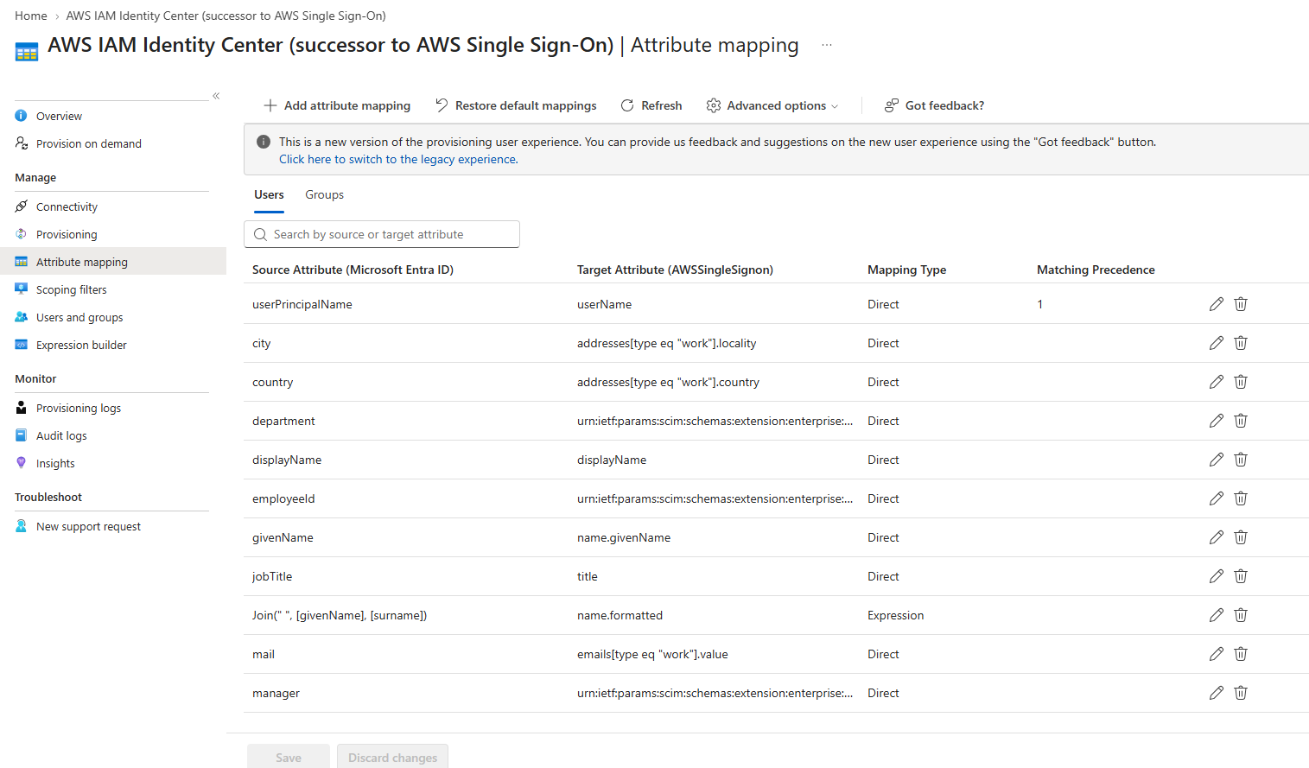
A different screen doesn't require different mappings. Keep valid defaults unless your identity design needs a change, and verify that AWS supports filtering on any matching attribute you change. Don't use Restore default mappings as a way to switch interfaces: it can replace intentional customizations.
Set scope before starting provisioning
For a controlled rollout, scope provisioning to assigned users and groups and assign only test objects. Check that the groups are security-enabled and that mappings match AWS requirements. Avoid an all-users scope when you’re testing one privileged group.
Scoping filters aren't a new provisioning capability, but the current interface puts the configuration into a wizard. It separates these decisions:
- Scope settings: review whether user and group provisioning are enabled and which object actions, such as Create, Update, and Delete, are permitted.
- Scope by assignment: choose assignment-based scope for this walkthrough.
- Select users and groups: assign the test groups to the enterprise application.
- Scope by attribute: add an attribute condition only if there's a business requirement for it. No extra attribute filter is needed just to implement this PIM example.
- Review and create: check the choices before saving.
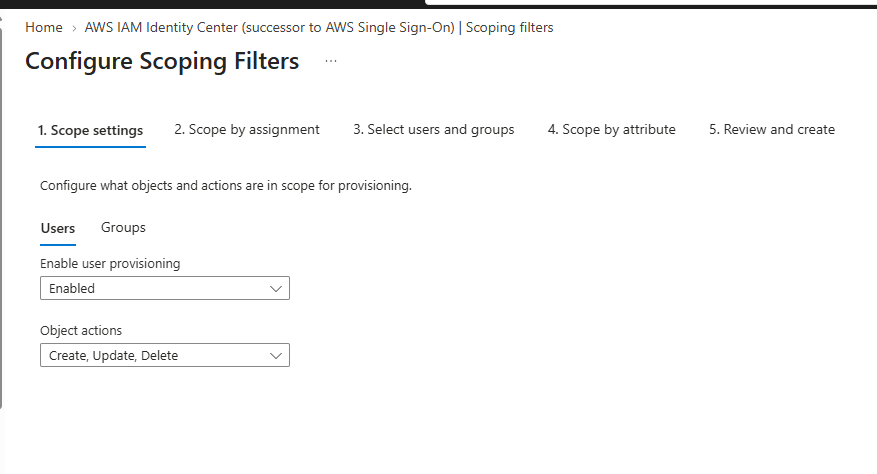
Application assignment decides which objects are candidates for provisioning. Optional attribute-based scoping filters can further restrict those candidates. Neither choosing a user in the wizard nor passing an attribute filter makes that user an active member of the privileged group. PIM still controls the membership.
Create and map the AWS group
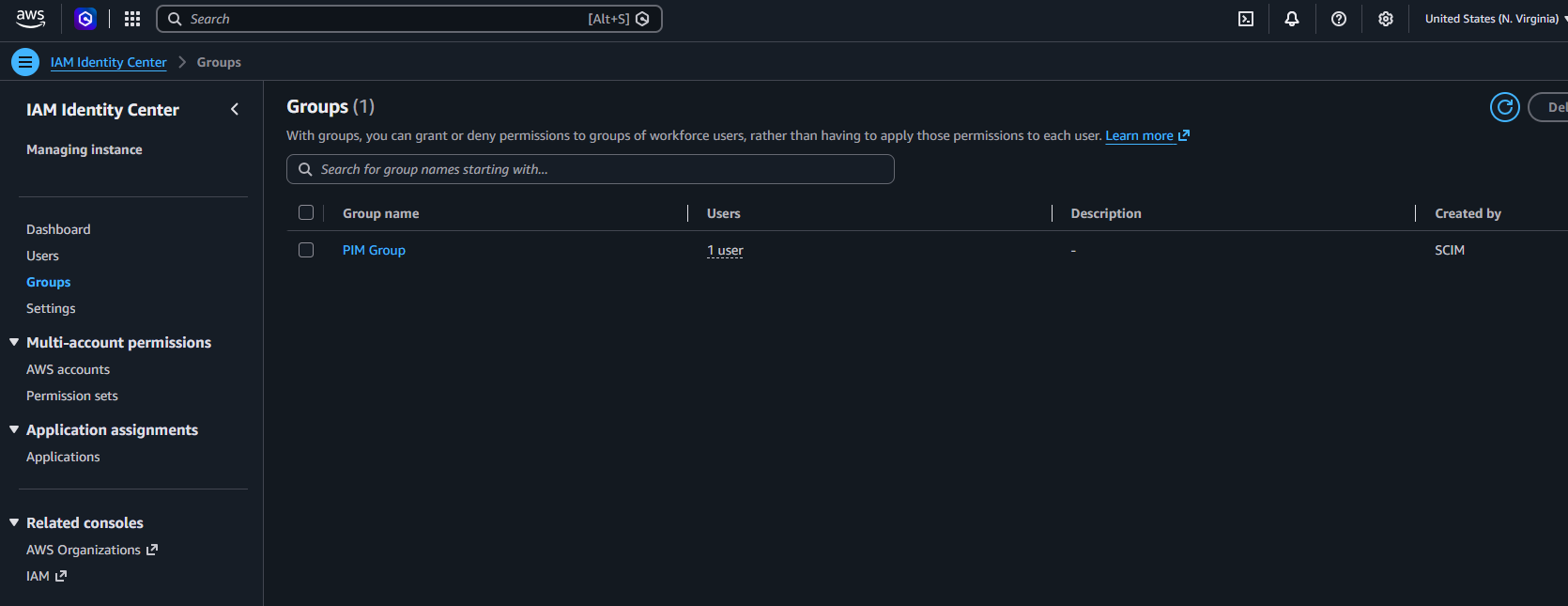
Create the privileged Entra security group, assign it to the enterprise application, and use on-demand provisioning to create it in AWS. In AWS IAM Identity Center, assign the group to the intended accounts and permission sets. Without that AWS assignment, provisioned membership won’t grant the access you’re expecting.
Add the user as an eligible member in PIM, start provisioning, and verify the group appears in AWS before testing activation. On-demand provisioning is useful for checking an initial user or group result and why an object was skipped. It doesn’t replace recurring synchronization or make PIM deactivation immediate.
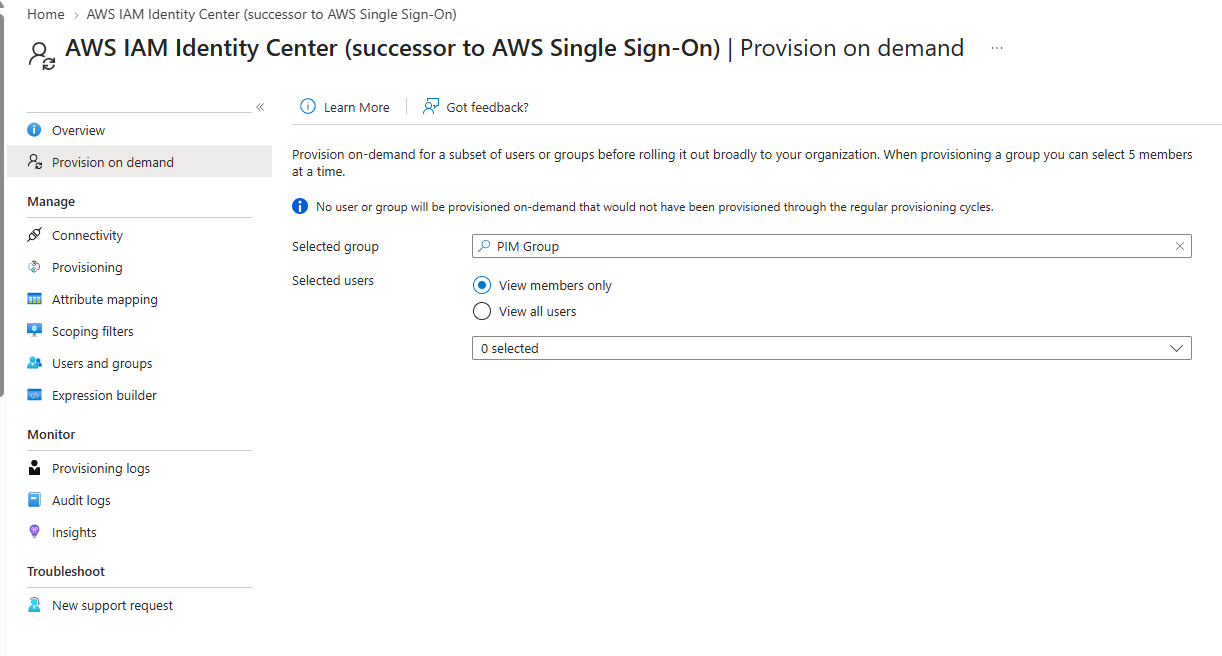
Test a non-member, then a direct member
The new Provision on demand screen makes this distinction easier to test. Select the group, then choose View members only or View all users. The latter lets you select a non-member for a negative test; it doesn't add them to the group. A group run supports up to five selected members at a time. Microsoft's on-demand provisioning documentation explains the scope checks and test limits.
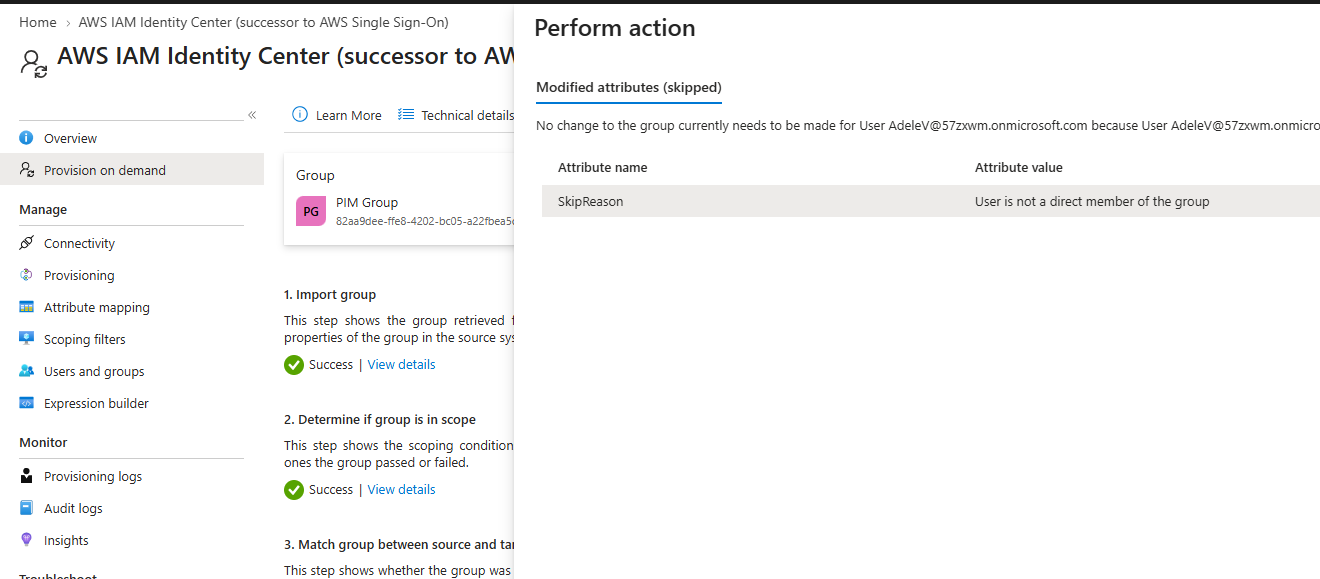
In my test, selecting a user who wasn't a direct group member produced
User is not a direct member of the group under Perform action.
Import, scope evaluation, and matching could succeed while the membership operation was skipped.
Selecting the user wasn't enough to make that membership valid.
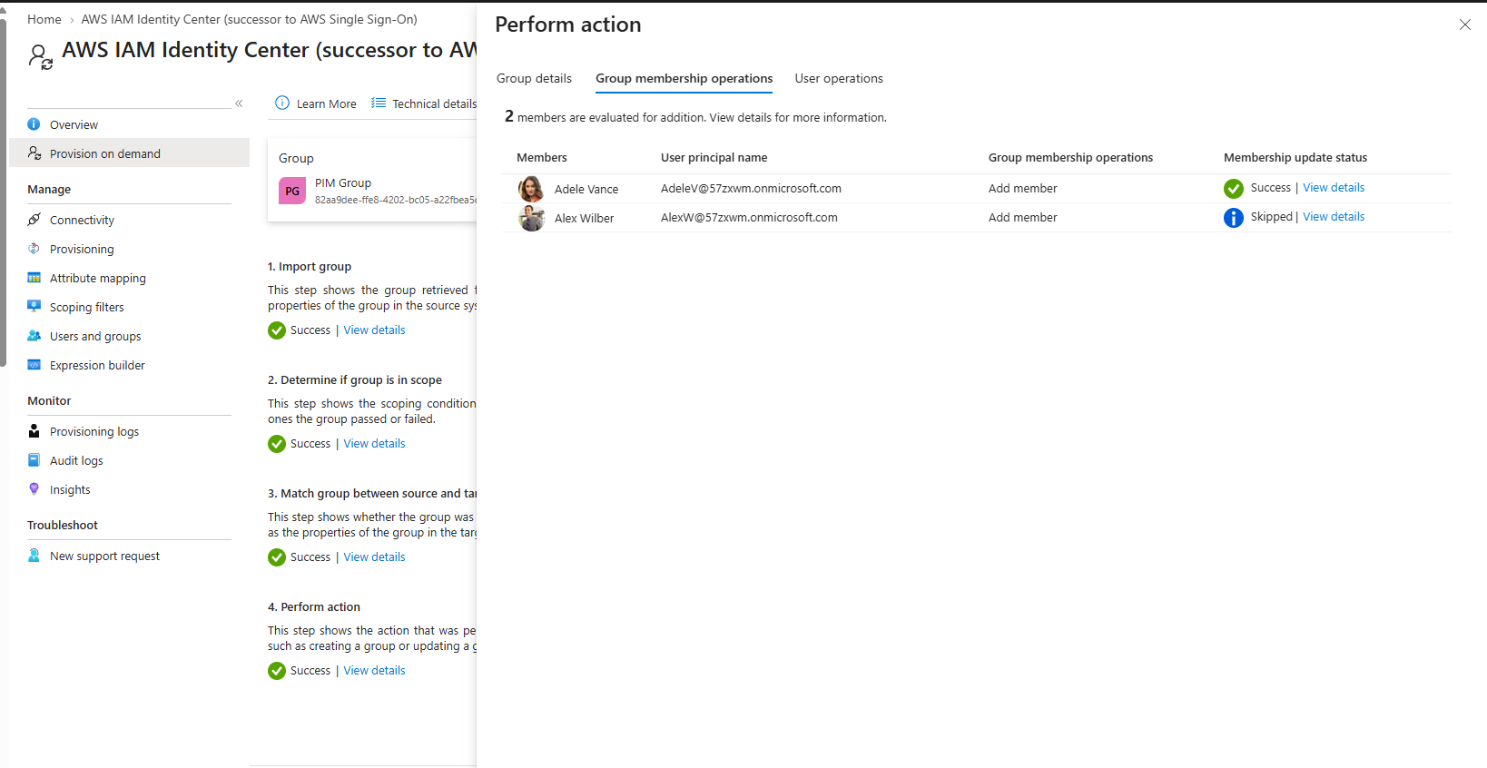
After I added the user as a direct member and repeated the test, the Group membership operations tab showed Add member with a successful status. Another selected user was skipped. Check each row's details rather than assuming the overall success status means every selected user was added.
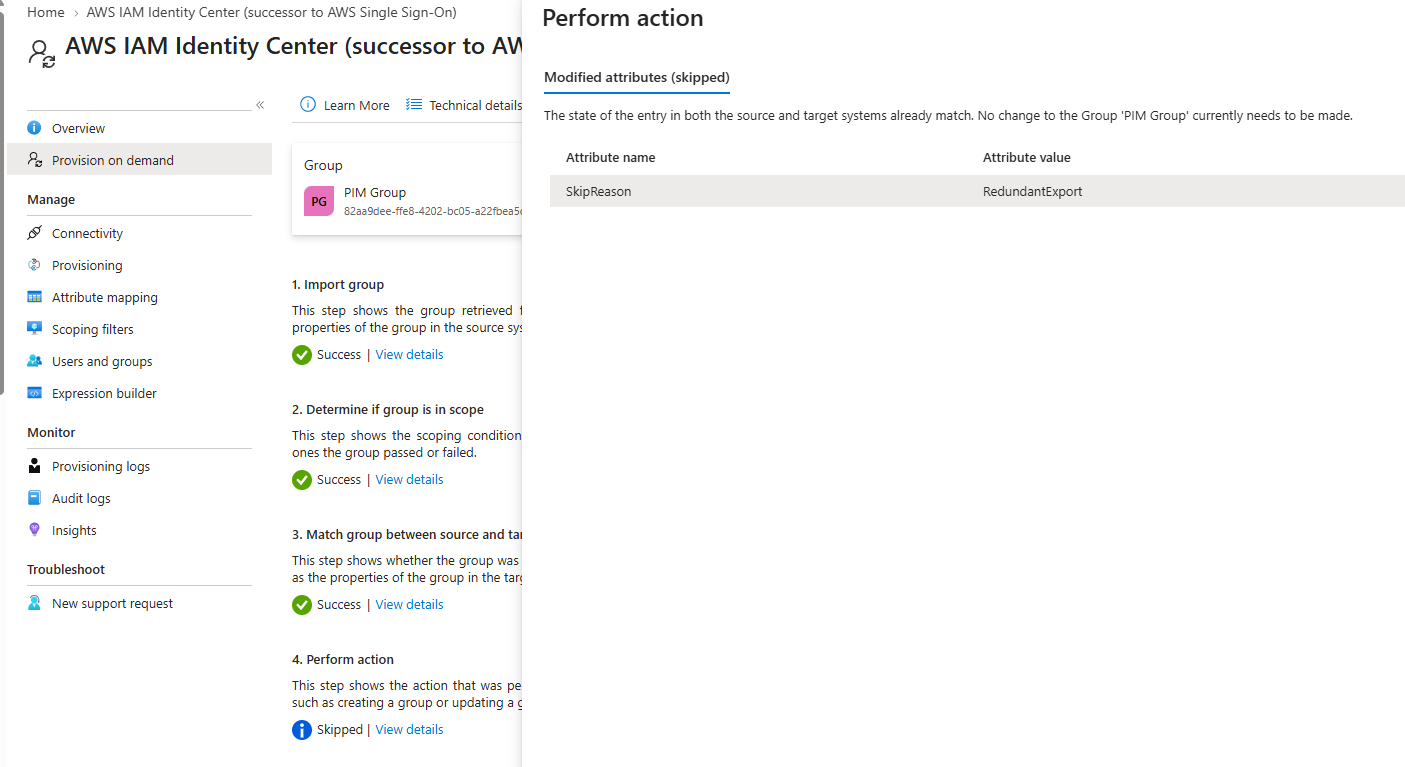
A skip can also mean there's nothing to change. The group-level result
RedundantExport says the source and target already match. That's different from
a membership being skipped because the selected user isn't a direct member.
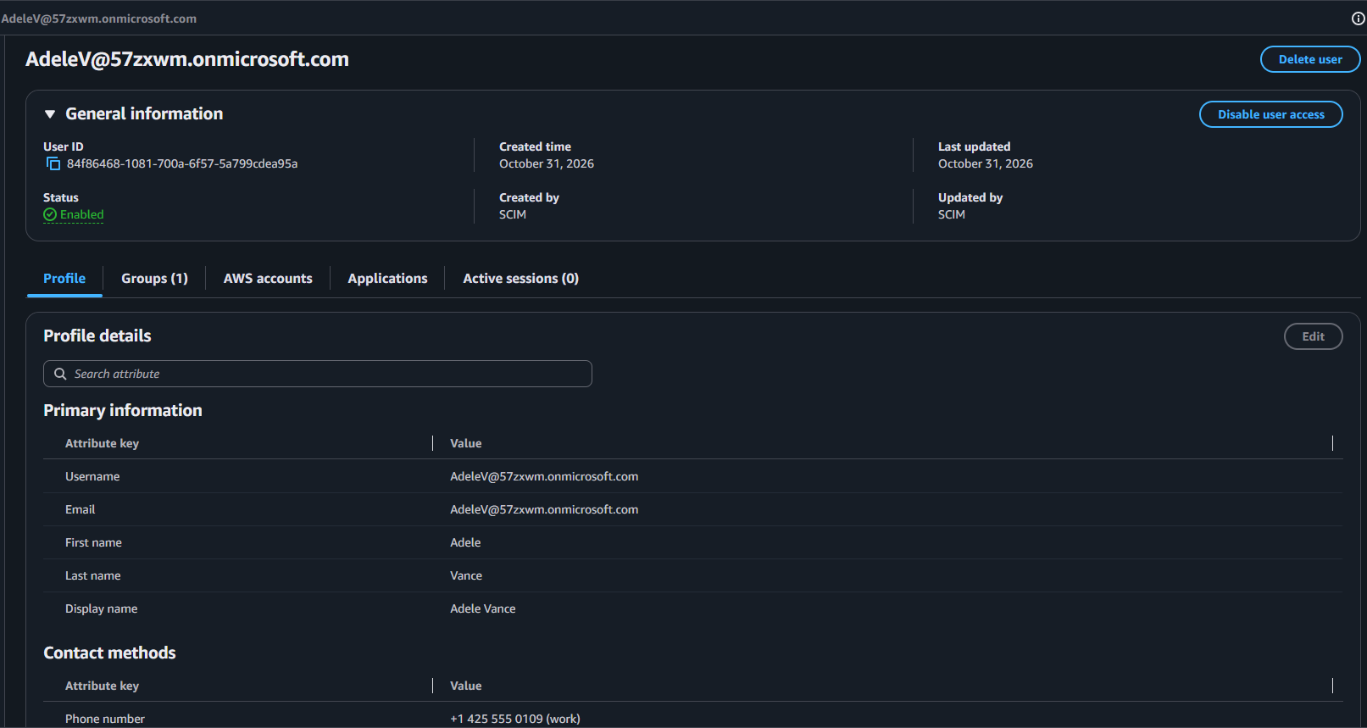
Finally, check the user in AWS IAM Identity Center. The profile shows creation and update by SCIM and a Groups tab. Verify the actual group membership there, then check the intended AWS account and permission set. A user created by SCIM doesn't automatically have AWS account access.
This manual membership test checks the SCIM configuration, not PIM activation or automatic sync timing. Remove the temporary active test membership before the PIM test and retain the eligible assignment. Otherwise the user may already have access without activating anything.
Important: Keep the AWS permission-set assignment, Entra PIM membership assignment, and provisioning scope in the same access review. They live in different administration surfaces, and changing only one of them can leave the access path broader or less reliable than you intended.
Test activation from request to AWS access
Use a test user and non-production AWS account. Check the full path, not just the PIM approval:
- Confirm the user is eligible and complete the configured MFA, justification, and approval when activating from My groups.
- Check the PIM audit history and provisioning logs for a successful membership update.
- In AWS IAM Identity Center, verify the user’s group, account assignment, and permission set, then sign in as the test user to confirm access.
- Deactivate early and repeat the checks. Test again after normal expiry so both removal paths are covered.
If an object is skipped, check application assignments, scope, and required attributes before changing the PIM assignment. PIM audit history shows whether membership activated; provisioning logs show whether Entra sent the change; AWS shows whether the group grants the intended access.
Timing: activation and removal are different
In my 2024 test, AWS reflected an activation in about 25 seconds. That was one observation, not a service guarantee. Microsoft's current AWS integration guide describes the provisioning behavior this way:
| Change | Documented timing |
|---|---|
| Regular group membership update outside a PIM activation | During the next synchronization cycle, which runs every 40 minutes. |
| First five PIM activations for a specific enterprise app within 10 seconds | Microsoft documents 2 to 10 minutes. |
| Sixth and later activation requests in that 10-second period | Next synchronization cycle, which runs every 40 minutes. |
| PIM deactivation or expiry | Regular incremental provisioning cycle, not an immediate on-demand removal. |
The five-user threshold is per enterprise application. Later activations in the same 10-second period may wait for the next cycle. When PIM membership ends, deactivation follows the regular incremental provisioning cycle, not an immediate on-demand action.
That means activation and removal aren’t symmetric from an operations point of view. If AWS access is time-sensitive, allow for provisioning delay before promising a start time. If fast revocation is required, define a separate response procedure and test what happens to an AWS session that was already issued. A removed SCIM group membership should not be treated as proof that an existing session has already ended.
Monitor both sides
When PIM is approved but AWS access is missing, check the PIM audit record, then the provisioning operation for the user or group, and finally the membership and permission set in AWS IAM Identity Center.
- No successful PIM activation means there’s no membership change for SCIM to send.
- Out-of-scope users or groups need an application assignment or provisioning-filter review.
- A failed connection needs the AWS endpoint and token checked, followed by the provisioning logs.
- AWS group membership without access needs the account assignment and permission set checked.
- Membership remaining after deactivation needs the next sync cycle checked. Use a separate revocation process if that delay is too long.
Monitor provisioning progress and logs, enable failure notifications, and configure accidental deletion prevention. Start with one group and expand only after you’ve tested activation, regular sync, and deactivation end to end.
Sources and further reading
- Microsoft Learn: Privileged Identity Management for Groups
- Microsoft Learn: Assign eligibility for a group
- Microsoft Learn: Provision users and groups to AWS IAM Identity Center
- Microsoft Learn: How application provisioning works
- Microsoft Learn: Microsoft Entra ID Governance licensing fundamentals
The 2024 idea still holds: PIM controls who can join the privileged group, and SCIM carries that membership to AWS IAM Identity Center. The current guidance makes the operating boundary clearer: an activation may take minutes, a burst can take longer, and removal follows synchronization. Build those timings into the access procedure and test them with the AWS permissions you actually plan to use.