


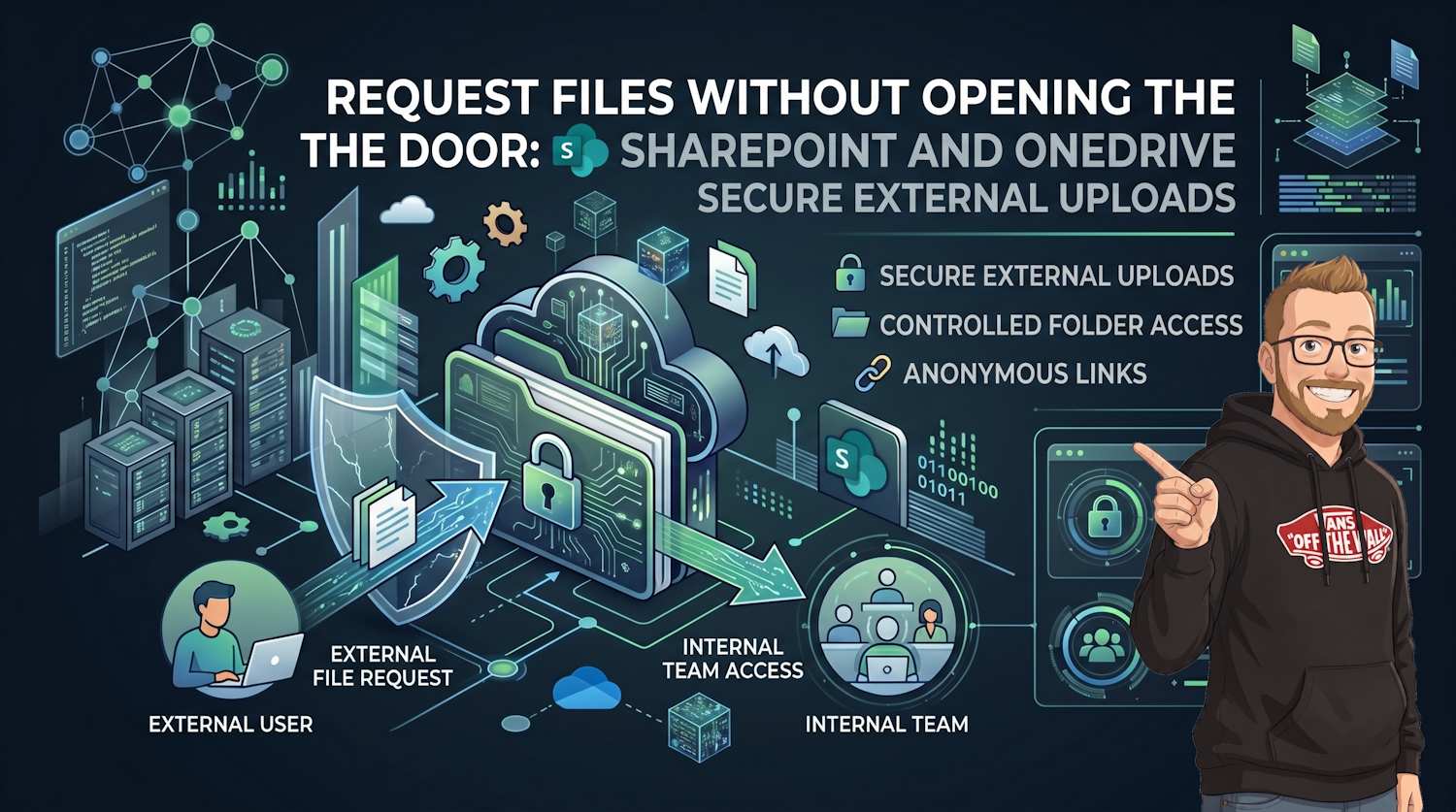
You need someone outside your organization to send files. You do not want them inside your site. You do not want normal edit links. You do not want mailbox chaos from large attachments.
That is exactly where Request Files helps in SharePoint Online and OneDrive.
What Request Files actually does
Request Files creates an upload-only link to a folder.
- Uploaders can submit files.
- Uploaders cannot view existing files in that folder.
- Uploaders cannot edit, delete, or download content already there.
- Files land directly in the target folder for your team.
Important: this feature depends on Anyone links being allowed at both tenant and site level. If either level blocks Anyone links, Request Files is unavailable in that location.
This is not a product vulnerability by itself. It is a policy tradeoff. Request Files uses anonymous inbound links so external users can upload without sign-in, which means you must scope where it is allowed and monitor those locations.
Why this makes sense security wise
Compared to ordinary external sharing, Request Files is a tighter pattern for inbound collection.
- You avoid broad folder access grants for external senders.
- You reduce accidental data exposure from mis-scoped edit links.
- You centralize inbound files in a controlled location instead of email threads.
- You can pair this with expiry, auditing, and DLP controls.
Security risk matrix for Anyone links and Request Files
Use this quick model when deciding if Request Files should stay enabled in your tenant.
| Configuration | Risk Level | Main Concern | Recommended Control |
|---|---|---|---|
| Anyone links enabled globally, no site scoping | High | Anonymous upload surface is broad and hard to monitor | Limit feature to approved sites and monitor audit events |
| Request Files enabled only for selected sites | Medium | Policy drift can re-open scope over time | Quarterly review of site settings and owners |
| Site-scoped Request Files with DLP, expiry, and link cleanup | Low | Residual anonymous upload risk remains | Keep tight expiry, alerting, and owner accountability |
Tenant setup with PowerShell
Connect first:
Import-Module Microsoft.Online.SharePoint.PowerShell
Connect-SPOService -Url https://contoso-admin.sharepoint.com
PowerShell prerequisites and command-not-found fixes
If Connect-SPOService is missing, the SharePoint Online Management Shell module is usually not installed or not imported in the current session.
Modern install path (recommended):
# Install the modern package manager if needed
Install-Module Microsoft.PowerShell.PSResourceGet -Scope CurrentUser -Force

# Install SharePoint Online module
Install-PSResource Microsoft.Online.SharePoint.PowerShell -Scope CurrentUser -TrustRepository

# Load module and verify command
Import-Module Microsoft.Online.SharePoint.PowerShell
Get-Command Connect-SPOService
Legacy install path (can fail in locked-down environments):
# Legacy path uses PowerShellGet + PackageManagement + NuGet provider bootstrap
Install-Module Microsoft.Online.SharePoint.PowerShell -Scope CurrentUser -Force

Import-Module Microsoft.Online.SharePoint.PowerShell
Get-Command Connect-SPOService
If legacy install fails but modern install works, it is commonly due to NuGet/provider bootstrap, TLS/proxy restrictions, or older PowerShellGet behavior in that host.
If these Request Files properties are missing in cmdlet output, update
Microsoft.Online.SharePoint.PowerShell first and verify tenant feature rollout before
assuming the setting is unsupported.
Check current tenant flags:
Get-SPOTenant | Select-Object CoreRequestFilesLinkEnabled, OneDriveRequestFilesLinkEnabledEnable Request Files in SharePoint and OneDrive:
Set-SPOTenant -CoreRequestFilesLinkEnabled $true
Set-SPOTenant -OneDriveRequestFilesLinkEnabled $true
Enable Request Files only for specific sites
If you do not want it everywhere, scope it per site.
Get-SPOSite -Identity https://contoso.sharepoint.com/sites/Finance -Detailed |
    Select-Object Url, RequestFilesLinkEnabled

Set-SPOSite -Identity https://contoso.sharepoint.com/sites/Finance -RequestFilesLinkEnabled $true
User steps to create a request
- Open the target folder in SharePoint or OneDrive.
- Select Request files.
- Add clear instructions in the description.
- Copy and send the generated link.
When the process is over, remove the request link in Manage access to block further uploads.
When it runs into issues
Most incidents are policy mismatches, not product bugs. Check these first:
- Anyone sharing disabled at tenant or site level.
- OneDrive setting enabled but SharePoint setting disabled (or the opposite).
- Site-level RequestFilesLinkEnabled not turned on where needed.
- Admins expecting authenticated sender identity for anonymous uploads (displayed uploader names are user-provided, not equivalent to verified Entra identities).
- Connect-SPOService not found because module install/import did not complete.
Get-SPOTenant | Select-Object SharingCapability, CoreRequestFilesLinkEnabled, OneDriveRequestFilesLinkEnabled
Get-SPOSite -Identity https://contoso.sharepoint.com/sites/Finance -Detailed |
    Select-Object Url, SharingCapability, RequestFilesLinkEnabled
Governance checklist
- Allow Request Files only where there is a real inbound business need.
- Use expiration policies for sharing links.
- Monitor upload-heavy locations with audit and alerting.
- Apply DLP and retention where collected files may contain sensitive content.
- Train users to close request links after collection ends.