


A lot of people are asking the same three questions right now:
- When did passkeys for Microsoft Entra External ID actually land?
- Does this work in both workforce and customer tenants?
- Can I automate the whole thing with only PowerShell?
This post answers all three with what is currently documented by Microsoft, and gives you a practical starting example you can run in a lab.
Release timing
Passkeys for Microsoft Entra External ID reached general availability in late May 2026. The official announcement appears in the What's New in Microsoft Entra: May 2026 post on the Microsoft Tech Community blog:
"Passkeys for Microsoft Entra External ID will be generally available late May 2026, so your customer-facing applications can offer a more seamless, consumer-grade sign-in experience."
Cross-referencing against the documentation repository confirms the rollout window:
- 2026-05-21: article front matter date for the new External ID passkey how-to page.
- 2026-05-22: first commit adding the how-to and updating the External ID feature matrix.
- 2026-05-27: follow-up documentation cleanup and corrections.
Practical reading: use late May 2026 as the GA date. The May 2026 What's New post is the primary citation. The documentation commit dates (May 21–22) align with that window and confirm when official guidance became publicly available.
Does it work in both tenant types?
Yes. Passkeys are available in both workforce and customer identity scenarios, but the control surface is not identical.
| Area | Workforce tenant | External ID tenant |
|---|---|---|
| Passkey support | Yes | Yes |
| Conditional Access auth strengths | Available, can enforce phishing-resistant requirements | Not currently supported for enforcement |
| Who can register passkeys | Work/school users in scope of policy | Local email+password or username+password users only (today) |
| Custom domain requirement | Typical enterprise sign-in endpoints | Custom URL domain required for relying party registration |
| Built-in registration UX | Available through Entra user self-service flows | No out-of-box passkey registration UX yet; app must provide credential management experience |
| Social and federated account passkeys | Depends on enterprise identity patterns and policies | Not yet for social, federated, and email OTP users |
How the passkey sign-in flow works
The mechanics matter because they determine what can go wrong during setup and what your app code actually has to do. Four stages are involved:
-
OIDC authorization request — your app redirects the user to the External ID
authorization endpoint:
https://<tenantname>.ciamlogin.com/<tenantId>/oauth2/v2.0/authorize. Standard OIDC parameters apply. Uselogin_hintto pre-fill the identifier field when you already know the user's email or username. -
Sign-in UI on your custom domain — External ID serves the sign-in page
from the custom URL domain you configured in the admin center. The WebAuthn relying
party ID (
rp.id) is bound to that domain. A passkey is cryptographically tied to its RP ID at registration time: if your users registered while the RP ID waslogin.contoso.com, the browser will only offer that passkey onlogin.contoso.com. Not onciamlogin.com, not on any other hostname. This is why the custom domain requirement isn't just an admin convenience — it determines where credentials can actually be used. -
WebAuthn ceremony — the sign-in page calls
navigator.credentials.get()with a server-generated challenge and the RP ID. The authenticator signs the challenge using the credential's private key. On FIDO2 hardware keys (roaming authenticators) this requires a physical gesture. On platform authenticators — Windows Hello, Touch ID, Face ID — it's a biometric or PIN. The private key never leaves the device; only the signed assertion travels to Entra. -
Token issuance — Entra validates the WebAuthn assertion and issues
tokens. The
amr(Authentication Methods References) claim in the ID token includes"fido"for FIDO2/passkey sign-ins. You can confirm this by decoding the ID token at jwt.ms after a test sign-in.
What this means in real architecture
External ID passkeys work, but the implementation surface differs from workforce tenants in four concrete ways worth designing around before you start building:
No Conditional Access authentication strengths. In workforce tenants you can
create CA policies that require a "Phishing-resistant MFA" authentication strength, which
enforces FIDO2/passkeys at the policy layer — users simply can't sign in with weaker methods
when the policy requires it. That enforcement doesn't exist in External ID today. You can
confirm passkey use by checking the amr claim in the token, but you can't
block a password-only sign-in at the Conditional Access layer. If you need that guarantee
today, application-level enforcement (rejecting tokens without "fido" in
amr) is the only option.
Your app owns the registration UX. Workforce users register passkeys through
the combined security info page (aka.ms/mysecurityinfo). There's no equivalent
built-in registration flow for External ID customers. Your application has to initiate passkey
registration — the enrollment flow is triggered from within your app UI — and provide a
credential management page where users can list, register, and remove their passkeys.
All three operations go through the Graph fido2Methods API. Registration
uses a server-side app-only token — the Graph docs explicitly block self-service calls
for the creationOptions endpoint. List and delete work with the signed-in
user's delegated token.
Custom URL domain is mandatory and permanent for existing credentials.
The custom domain you configure becomes the rp.id that passkeys are bound to at
registration time. Changing or removing that domain later makes every passkey registered
against it unusable — there's no migration path for existing credentials. Settle on the
domain before you go live with passkey registration.
Local account users only, for now. Passkeys are available only for users with a local email+password or username+password credential in the External ID tenant. Users who signed up via Google, Facebook, Apple, or any federated identity provider can't register a passkey against your External ID tenant at this point.
The authority URL: don't guess, derive it
External ID tenants don't use login.microsoftonline.com. They use a
CIAM-specific endpoint:
https://<tenantname>.ciamlogin.com/<tenantId>Where <tenantname> is the subdomain of your tenant's initial
.onmicrosoft.com domain. A tenant created as
contoso.onmicrosoft.com has the authority
https://contoso.ciamlogin.com/<tenantId>.
Using https://login.microsoftonline.com/<tenantId> doesn't fail loudly —
that discovery document exists, but it points to workforce endpoints. The result is usually a
silent auth loop or tokens that don't match what your External ID application expects.
Derive the authority from Graph rather than hard-coding it:
$org           = Invoke-MgGraphRequest -Method GET -Uri "https://graph.microsoft.com/v1.0/organization"
$initialDomain = ($org.value[0].verifiedDomains | Where-Object { $_.isInitial }).name
$subdomain     = $initialDomain -replace '\.onmicrosoft\.com$', ''
$authority     = "https://$subdomain.ciamlogin.com/$TenantId"
The isInitial property marks the original .onmicrosoft.com domain
assigned at tenant creation. It doesn't change when you add custom domains later, which
makes this derivation stable over the lifetime of the tenant.
Verify the result is correct before wiring it into your app by fetching the OIDC discovery document:
https://<tenantname>.ciamlogin.com/<tenantId>/v2.0/.well-known/openid-configurationA correct External ID authority returns an issuer that contains
ciamlogin.com. If you see login.microsoftonline.com in the issuer,
the authority is wrong.
The Graph API surface for passkey management
External ID uses the same Microsoft Graph authentication methods API as workforce tenants for FIDO2 credential management. Two areas are directly relevant to building a passkey experience.
Checking or updating the FIDO2 policy:
# Read current state — check the 'state' property in the response
Invoke-MgGraphRequest -Method GET `
    -Uri "https://graph.microsoft.com/beta/policies/authenticationMethodsPolicy/authenticationMethodConfigurations/fido2"

# Enable for all users (requires Policy.ReadWrite.AuthenticationMethod)
$body = @{
    "@odata.type" = "#microsoft.graph.fido2AuthenticationMethodConfiguration"
    state         = "enabled"
} | ConvertTo-Json
Invoke-MgGraphRequest -Method PATCH `
    -Uri "https://graph.microsoft.com/beta/policies/authenticationMethodsPolicy/authenticationMethodConfigurations/fido2" `
    -Body $body -ContentType "application/json"
The includeTargets array in the policy body lets you scope enablement to a
specific Entra group rather than all users — useful for a phased rollout without touching
everyone's sign-in experience on day one.
Registering a passkey — the three-call sequence:
Registration goes through Graph, not around it. Your app backend makes two calls and the browser makes one:
# Step 1 — get creation options (app-only token, client_credentials grant)
GET https://graph.microsoft.com/beta/users/{userId}/authentication/fido2Methods/creationOptions(challengeTimeoutInMinutes=10)
Authorization: Bearer {app-only-token}

# Step 2 — browser WebAuthn ceremony (no network call)
# navigator.credentials.create({ publicKey: creationOptions.publicKey })
# → user gesture → PublicKeyCredential returned by browser

# Step 3 — submit credential (app-only token)
POST https://graph.microsoft.com/beta/users/{userId}/authentication/fido2methods
Authorization: Bearer {app-only-token}
Content-Type: application/json

{
  "displayName": "My passkey",
  "publicKeyCredential": {
    "id": "...",
    "response": { "clientDataJSON": "...", "attestationObject": "..." }
  }
}
Listing and deleting per-user passkey credentials:
# List — delegated token works here
GET https://graph.microsoft.com/v1.0/users/{userId}/authentication/fido2Methods
Authorization: Bearer {user-delegated-token}

# Delete a specific passkey by credential ID
DELETE https://graph.microsoft.com/v1.0/users/{userId}/authentication/fido2Methods/{credentialId}
Authorization: Bearer {user-delegated-token}
On permissions: the creationOptions endpoint and the registration POST both
require UserAuthenticationMethod.ReadWrite.All as an application
permission — the Graph docs explicitly state "self-service operations aren't
supported" for this endpoint. Requesting it as a delegated scope in the OAuth flow returns
methodNotAllowed. Your backend must acquire a separate
client_credentials token from
login.microsoftonline.com/{tenantId}/oauth2/v2.0/token for these calls.
List and delete operations work fine with the signed-in user's delegated access token. Only the registration path requires the app-only token.
Infrastructure requirements for a working lab
Before running anything, there are two infrastructure prerequisites that aren't obvious from the documentation alone. I'll save you the time.
Custom URL domain is mandatory — and permanent for existing credentials. The WebAuthn RP ID is set to whatever custom URL domain you configure under Entra admin center > External Identities > Custom URL domain. Passkeys are cryptographically bound to that RP ID at registration. If you change or remove the domain later, every passkey registered against it stops working. There is no migration path. Settle on the domain before any real users register passkeys.
Note the difference between a verified domain and an active custom URL domain. Adding a domain to Entra's Custom domain names section (TXT/CNAME verification) does nothing for passkeys. You must separately go to External Identities > Custom URL domain, add the domain there, and save. That second step is what sets the RP ID.
Azure Front Door is required for the custom domain TLS to work. A CNAME
pointing your custom domain directly at <tenant>.ciamlogin.com resolves
at the DNS level but does not give you a working HTTPS endpoint. Microsoft's auth servers
do not hold a TLS certificate for your custom domain — they serve their own default cert
(which will be something like graph.windows.net), and every browser will reject
the connection with ERR_CERT_COMMON_NAME_INVALID.
Azure Front Door sits in front of ciamlogin.com as a reverse proxy. It holds
a managed certificate for your custom domain and forwards traffic to ciamlogin.com as the
origin. The correct DNS record is a CNAME to your Front Door endpoint, not to ciamlogin.com:
; Without Azure Front Door — DNS resolves but TLS fails (wrong cert served)
your-domain.com   CNAME   yourtenantname.ciamlogin.com

; With Azure Front Door — Front Door holds and serves the cert for your domain
your-domain.com   CNAME   yourfrontdoor.azurefd.net
Azure Front Door Standard tier runs around USD 35/month. Cloudflare and Akamai as alternatives are on the Microsoft roadmap but not yet supported as of May 2026.
Without Front Door you can still run the lab partially. Sign-in through
ciamlogin.com, token exchange, and the Graph API passkey read/write paths all
work. The creationOptions API call succeeds. What fails is the
browser WebAuthn ceremony: without Front Door, the RP ID returned by
creationOptions is ciamlogin.com rather than your custom domain,
and the browser rejects the ceremony because the page origin doesn't match.
Practical shortcut for initial testing: use the default
ciamlogin.com authority in your lab config. All Graph API operations work.
The WebAuthn ceremony in the browser will fail with an origin mismatch until Front Door
is set up. For read and delete operations on existing passkeys (registered through the
Microsoft Authenticator app or another compliant flow), the lab is fully functional
without Front Door.
Testing passkeys in a local lab
WebAuthn requires HTTPS with a properly named origin. Testing against an External ID tenant with a custom URL domain means you need a real hostname with a trusted cert, even in a lab. Two companion PowerShell scripts handle all of that scaffolding so you can focus on the actual registration and sign-in flows:
passkey-lab-bootstrap.ps1
Run once per machine from an elevated session. It works through eight numbered steps:
- Checks admin privileges.
- Adds a hosts file entry mapping the callback hostname to
127.0.0.1. - Creates a self-signed certificate for the callback hostname.
- Trusts the cert in the LocalMachine Root store, binds it to the HTTPS port via
netsh, and cleans up stale bindings from previous runs. - Acquires a Microsoft Graph token (interactive browser login via
Az.Accounts). - Derives the authority URL from the tenant's initial domain via Graph.
- Creates or updates an app registration in Entra: web/confidential client platform, redirect URI, and a generated client secret.
- Automatically grants the
UserAuthenticationMethod.ReadWrite.Allapplication permission to the app and applies admin consent. The role ID is resolved dynamically from the Graph service principal — no hardcoded GUIDs. - Reads the current FIDO2 authentication method policy. Creates or finds a security group for scoped passkey targeting, patches the policy to target that group, and removes the default "All users" target — so passkeys are enabled only for users in the demo group rather than the entire tenant. Optionally enables the policy if it was disabled. Reads the current user's registered passkeys and caches them in the config file.
The output is passkey-lab-config.json, which the lab server reads automatically.
Important: the
UserAuthenticationMethod.ReadWrite.Allpermission in the OAuth authorize scope is not the same as the application permission of the same name. The delegated scope in the authorize URL does not grant the app rights to callcreationOptions. The bootstrap grants the application permission separately, and the lab server acquires aclient_credentialstoken for all passkey provisioning calls.
passkey-lab-server.ps1
A pure PowerShell HTTP server (System.Net.HttpListener, no Node.js) that opens
a browser UI when started. Two listeners run simultaneously:
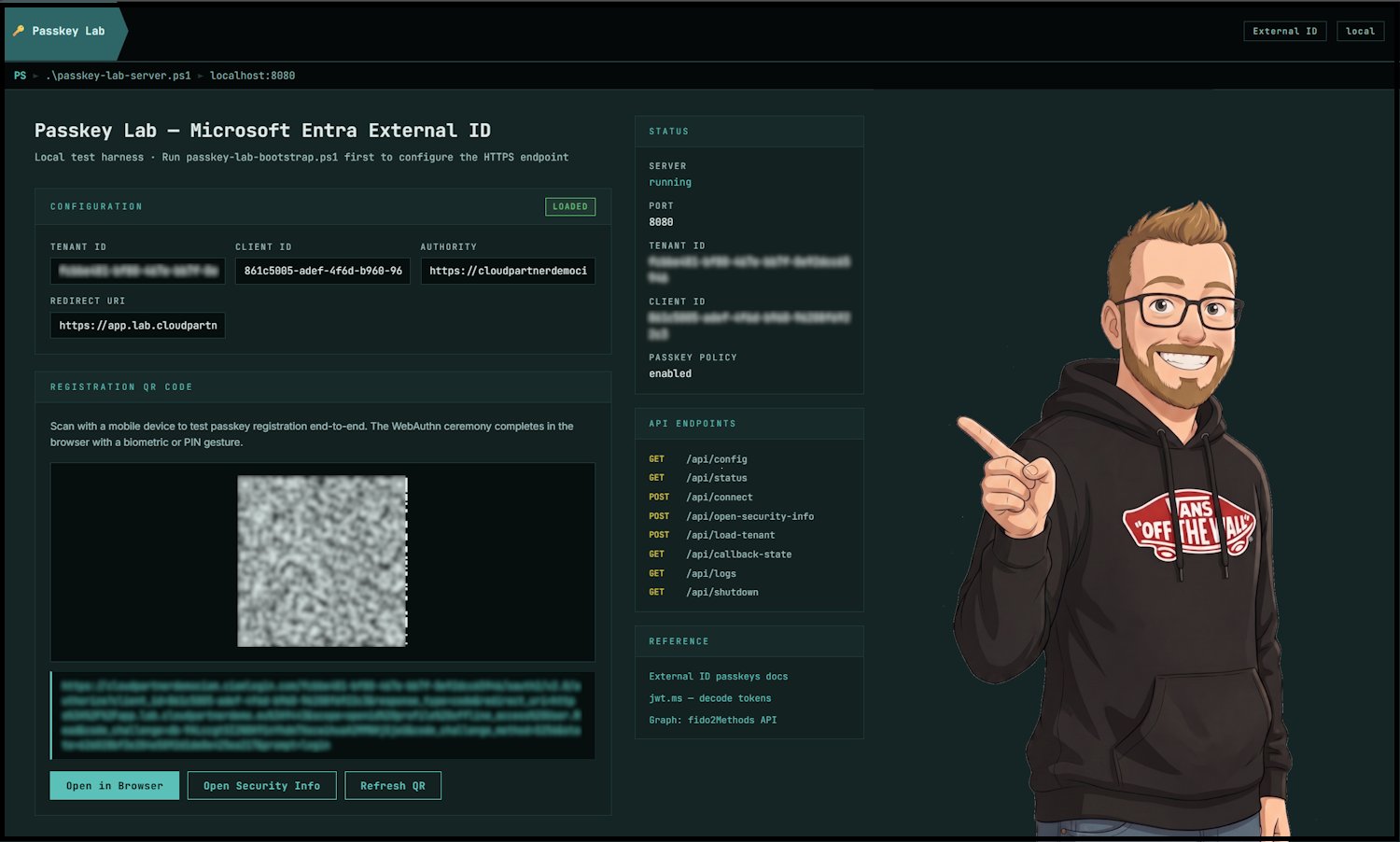
http://localhost:8080— the main lab dashboard (configuration display, QR code for the registration URL, connectivity check, live log stream).https://<callback-hostname>:<port>— receives the OAuth authorization code redirect, exchanges the code for tokens, resolves the user's object ID from Graph, reads registered passkeys, then renders the passkey management page.
The passkey creation flow on the callback page calls
/api/passkeys/create-options, which the server resolves by calling the Graph
beta creationOptions endpoint using a separately acquired app-only token. The
WebAuthn ceremony runs in the browser. The resulting credential is submitted to
/api/passkeys/register, which calls
POST /beta/users/{id}/authentication/fido2Methods with the same app-only token.
Where to go from here
- Enable passkey policy for a pilot group in your External ID tenant.
- Run the two lab scripts to explore registration end-to-end — the QR code in the server UI is useful for testing on a mobile device without copying the registration URL manually.
- Add a minimal credential management page in your app for register/list/delete operations.
- Keep a fallback sign-in path while you pilot device and browser combinations.
- Track passkey adoption and failed registration reasons before broad rollout.
References
- Sign in with passkeys in Microsoft Entra External ID
- Supported features in external tenants
- Enable passkeys (FIDO2) in workforce tenants
- What's New in Microsoft Entra: May 2026 — GA announcement for External ID passkeys
- Microsoft Entra releases and announcements
- Documentation commit history for External ID passkey article
- Microsoft Graph — fido2AuthenticationMethod resource type
- Custom URL domains in External ID
- Web Authentication: An API for accessing Public Key Credentials (W3C)