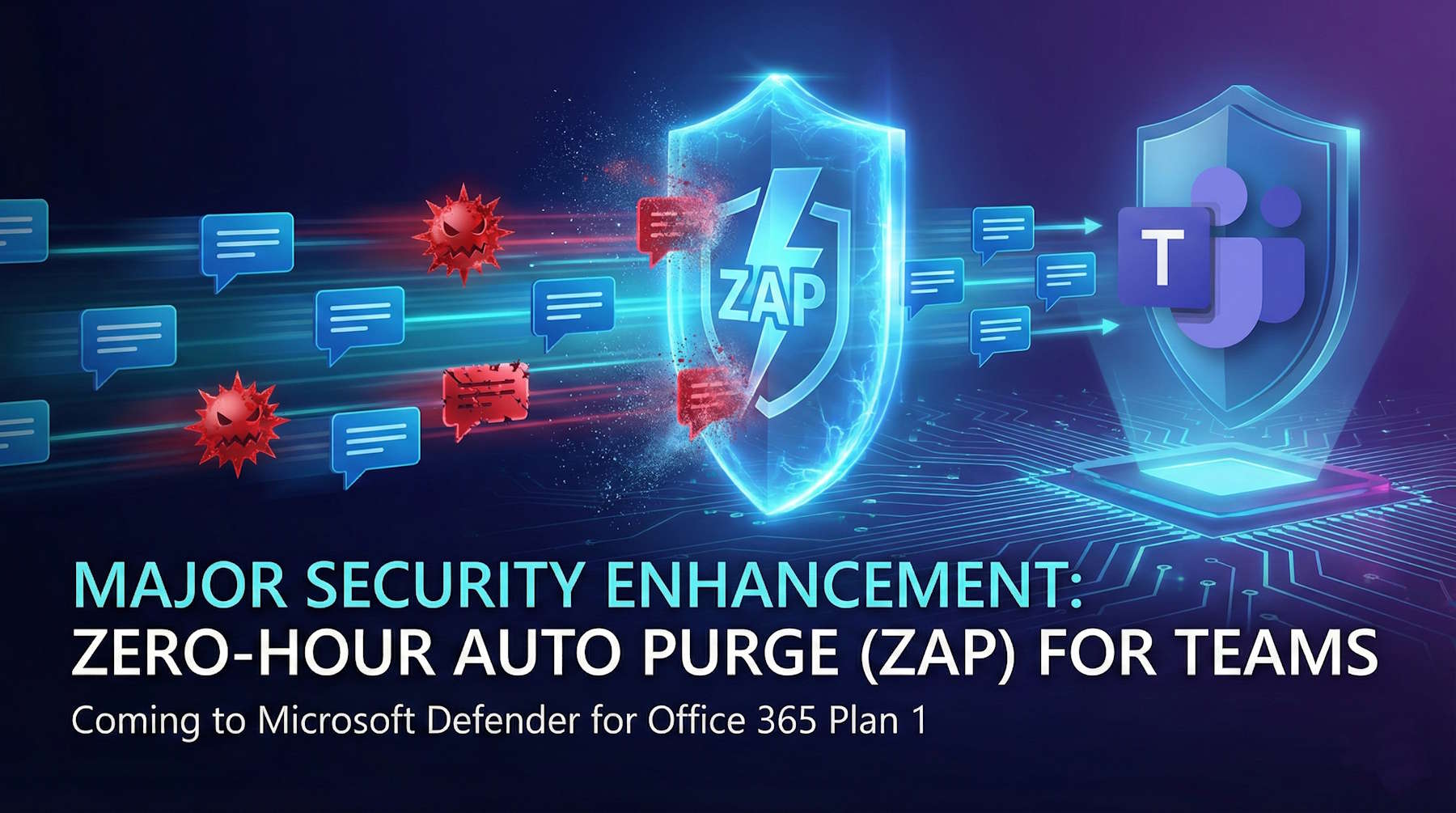
Microsoft is bringing a significant security enhancement to organizations using Microsoft Defender for Office 365 Plan 1. Starting January 6, 2026, Zero-hour auto purge (ZAP) protection for Microsoft Teams will be enabled by default, automatically protecting your Teams environment from malicious messages.
What's Changing?
Until now, ZAP for Microsoft Teams has been exclusively available to organizations with Microsoft 365 E5 or Microsoft Defender for Office 365 Plan 2 subscriptions. In a move that democratizes advanced security capabilities, Microsoft is extending this critical protection to Plan 1 customers.
Key Timeline:
- December 6, 2025 - January 5, 2026: Window to opt out if needed
- January 6, 2026: ZAP for Teams becomes default-on for all Plan 1 tenants
- Early-Mid January 2026: Worldwide rollout completes
Understanding Zero-Hour Auto Purge (ZAP)
Zero-hour auto purge is a retrospective protection mechanism that Microsoft has successfully used for email protection for years. Think of it as a safety net that continues to work even after messages are delivered.
How ZAP Works
ZAP operates as a detonation chamber for messages. When a message arrives, it's tested in a sandbox environment. If the analysis later determines the message is malicious, ZAP takes action to protect users - even up to 48 hours after the original delivery.
The technology is particularly powerful because:
- Cyber threats evolve constantly
- Zero-day malware may be undetectable during initial mail flow
- Content can be weaponized after delivery
- Spam and malware signatures update in real-time daily
ZAP for Microsoft Teams
With Teams becoming a central hub for organizational communication, attackers have increasingly targeted this platform. ZAP for Teams addresses this threat by:
1. Scanning internal Teams messages for malware and high-confidence phishing attempts
2. Automatically quarantining malicious messages to admin quarantine
3. Blocking messages for all participants in a chat simultaneously
4. Operating retroactively - can take action up to 48 hours after delivery
Important Note: Currently, ZAP for Teams only works with internal messages, not messages from external senders.
The Microsoft Defender for Office 365 Protection Stack
To understand where ZAP fits in your security posture, it's helpful to understand Microsoft's layered defense approach:
Layer 1: Edge Protection
Your first line of defense against known threats includes:
- Network throttling (DoS protection)
- IP/Domain reputation filtering
- Directory-based filtering
- Backscatter detection
- Enhanced Filtering for Connectors
Layer 2: Sender Intelligence
Validates message senders through:
- Account compromise detection
- Email authentication (SPF, DKIM, DMARC, ARC)
- Spoof intelligence
- Bulk filtering
- Mailbox intelligence
Layer 3: Content Filtering
Analyzes message content for threats:
- Mail flow rules
- Antivirus scanning
- Attachment filtering
- Heuristic & Machine Learning models
- Safe Attachments (sandboxing)
- URL reputation blocking
Layer 4: Post-Delivery Protection
Ongoing protection after message delivery - this is where ZAP operates:
- Safe Links (time-of-click URL checking)
- Zero-hour Auto Purge (removes threats after delivery)
- Campaign Views
- User reporting
- Protection for OneDrive/SharePoint/Teams
What This Means for Plan 1 Customers
Benefits You'll Gain
1. Automatic Protection: No configuration needed - it's on by default
2. Reduced Exposure Window: Malicious content is removed before users can interact with it
3. Centralized Management: All quarantined Teams messages appear in the Microsoft Defender portal
4. Cost-Effective Security: Major security enhancement at no additional cost
5. Peace of Mind: Continuous protection against evolving threats
What Happens When ZAP Takes Action
When ZAP identifies a malicious Teams message:
- The message is automatically moved to admin quarantine
- End users won't see quarantined messages in Teams
- Messages are blocked for all participants in the chat
- Admins can review quarantined content in the Security portal at https://security.microsoft.com/quarantine?viewid=Teams
- The action isn't logged in Exchange mailbox audit logs (it's a system action)
Who Can Manage Quarantined Messages
Security professionals with the following roles can review and manage quarantined Teams messages:
- Security Operator
- Security Administrator
- Alternative Defender XDR RBAC roles (if configured)
Defender for Office 365: Plan 1 vs Plan 2
This enhancement makes Plan 1 even more compelling. Let's review what each plan offers:
Plan 1: Essential Protection
Now includes:
- Safe Attachments - Sandboxes suspicious attachments
- Safe Links - Protects against malicious URLs
- Extended Safe Attachments - Protection for SharePoint, OneDrive, and Teams files
- Impersonation Protection - Stops phishing attacks
- Real-time Detections - Quick threat identification
- ZAP for Teams - NEW: Removes malicious Teams messages after delivery
Plan 2: Advanced Threat Protection
Everything in Plan 1, plus:
- Threat Trackers - Monitor emerging threats
- Threat Explorer - Detailed breakdown of suspicious activity
- Automated Investigation and Response - Speeds up incident response
- Attack Simulation and Training - Test user awareness
- Campaign Views - Insights into large-scale attacks
- Advanced ZAP capabilities - Additional configuration options
Configuration and Exceptions
While ZAP for Teams will be on by default, organizations can configure exceptions based on their needs.
Recipient-Based Exclusions
Organizations can exclude specific users, groups, or domains from ZAP for Teams protection. Important considerations:
- Exclusions apply to recipients, not senders
- ZAP will still scan messages for threats
- Messages won't be blocked if all recipients in the chat are excluded
- If any recipient isn't excluded, ZAP can take action on the message
Supported Channel Types
Currently Supported:
- Internal Teams chats
- Standard channels (internal messages only)
- Shared channels (internal and external messages)
Not Yet Supported:
- Private channels
- External messages in standard channels (for Plan 1)
Preparing Your Organization
Immediate Actions (Before January 6, 2026)
1. Review Your Current Setup
- Check your Microsoft Defender for Office 365 license (Plan 1 or Plan 2)
- Review existing ZAP settings in the Microsoft 365 Security portal
- Verify admin access to the quarantine section
2. Decide on Opt-Out (December 6, 2025 - January 5, 2026)
- Most organizations should keep ZAP enabled
- If you need to opt out, do so via ZAP settings in the Security portal during this window
- Document your decision and reasoning
3. Update Documentation and Training
- Inform your helpdesk about the change
- Update internal security documentation
- Prepare communication for end users
- Train admins on managing Teams quarantine
4. Familiarize Yourself with the Defender Portal
- Navigate to https://security.microsoft.com/quarantine?viewid=Teams
- Review the quarantine interface
- Understand release, delete, and review workflows
- Set up notifications if needed
Post-Implementation Best Practices
1. Regular Quarantine Reviews
- Schedule regular reviews of quarantined Teams messages
- Assign specific team members responsibility for reviews
- Document false positives and trends
2. Monitor for User Confusion
- Be prepared for user questions about "missing" messages
- Have clear communication channels for reporting issues
- Create FAQ documentation
3. Use Reporting Features
- Encourage users to report suspicious messages
- Review reported messages to improve detection
- Use insights to enhance security awareness training
4. Consider Upgrade to Plan 2
- If you need more advanced features like Threat Explorer
- For automated investigation and response capabilities
- When attack simulation training is required
The Broader Security Context
Why Email and Teams Protection Matters
The threat space continues to evolve with increasing cyber threats:
- Increased Cybercrime: More business online means more attack surfaces
- Evolving Threats: Cybercriminals constantly develop new bypass methods
- Financial Impact: Data breaches and ransomware attacks are costly
- Reputational Damage: Security incidents erode customer trust
Microsoft DART's Role
The Microsoft Detection and Response Team (DART) actively contributes to protection improvements:
- Investigates and analyzes security compromises
- Provides guidance and support during incidents
- Conducts threat hunting and intelligence gathering
- Informs product development with real-world insights
Technical Requirements
What You Need
✅ Microsoft Defender for Office 365 Plan 1
✅ Microsoft Teams
✅ Cloud-hosted mailboxes
⚠️ Important Limitation: ZAP doesn't work in standalone EOP environments protecting on-premises mailboxes. Both MX records and mailboxes must be in the cloud.
No Additional Configuration Required
Unlike many security enhancements, this one is truly automatic:
- No policy changes required
- No additional costs
- No manual configuration needed (unless opting out)
- Existing ZAP settings continue to apply
Compliance Considerations
Microsoft has identified no specific compliance considerations for this change. However, organizations should:
- Review the feature against their own compliance requirements
- Consider data residency implications
- Document the change in security policies
- Assess any industry-specific regulations
Looking Ahead
This enhancement represents Microsoft's continued commitment to:
1. Democratizing Security: Bringing advanced features to more customers
2. Platform Security: Protecting collaboration tools like Teams
3. Proactive Defense: Stopping threats before they cause damage
4. Simplified Management: Reducing administrative overhead
Conclusion
The addition of Zero-hour auto purge for Teams to Microsoft Defender for Office 365 Plan 1 is a significant security enhancement that provides enterprise-grade protection at no additional cost. By automatically removing malicious messages from Teams conversations, ZAP creates a safer collaboration environment and reduces the window of exposure to threats.
For most organizations, the recommended action is to keep ZAP enabled and prepare your team to manage quarantined content effectively. This is a prime example of how Microsoft continues to enhance security across the Microsoft 365 platform, making advanced protection accessible to organizations of all sizes.
Resources
- Microsoft Message Center: MC1187837
- Configure ZAP for Teams protection in Defender for Office 365
- Manage Microsoft Teams quarantined messages
- Zero-hour auto purge in Microsoft Defender for Office 365
- Microsoft 365 Roadmap ID 529816
- Office 365 Security Documentation