Overview
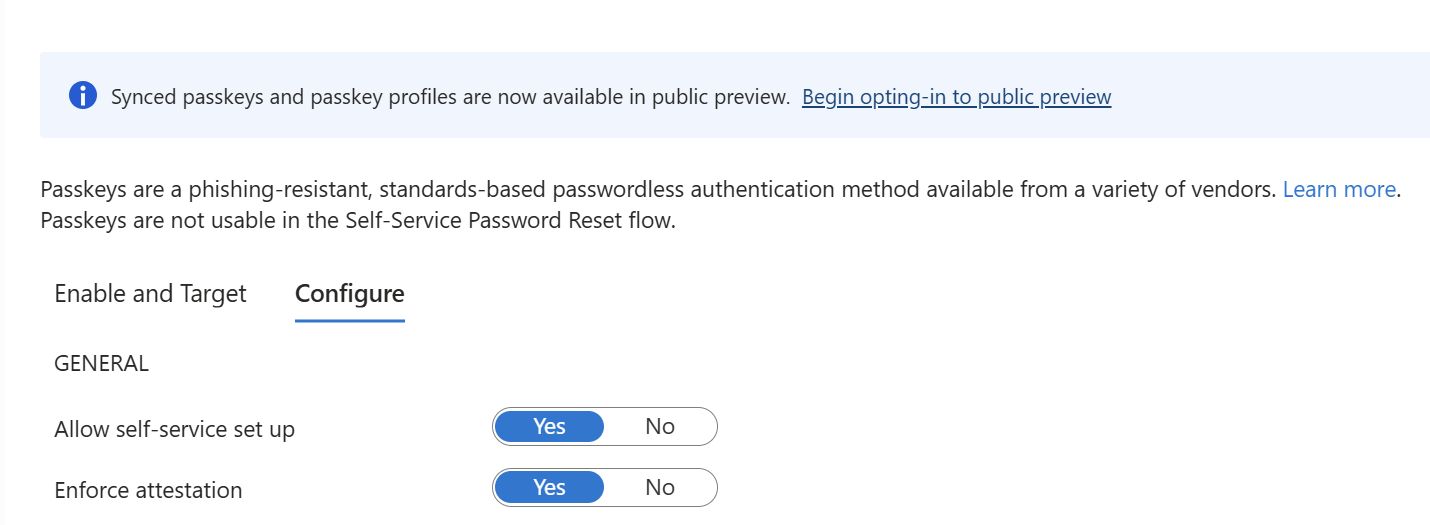
Passkeys (FIDO2) are a strong, phishing-resistant alternative to passwords. With this preview, Microsoft Entra ID supports synced passkeys. Synced passkeys are stored in platform or with other passkey providers such as Apple iCloud Keychain, Google Password Manager, 1Password, or Bitwarden, and made available across a user's devices. Synced passkeys simplify user onboarding and account recovery, which accelerates passwordless adoption for most organizations.
What Are Synced Versus Device-Bound Passkeys?
Passkeys are FIDO2-based credentials that provide strong, phishing-resistant authentication. Microsoft Entra ID supports two main types of passkeys:
Device-Bound Passkeys
The private key is created and stored on a single physical device and never leaves it.
Examples:
- Microsoft Authenticator (iOS)
- Microsoft Authenticator (Android)
- Security key
Benefits:
- Highest security posture for sensitive operations
- Complete isolation of credentials
- Ideal for high-assurance scenarios
Synced Passkeys
The private key is stored in a passkey provider's cloud (such as Apple iCloud Keychain, or Google Password Manager) and synced across the user's devices.
Examples:
- Apple iCloud Keychain
- Google Password Manager
- 1Password
- Bitwarden
Benefits:
- Available across all user devices
- Simplified account recovery
- Better user experience for passwordless adoption
- Accelerates enterprise passkey deployment
Security Note: Treat synced passkeys as phishing-resistant credentials but with the same security posture as other unattested authenticators. For high assurance scenarios, enforce attestation and restrict registration to approved device-bound authenticators.
Requirements for Synced Passkeys
Before enabling synced passkeys, ensure you meet these requirements:
- Your organization must be enrolled in Passkey profiles (preview)
- Microsoft Entra ID tenant with permissions to manage Authentication methods
- At least an Authentication Policy Administrator role
Device Requirements by Platform
The following table outlines the minimum device requirements for using synced passkeys. The columns represent the device platform where the user is signing in.
| Passkey Provider | Windows | macOS | iOS | Android |
|---|---|---|---|---|
| Apple Passwords (iCloud Keychain) | N/A | Natively built in. macOS 13+ | Natively built in. iOS 16+ | N/A |
| Google Password Manager | Built in to Chrome | Built in to Chrome | Built in to Chrome. iOS 17+ | Natively built in (excluding Samsung devices). Android 9+ |
| Other providers (1Password, Bitwarden) | Check for browser extension | Check for browser extension | Check for app. iOS 17+ | Check for app. Android 14+ |
Enable Synced Passkeys (Preview)
Step-by-Step Configuration
- Sign in to the Microsoft Entra admin center as at least an Authentication Policy Administrator
- Verify Passkey profiles enrollment - Make sure you opted-in to the Passkey profiles (preview)
- Navigate to Authentication methods policies
- Browse to Entra ID > Security > Authentication methods > Policies
- Select Passkey configuration
- Select Passkey (FIDO2) > Configure
- Add or edit a profile
- Click Add a profile to create new or select an existing profile to edit
- Enable synced passkeys
- Under Target type, select Synced (preview)
- Save the profile
Configuration Notes
Important: If you disable synced passkeys for a given passkey profile, targeted users can't sign-in with a synced passkey even if they already registered one.
Passkey Profiles for Simplified Management
What Are Passkey Profiles?
Passkey profiles are administrative configurations that allow IT teams to define which types of passkeys are supported and set requirements for specific use cases. With passkey profiles, administrators can manage passwordless authentication at scale while maintaining security controls.
Managing Passkeys with Profiles
Passkey profiles enable administrators to:
- Define supported passkey types - Specify which passkeys are allowed (synced, device-bound, or both)
- Set use case requirements - Configure requirements for different application sensitivity levels
- Manage lifecycle - Control passkey lifecycle across the organization
- Configure enrollment and recovery - Set options for user enrollment and backup authentication
- Establish device requirements - Define device trust levels and requirements
Profile Targeting Options
When creating passkey profiles, you can target:
- All users - Apply profile organization-wide
- Specific groups - Target particular security groups
- Conditional Access policies - Integrate with risk-based access policies
- Specific applications - Configure different rules for different apps
Example Profile Scenarios
Scenario 1: High-Security Applications
- Require device-bound passkeys only
- Enforce attestation requirement
- Restrict to approved authenticators
- Require passwordless sign-in on corporate devices
Scenario 2: Flexible User Experience
- Allow both synced and device-bound passkeys
- Support passkeys from multiple providers
- Optional password fallback during transition
- Enable self-service recovery
Scenario 3: Hybrid Transition Environment
- Require passkeys for cloud applications
- Allow password + MFA for on-premises resources
- Gradual migration strategy over time
- Phased user targeting
Passkey Adoption Strategy
User Experience Benefits
- Single sign-on: Users sign in quickly with biometric or PIN
- No password management: Eliminates complex password requirements
- Cross-device access: Synced passkeys work on all enrolled devices
- Familiar authentication: Uses biometric methods users already understand
Enterprise Benefits
- Reduced support costs: Fewer password reset requests to helpdesk
- Improved security: Phishing-resistant eliminates major attack vector
- Better compliance: Demonstrates modern security posture
- Simplified administration: Centralized policy management through profiles
Implementing Synced Passkeys
Phase 1: Assessment
- Evaluate current authentication setup
- Identify high-value applications for pilots
- Assess user device capabilities
- Plan communication strategy
Phase 2: Pilot Deployment
- Select pilot user group (100-500 users)
- Enable synced passkeys for specific applications
- Gather feedback and address issues
- Monitor adoption metrics
Phase 3: Scaled Rollout
- Expand to larger user populations
- Enable for additional applications
- Provide training and support
- Track usage and security metrics
Phase 4: Optimization
- Refine policies based on real-world usage
- Adjust device and application targeting
- Optimize user recovery flows
- Plan next adoption phase
Security Considerations
Phishing Resistance
Synced passkeys provide phishing-resistant authentication because:
- Origin binding: Passkeys only authenticate on legitimate sites/apps
- No credential reuse: Each passkey is unique to its service
- Cryptographic proof: Attackers cannot intercept or replay credentials
- Biometric verification: Adds second factor on the device
Attestation and Compliance
For organizations requiring high assurance:
- Enforce attestation: Require device attestation for sensitive applications
- Restrict provider: Limit to approved passkey providers
- Audit logging: Track all passkey creation and usage
- Conditional Access: Combine with risk-based policies
Account Recovery
Synced passkeys enable better recovery:
- Multiple devices: Users can recover from any enrolled device
- Passkey provider: Recovery supported through passkey provider
- Backup methods: Configure additional recovery options
- Self-service: Users can often self-recover without helpdesk
Comparing Passkey Types
| Feature | Device-Bound | Synced | Passwords |
|---|---|---|---|
| Phishing-resistant | ✅ Yes | ✅ Yes | ❌ No |
| Cross-device access | ❌ Limited | ✅ Yes | ✅ Yes (risky) |
| Ease of recovery | ⚠️ Complex | ✅ Simple | ✅ Simple |
| User-friendly | ✅ Yes | ✅ Yes | ❌ Complex |
| Highest security | ✅ Yes | ⚠️ High | ❌ Low |
| Enterprise ready | ✅ Yes | ✅ Yes (Preview) | ✅ Yes |
| Provider options | Limited | Multiple | N/A |
Troubleshooting Synced Passkeys
Common Issues and Solutions
User cannot register a passkey
- Verify device meets minimum requirements (see Device Requirements table)
- Confirm passkey profile is targeted to user
- Check that synced passkeys are enabled in profile
- Verify browser/app support for FIDO2
Passkey not working after profile change
- User may need to re-register passkey with new profile requirements
- Check attestation requirements don't conflict with passkey type
- Verify conditional access policies aren't blocking authentication
- Clear browser cache and try again
Account recovery issues
- Confirm user has registered backup recovery method
- Check device still has access to passkey provider (Apple ID, Google account)
- Verify network connectivity to passkey provider
- Contact passkey provider support if sync issue
Best Practices for Synced Passkey Deployment
- Phased approach: Start with pilots before organization-wide rollout
- User communication: Educate users about benefits and setup process
- Device validation: Test on various devices before broad deployment
- Maintain fallback: Keep alternative authentication available during transition
- Monitor adoption: Track registration and usage metrics
- Regular reviews: Assess and adjust policies based on experience
- Training resources: Provide guides and support for users
- Audit logging: Enable comprehensive logging for compliance
Summary
- ✅ Synced passkeys are phishing-resistant credentials stored in provider clouds
- ✅ Support for Apple, Google, 1Password, Bitwarden and other providers
- ✅ Passkey profiles enable administrators to manage at scale with granular control
- ✅ Device-bound and synced options support different security requirements
- ✅ Organizations should start planning synced passkey adoption now
- ✅ Phased deployment approach recommended to ensure user adoption and success
- ✅ Synced passkeys simplify account recovery and accelerate passwordless adoption
Related Resources
- Microsoft Entra ID Passwordless Documentation
- How to enable synced passkeys in Microsoft Entra ID
- Passkey profiles documentation
- FIDO2 Alliance
- WebAuthn Standard
- Microsoft Security Blog