


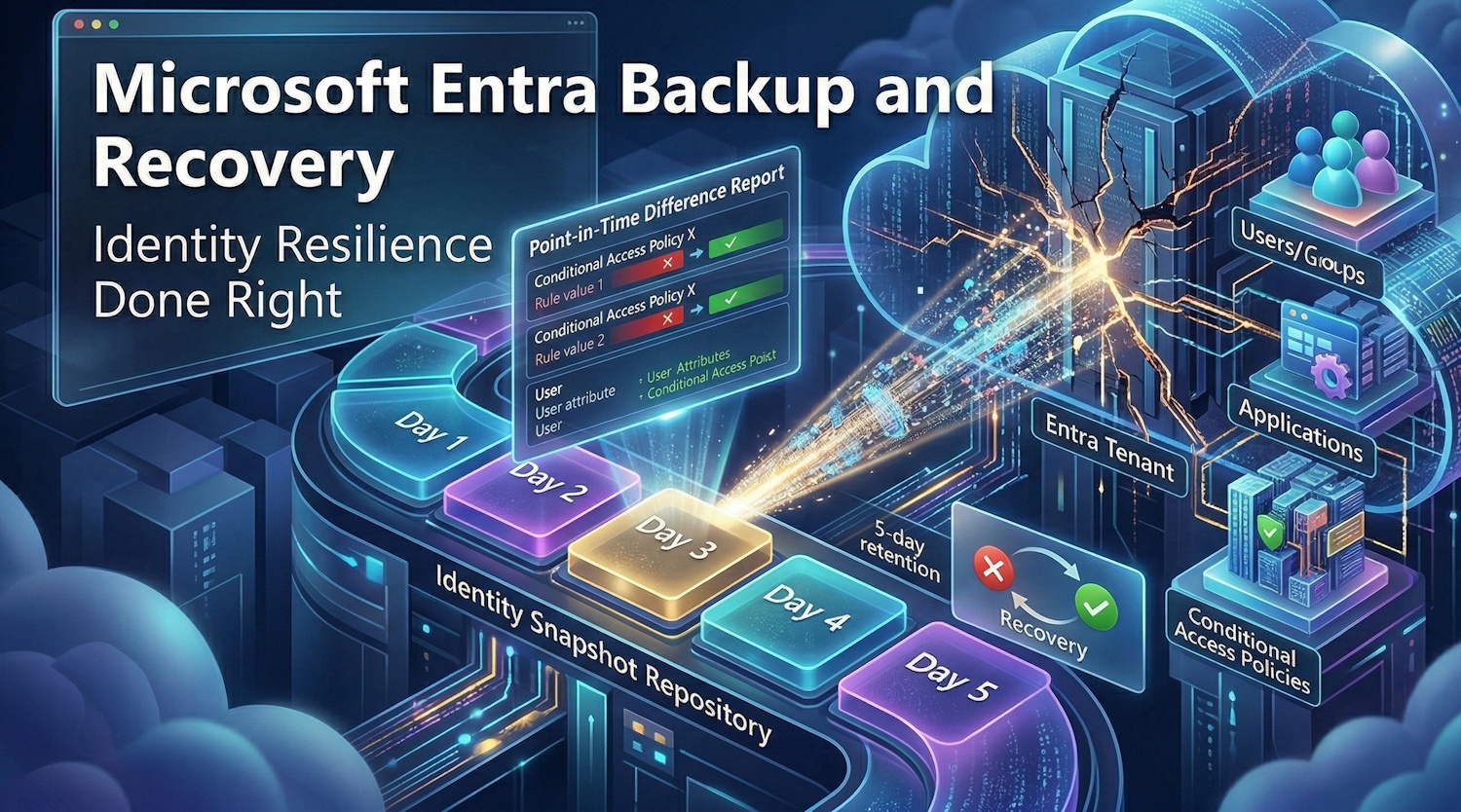
I've been waiting for this one. If you've spent any meaningful time managing a Microsoft Entra tenant, you've almost certainly had that moment — a Conditional Access policy is updated, something breaks, and you're scrambling to figure out exactly what changed and how to get back to where you were. Up until now, that recovery process involved a lot of manual digging, audit log archaeology, and sometimes just rebuilding things from memory or documentation you hoped was current.
Microsoft announced Microsoft Entra Backup and Recovery in Public Preview at RSAC 2026 (March 2026), and honestly, it's one of the most practically useful things to land in the Entra admin center in a long time. Let me walk you through what it is, how it works, and where I think it matters most.
Why Identity Resilience Is About More Than Uptime
Microsoft Entra already runs with a 99.99% availability SLA. They've invested heavily in resilience at the infrastructure level — backup authentication services, resilient SDKs, redundant systems. If the service itself goes down, that's Microsoft's problem to solve. And they're very good at it.
But consider this: the bigger operational risk isn't the service going down — it's what happens inside your own tenant. Identity environments change constantly. Policies get updated, provisioning flows evolve, administrative access shifts. And when something goes wrong in that environment — an accidental misconfiguration, a runaway HR system sync, a compromised admin account making quiet changes — the problem isn't that Entra is down. The problem is that your configuration is now wrong and you need to recover it, quickly, with precision.
That's the gap Entra Backup and Recovery is designed to close.
What Is Microsoft Entra Backup and Recovery?
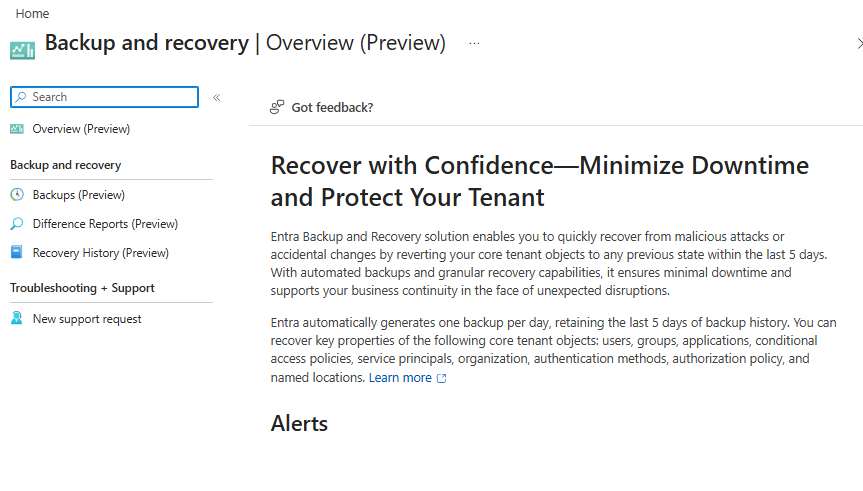
Microsoft Entra Backup and Recovery is an always-on, Microsoft-managed backup and recovery service built into your Entra tenant. It automatically takes snapshots of your critical identity objects — once a day — and retains them for the last 5 days. Those backups are tamper-protected: they cannot be disabled, deleted, or altered, which is exactly what you want when you're dealing with a security incident and need to trust that your known-good baseline hasn't been touched.
The three core capabilities are:
- Automatic backups — One backup per day, 5-day retention, Microsoft-managed, tamper-proof
- Difference Reports — Point-in-time visibility into exactly what changed between any two snapshots, scoped to specific object types
- Recovery jobs — Targeted restoration of specific objects or attributes back to a known-good state, with granular filtering
Note: Microsoft Entra Backup and Recovery requires an Entra ID P1 or P2 license. It's available in the Microsoft Entra admin center today. The required role is Entra Backup Administrator.
What Gets Backed Up?
The Public Preview covers the objects you're most likely to need in a recovery scenario. Based on the announcement, the following are included:
| Object Type | Covered in Preview | Why It Matters |
|---|---|---|
| Users | Yes | HR sync errors, attribute corruption at scale |
| Groups | Yes | Compromised membership, accidental deletions |
| Applications | Yes | App registration changes, permission drift |
| Service Principals | Yes | Enterprise app misconfiguration |
| Conditional Access Policies | Yes | Policy changes that lock out users |
| Authentication Method Policy | Yes | MFA weakening by compromised account |
| Authorization Policy | Yes | Tenant-wide access setting changes |
| Named Locations | Yes | CA policy location condition drift |
The coverage is squarely focused on the objects that, when misconfigured, have the biggest blast radius. Conditional Access policies and authentication method settings in particular are exactly where you want a reliable rollback option.
How It Works in Practice
The typical workflow I see playing out in real incidents is this:
- Something breaks — access stops working, helpdesk tickets spike, or a security alert fires
- Open Backup and Recovery in the Entra admin center (under the Entra ID blade)
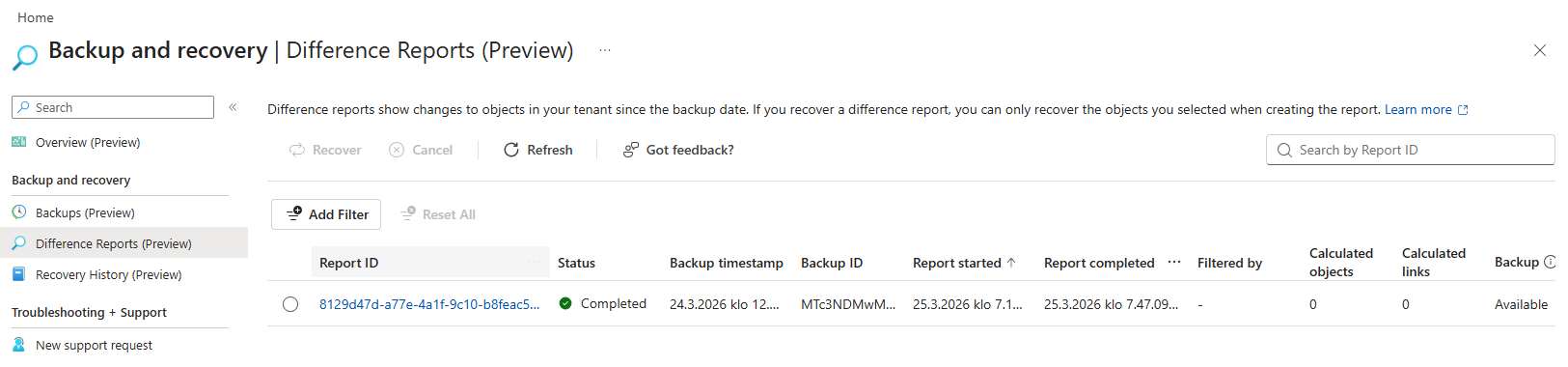
- Generate a Difference Report — select the backup from before the incident and scope it to the relevant object type (e.g., Conditional Access policies)
- Review what changed — the report gives you a clear, itemized view of exactly what was modified, who changed it, and when
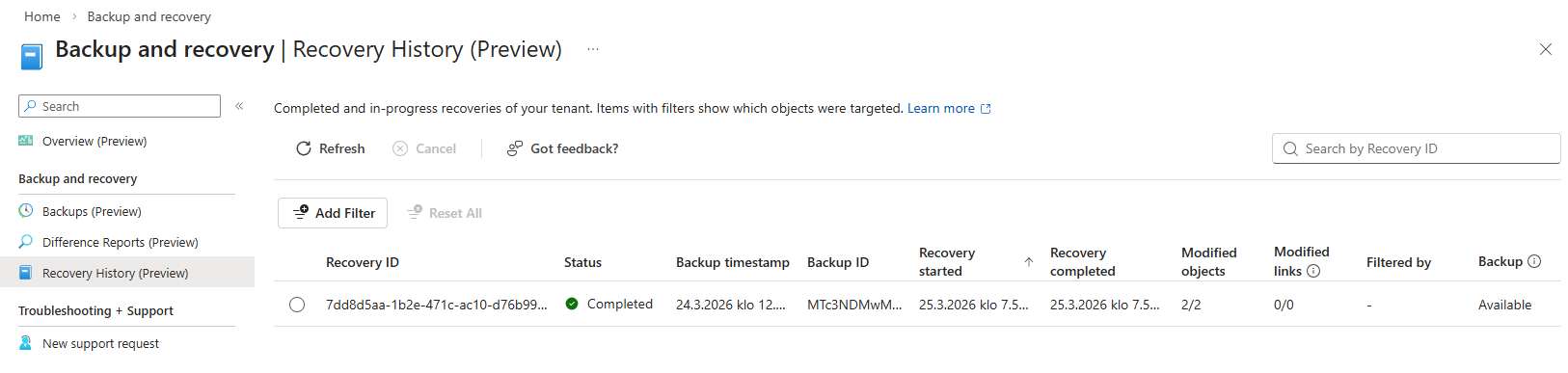
- Run a targeted recovery job — select the specific object(s) to restore, apply filters to scope the recovery, and execute
- Verify — check the recovery history, confirm affected objects are back to their expected state
The key thing here is precision. You're not doing a full tenant restore that overwrites everything since the last backup. You're surgically targeting the affected objects and attributes, which means you don't inadvertently undo legitimate changes made elsewhere.
Three Scenarios Where This Actually Saves You
Scenario 1: The Conditional Access Lockout
This is the classic. An identity admin is updating a CA policy — routine maintenance, maybe tightening MFA requirements or updating location conditions. An exclusion group gets accidentally removed from the policy assignments. The change goes live immediately. Some set of users suddenly can't sign in, helpdesk is flooded, and you're staring at the current policy trying to remember what it looked like 20 minutes ago.
With Backup and Recovery, you pull up the Difference Report scoped to Conditional Access policies, see exactly which exclusion group was removed from which policy, and run a recovery job to restore that specific policy. Access is restored in minutes, not hours.
Scenario 2: The HR System Data Corruption
HR systems push data into Entra on a schedule. When that push goes wrong — and at scale, it will eventually go wrong — you can end up with thousands of user accounts carrying incorrect job titles, departments, or manager assignments. Applications that depend on those attributes for access decisions start behaving unpredictably. You pause inbound provisioning to stop the bleeding, but now you need to restore the correct attribute values across a large user population.
The Difference Report gives you a granular, user-by-user view of exactly which attributes changed for which accounts. You apply filters to scope the recovery job to just those users and attributes, avoiding any changes made legitimately since the last backup. Once the HR system is fixed, you resume provisioning with confidence that the directory is in a known-good state.
Scenario 3: The Compromised Admin Account
This is the scenario that keeps security teams up at night. A privileged account is compromised. The attacker quietly weakens MFA requirements, modifies group memberships tied to critical applications, and perhaps softens some Conditional Access conditions. The changes are subtle, intentionally designed not to trigger obvious alerts. By the time your security team detects and contains the incident, you've got multiple objects affected across your tenant and you need to know: exactly what did they change, and what does "clean" look like?
Because Backup and Recovery also integrates with soft-deletion, deleted objects can be recovered in the same workflow. The Difference Report surfaces the malicious changes. Recovery jobs restore the trusted configuration. Your team gets back to a verified known-good state without having to manually reconstruct every affected object.
Licensing, Access, and Availability
A few practical details worth knowing before you go looking for it:
- License requirement: Entra ID P1 or P2. If you're already on Microsoft 365 E3/E5 or have Entra ID P1/P2 standalone, you're covered
- Required role: Entra Backup Administrator: a dedicated role, so you can grant backup/recovery access without handing out Global Admin
- Availability: Public Preview as of March 2026, available today in the Entra admin center
- Backup frequency: 1 backup per day, 5-day retention window
- Tamper protection: Backups cannot be disabled, deleted, or modified — even by Global Admins
The API-first architecture is worth flagging too. Because Backup and Recovery is built on an extensible API platform, ISVs can build on top of it and enterprises can integrate it into their own operational workflows. That's a good design choice — it means this doesn't have to stay a portal-only experience as the feature matures.
Getting started: Sign in to the Microsoft Entra admin center as an Entra Backup Administrator. In the left navigation under the Entra ID blade, select Backup and Recovery. From there you can browse snapshots, generate Difference Reports, and initiate recovery jobs.
My Take
I've always thought that the ability to recover quickly from configuration mistakes is underrated in identity management. Most organizations invest heavily in preventing bad changes — change management processes, test environments, approval gates — but don't have a fast, reliable recovery path when something still slips through. And it always slips through eventually.
The tamper-proof backup design is the right call. The worst time to discover your backup was disabled or corrupted is during an incident. The Difference Report approach is also much more useful than raw audit logs for actual recovery decisions — it shows you the delta in a way that maps directly to what you need to restore, rather than requiring you to reconcile event entries manually.
The 5-day, once-daily retention window is a limitation to be aware of. If you need to recover something that was changed more than 5 days ago, you're back to the old process. But for the most common operational recovery scenarios — the ones that typically get noticed within a day or two — this window is usually sufficient.
Worth enabling and worth making sure the right people have the Entra Backup Administrator role assigned before you need it.