Why You Should Care
You've decided to set up provisioning for an application. Your HR system is the source of truth for employees. You connect the app to Entra, define your provisioning rules, and flip the switch. Everything works — Entra creates new accounts in the app, marks them as assigned, manages them going forward.
But here's the thing that catches most teams off guard: the app probably already had accounts in it. Maybe from before you bought Entra identity governance. Maybe created manually by the application team. Maybe left behind by former employees or consultants. Maybe service accounts for integrations nobody remembers. The app doesn't advertise these accounts to Entra, and Entra has no way of knowing they exist.
Now you've got a governance gap. Entra is managing the new stuff, but the old accounts — the shadow accounts — are orphaned. Nobody's cleaning them up when people leave. Nobody's enforcing access policies on them. A security team audit eventually surfaces this, and you're left scrambling to figure out: what accounts are even in this app, which ones matter, which ones should be cleaned up?
That's the problem Account Discovery solves.
What Is Microsoft Entra Account Discovery?
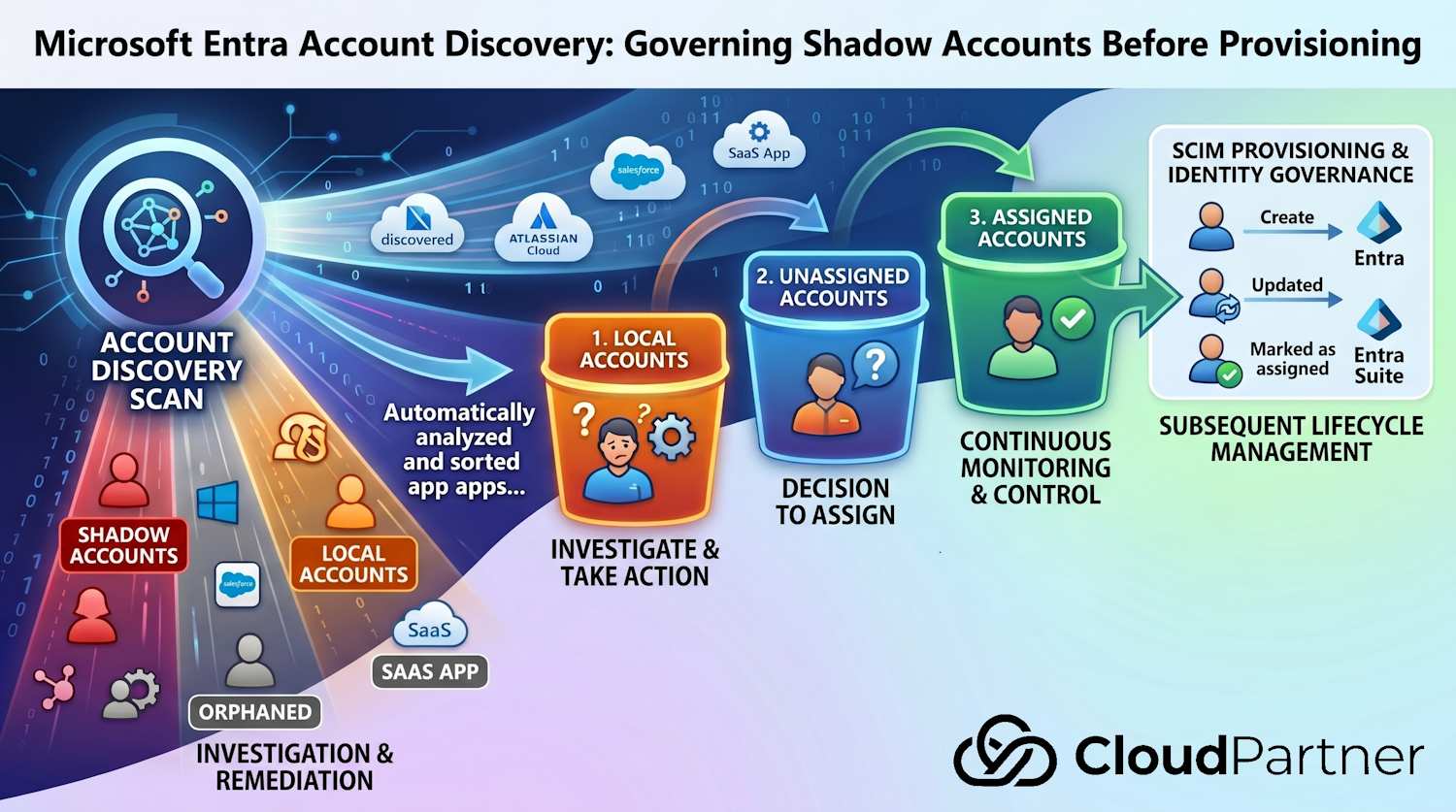
Account Discovery is a preview feature in Entra ID that automatically scans an application and catalogs every account it finds. The feature then classifies each account, tells you whether Entra knows about it, whether it's assigned for provisioning, and whether it needs action.
The real value is that you stop treating application accounts as black boxes. Discovery gives you a comprehensive, auditable view of shadow accounts — the ones that existed before provisioning was configured, or the ones that were created in the app without going through Entra.
The Three Account Buckets
When Account Discovery scans an application, every account it finds falls into one of three categories:
1. Local Accounts
These are accounts that exist in the application but have no corresponding user in Entra ID. They're orphans — maybe old employees, service accounts, manually created test accounts, or accounts from integrations that predate your Entra implementation. Nobody in Entra knows about them. From a governance perspective, these are your exposure. They typically need investigation: are they still being used? Should they be archived? Should they be deleted?
2. Unassigned Accounts
These accounts match an active Entra user, but the user isn't assigned to the application yet. In other words, the account exists in the app, someone with a matching email exists in Entra, but provisioning isn't managing this user-to-app relationship. This usually means the account was created manually in the app before provisioning was turned on. You now have a choice: assign the Entra user to the app (so provisioning takes over going forward), or leave it unmanaged.
3. Assigned Accounts
These are the happy path. The account exists in the app, it matches an Entra user, and that user is assigned to the application for provisioning. Entra is managing this account's lifecycle — updates, deprovisioning, all of it. No action needed here.
⚠️ Why this matters: A typical application might have 100 assigned accounts (managed by Entra) but 50 local accounts (unknown) and 30 unassigned accounts (orphaned from before provisioning). Your security and compliance teams care about all 180, not just the 100 being managed.
How It Works in Practice
The typical workflow is straightforward:
- You trigger discovery — Open the provisioning configuration in the Entra admin center and initiate an account discovery scan
- Discovery runs — Depending on account volume, this takes 30 minutes to 12+ hours. The scan queries the application's API or directory for all existing accounts
- Results are classified — Each account is sorted into the three buckets (local, unassigned, assigned) with metadata: username, email, creation date, last login, etc.
- You review and take action — For local accounts, you investigate. For unassigned accounts, you decide whether to assign them for Entra management or leave them alone
- Continuous visibility — You can run discovery again later to see what's changed. Shadow accounts that were cleaned up drop off. New ones surface if someone creates accounts directly in the app
The result is a governance baseline. You know what's in the app. You've made deliberate choices about what Entra is managing and what's staying local. And you've got an auditable record of those decisions.
Handling Large Result Sets: Pagination
When Account Discovery runs against applications with thousands or tens of thousands of accounts, the results need to be delivered in manageable chunks. SCIM—the underlying standard—defines pagination parameters for exactly this use case.
If you're integrating Account Discovery results programmatically or building custom workflows, you'll encounter two key pagination parameters (defined in RFC 7644 Section 3.4.2.4):
- startIndex — The 1-based index of the first result. Defaults to 1. If you want results 11-20, you'd set startIndex to 11.
- count — The maximum number of results per page. For example, count=50 tells the service to return no more than 50 accounts per request.
Here's the critical part: pagination is not stateful. Between requests, the application's account data may change—accounts deleted, new ones created. If you paginate through results and then request page 1 again, you might get different results. This is by design (following the OpenSearch Protocol standard), but it's important to understand if you're building automation around discovery results.
In practice, for Account Discovery use cases, this means: run your discovery scan once, get all the results (paging through if needed), make your remediation decisions, and don't expect to pick up exactly where you left off if you repeat the query later. Rerun the full discovery for updated visibility.
Getting 0 results? Two things to check: make sure your matching attribute is a direct attribute — expression-based transformations aren't supported for account correlation. And verify with the application vendor that their SCIM implementation supports pagination per RFC 7644 §3.4.2.4. If it doesn't, discovery comes back empty.
Licensing & Requirements
A few practical prerequisites before you can use Account Discovery:
- License requirement: Microsoft Entra ID Governance add-on license or Microsoft Entra Suite. If you already have Entra P1/P2 with Governance add-on, you're covered.
- Application support: Not all applications are equally discoverable. Account Discovery works best with apps that expose a user directory endpoint (most SaaS apps do). Some custom or proprietary applications may not be fully discoverable.
- API permissions: The Entra provisioning service needs appropriate API access to the application to enumerate accounts. Usually this means the provisioning connector account needs read permissions on the user/account directory.
- Timing: Discovery is not instantaneous. Small organizations might see results in 30 minutes. Large ones with heavy account volumes might see scans running 12+ hours. Plan accordingly and don't expect real-time results.
App Support & Known Limitations
Not all connectors work with Account Discovery. The confirmed ones are Atlassian Cloud, Salesforce, SAP Cloud Identity Services, and apps using the ECMA connector (SQL, LDAP, Web Services, PowerShell). Connectors that explicitly don't support it: Workday, SAP SuccessFactors, ServiceNow, AWS, and Snowflake. For everything else, whether it works depends on whether the app's SCIM implementation supports RFC 7644 §3.4.2.4 pagination — check with the vendor if you're unsure.
Two limitations worth knowing before you start:
- Direct matching attribute required — Discovery correlates Entra users to app accounts using the first matching attribute in your configuration. Expression-based transformations aren't supported for this matching. If your mappings rely entirely on expressions, correlation won't work.
- Multiple matching attributes — If you have more than one configured, only the first is used.
Getting Started
To enable Account Discovery: In the Entra admin center, navigate to Identity Governance → Provisioning. Select an application with provisioning already configured. Under Account Discovery (if available), select Start Discovery to trigger a scan. You'll see progress and can download results when complete.
For detailed setup steps and application-specific guidance, see Microsoft's Account Discovery documentation.
Bulk-Assigning Correlated Users: The Official Scripts
Once Account Discovery has run and you've identified your correlated-but-unassigned users, the next step is doing something about them at scale. Microsoft published two files on GitHub specifically for this:
Assign-CorrelatedUsers.ps1 — a PowerShell script
that connects to Microsoft Graph, pulls the latest correlation report for a given
enterprise application, and bulk-assigns every correlatedNotAssigned user
to the app role. If you're also using Entitlement Management, it can route correlated
users to access packages based on their SCIM properties. There's a
-DryRun parameter so you can see exactly what it would do before anything
gets changed, and an -OutputFile option to export a CSV audit trail of
every action taken.
access-package-rules.csv — the routing rules
template that goes with the script. Each row maps a SCIM property (like
userType or department) to a specific access package ID.
Rows sharing the same group number are AND-ed together, so you can write rules like
"userType = partner AND department = Sales → assign to this access package." Different
groups are evaluated independently, so one user can end up in multiple packages if they
match more than one group.
Together these let you go from "we have 300 correlated accounts sitting in limbo" to "they're all properly assigned and routed to the right access packages" in a single scripted run — no manual clicking through the portal for each one.
Account Discovery + SCIM: A Powerful Combination
If you've been following along with my SCIM 2.0 APIs post, Account Discovery pairs really well with that work. Here's why:
With SCIM 2.0 APIs in Entra, you're now able to provision users into Entra from external systems (HR platforms, orchestration tools, etc.). But before you commit to managing an application's accounts through SCIM, you need a baseline: what's already there? Account Discovery gives you that baseline.
The pattern looks like this:
- Run Account Discovery on the target application
- Review the three buckets — understand what local and unassigned accounts exist
- Make remediation decisions on shadow accounts
- Once you have a clean state, enable SCIM provisioning with confidence, knowing that new accounts going forward will be under Entra management
This reduces the risk of accidentally syncing old data or losing track of accounts. You're starting from a known-good inventory.
It also ties into the wider Identity Governance picture. Once accounts are under management, you can assign users to access packages, run access reviews to certify who still needs what, and configure lifecycle workflows to handle deprovisioning when people leave. Discovery gives you the starting inventory; Governance takes it from there.
The Bottom Line
Account Discovery solves a specific, real problem: the governance blind spot that exists between "application has accounts that Entra doesn't know about" and "we're not sure what to do about it."
- You can't govern what you can't see. Discovery surfaces all accounts in an application, regardless of how they got there.
- Every account falls into one of three buckets: local accounts (orphaned, need investigation), unassigned accounts (need assignment decisions), and assigned accounts (already managed, no action needed).
- If you're implementing SCIM 2.0 provisioning, run Discovery first. It tells you what state the application is in before you hand over lifecycle management to Entra.
- The audit trail of what you discovered and the decisions you made satisfies most compliance frameworks — it's the difference between a documented decision and a gap.
- You need the Entra ID Governance add-on, so factor that into your licensing budget.
- App support is specific: Atlassian Cloud, Salesforce, SAP Cloud Identity, and ECMA connectors work. Workday, ServiceNow, AWS, and Snowflake don't. Expression-based matching attributes won't work either.
- This is a public preview feature as of early 2026. Microsoft is still iterating on it, so expect refinements as adoption grows.
If you're working on identity governance, provisioning strategy, or compliance for SaaS applications, Account Discovery is worth testing. It fills a real gap in the visibility and control story.
Further Reading
- Microsoft Entra Account Discovery documentation
- Microsoft Entra SCIM 2.0 APIs: Standards-Based Identity Provisioning at Scale — Cloudpartner
- SCIM support in Entra ID
- Enable SCIM 2.0 APIs in Entra ID
© 2026 Cloudpartner. Please attribute the source when reusing content. The views expressed here are my own.