


Go to the IAM page of almost any Azure subscription that's been running for a year or two and you'll find the same thing: a long list of role assignments with no indication of why they were added, whether they're still needed, or when they were last reviewed. The "Owner" assignment from a contractor who left eight months ago. The "Contributor" role that was "temporary" for a project that went live in 2023. The security auditor who got Reader access during an engagement and was never removed.
Manual RBAC assignment is fine for small, stable environments. Past a certain scale — multiple teams, rotating project membership, external partners, compliance requirements — it becomes a real problem. Access accumulates. Nobody owns the cleanup. Auditors ask who has access to what and the honest answer is "we're not entirely sure."
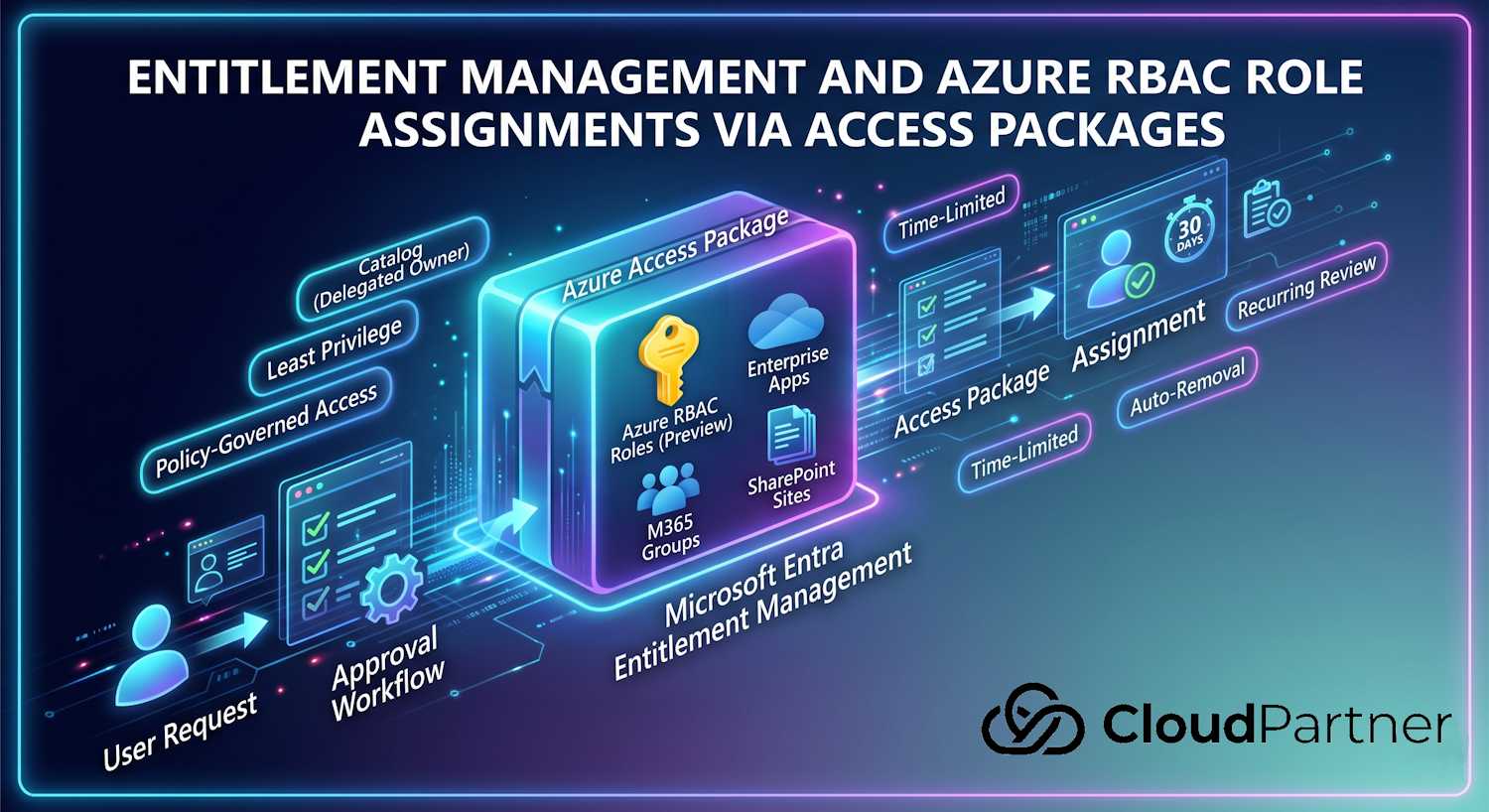
Microsoft Entra Entitlement Management is the part of the ID Governance suite that addresses this at a process level. Microsoft recently added Azure RBAC role assignments directly into access packages — currently in Preview — which means the same governance model that manages your group memberships and app assignments can now also manage Azure role assignments, with the same approval workflows, time limits, and audit trail.
This post covers what Entitlement Management actually is, how the core concepts fit together, and then walks through the Azure RBAC integration specifically.
What Is Entitlement Management?
Entitlement Management is the Microsoft Entra ID Governance feature that manages access lifecycle at scale — automating how users request access, how approvals flow, when access expires, and how it gets reviewed periodically. It sits on top of the individual resource assignments (group memberships, app roles, SharePoint sites, Entra ID roles, and now Azure RBAC roles) and adds a governance layer around them.
The core idea is that instead of assigning access directly, you bundle related resources into an access package and let users request it. The system handles the rest: routing the request to approvers, provisioning everything in the package once approved, and cleaning up when the access expires or is revoked.
This matters for a few reasons that tend to come up in compliance conversations:
- Least privilege in practice: Access has a defined scope (what's in the package) and a defined lifetime (set by policy). You're not relying on someone remembering to revoke it.
- Audit trail: Every assignment flows through a request, an approval decision, and an expiry event. That's a complete record for an auditor, not a list of orphaned assignments.
- Delegation without sprawl: Department managers can own access packages for their team's resources without needing admin roles. IT doesn't have to be in the loop for every request.
- External access with guardrails: Contractors and external collaborators can get time-limited access without permanent guest objects or indefinite group memberships.
Core Concepts
There are four things you need to understand before any of the portal steps make sense: catalogs, access packages, policies, and assignments.
Catalogs
A catalog is a container that holds resources and the access packages built from them. Think of it as a department-level boundary: the HR team might have a catalog with their SharePoint sites, their HR system app, and the security groups that control access to those. The infrastructure team has a separate catalog with their subscriptions and resource groups.
The key thing catalogs enable is delegation. You can assign someone as a Catalog Owner without giving them any broader admin role. That person can add resources, build access packages, and manage their catalog entirely independently. IT doesn't have to be in the loop for day-to-day access management in that catalog.
Access Packages
An access package is a named bundle of one or more resources. A user requests an access package, not individual resources. When the request is approved, they get everything in the bundle. When the access expires, everything is removed.
Resources that can go into an access package today include:
- Security groups and M365 groups (including Teams)
- Enterprise applications (specific app roles)
- SharePoint Online sites
- Microsoft Entra ID directory roles
- Azure RBAC roles (currently in Preview) — role assignment at management group, subscription, or resource group scope
One access package can have multiple policies attached to it — for example, a policy for internal staff with no approval required and 90-day duration, and a separate policy for external contractors that requires manager approval and expires after 30 days.
Policies
A policy defines the rules for how an access package gets assigned. There are three main categories of settings:
Requestors — who is allowed to request this package. You can scope this to specific users, members of a specific group, all members of the directory, guests, or users from external organizations that you've set up as connected organizations.
Approval — whether a request needs approval before access is granted, and if so, who approves it. Approval can be none (auto-approve on request), one stage, or two stages. Approvers can be specific users, the requestor's manager, or internal sponsors for external users. There's also an option for the requestor to provide justification, which is useful for compliance scenarios where you need documented business reason.
Lifecycle — how long the access lasts. You can set a fixed number of days, a specific end date, or leave it indefinite (not recommended for most scenarios). You can also configure recurring access reviews here: every 90 days, every 6 months, etc. If a reviewer doesn't respond during the review window, the system can be configured to auto-remove access or auto-extend it.
Assignments
An assignment is the active record of a user holding an access package. Once assigned, the user's actual resource access (group memberships, app roles, Azure RBAC assignments) is provisioned automatically. The assignment record in Entitlement Management is the authoritative source for why that access exists and when it expires.
Assignments can come from user requests (through the My Access portal at
myaccess.microsoft.com), from administrators assigning directly, or from
auto-assignment policies — rules that automatically assign an access
package to users who match certain attributes (like department, job title, or country).
Auto-assignment is useful for onboarding: new employees in the Engineering department
automatically get the Engineering starter package on day one.
Azure RBAC Role Assignments in Access Packages (Preview)
This is the feature that prompted this post. Microsoft added the ability to include Azure RBAC roles directly inside access packages. As of the documentation published 1 May 2026, this is still in Public Preview.
What this gives you in practice: instead of going to the Azure portal IAM page and manually adding a role assignment, you include the Azure role in an access package. The assignment now has an approval workflow, a defined expiry, and a full audit record in Entitlement Management. When the access expires, the Azure role assignment is automatically removed — no manual cleanup required.
The supported scopes for Azure RBAC roles in access packages are:
- Management group
- Subscription
- Resource group
Both built-in roles (like Reader, Contributor, Owner) and custom RBAC roles defined at the scope are available. And — importantly — you can choose whether the assignment is Active or Eligible.
Active vs. Eligible Role Assignments
This distinction matters a lot from a least-privilege standpoint.
| Assignment type | What it means | Best for |
|---|---|---|
| Active | The Azure RBAC role is directly assigned for the duration of the access package. The user can exercise the permissions immediately. | Read-only roles (Reader, Monitoring Reader), project access for a defined period, scenarios where activation friction would be counterproductive |
| Eligible (via PIM) | The role is configured in PIM as eligible. The user appears in PIM's eligible assignments list but must explicitly activate the role for a time-limited window before they can use it. Activation can require MFA or a justification. | Privileged roles (Owner, Contributor, User Access Administrator), break-glass scenarios, any role where you want a deliberate "I'm using this now" signal before the permissions are live |
Eligible assignments are a meaningful improvement over standing permissions. The user has the entitlement via the access package, but standing access to your resources only happens in short bursts when they explicitly activate it. Combined with PIM's activation settings (MFA required, max 8-hour window, justification required), you get just-in-time access with a full audit trail for each activation.
Note: Eligible assignments require PIM, which is part of Microsoft Entra ID P2 or Microsoft Entra ID Governance. If your license is P1 only, you can use Active assignments but not Eligible ones through access packages.
Prerequisites
Before you can add an Azure RBAC role to an access package, a few things need to be in place:
Identity roles: You need either the Identity Governance Administrator Entra ID role or ownership of the specific catalog you're working in. For eligible (PIM) assignments, you also need Privileged Role Administrator.
Azure RBAC permissions: The account doing the onboarding needs the following permissions on the Azure scope you're onboarding:
Microsoft.Authorization/roleassignments/read
Microsoft.Authorization/roleassignments/write
Microsoft.Authorization/roleassignments/delete
The built-in roles that satisfy this are Owner or User Access Administrator at the target scope (management group, subscription, or resource group).
For the step of adding a specific role definition to an access package, you also need:
Microsoft.Authorization/roleDefinitions/readThis is included in Reader or higher, so it won't usually be a separate hurdle.
Licensing: Entitlement Management requires Microsoft Entra ID Governance or Microsoft Entra Suite. Every user who is assigned via an access package (including external users) needs a license.
Setting It Up
There are three main steps: onboard the Azure scope to a catalog, add the Azure RBAC role to an access package, then configure a policy for who can request it and how.
Step 1: Onboard the Subscription or Resource Group to a Catalog
The catalog needs to "see" the Azure scope before you can add roles from it to packages. In the Entra portal, navigate to:
Identity Governance → Entitlement Management → Catalogs → [your catalog] → Resources → + Add resourcesOn the resource type selector, choose Azure subscriptions. The picker will show the management groups, subscriptions, and resource groups that your account has access to. Select the scope you want — you can onboard at any level, and role definitions available at that scope (including inherited ones) will be available when you build access packages.
If you want to onboard a management group scope, the process is identical — just select the management group from the picker instead. Onboarding at management group level means you can include RBAC roles that apply across all subscriptions underneath it.
Step 2: Add the Azure RBAC Role to an Access Package
In the same catalog, go to Access packages. Create a new one or edit an existing one. On the Resource roles tab:
- Click + Add resource roles
- Select Azure subscriptions from the resource type tabs
- Choose the onboarded subscription or resource group
- Select the role (Reader, Contributor, custom roles, etc.)
- Choose the assignment type: Active or Eligible
You can add multiple resource roles to the same access package — for example, give a project engineer Contributor on a specific resource group plus membership in the project M365 group in a single requestable bundle.
Step 3: Configure a Policy
Policies are where the governance actually lives. Add a policy to the access package and set:
- Requestors: Who is in scope. For an internal project team, this might be a specific group or a department attribute. For external contractors, it might be a connected organization you've set up.
- Approval: Whether a manager or resource owner has to approve it. For privileged RBAC roles, I'd always require at least one approval stage with a justification field.
- Duration: How long the access lasts. For project-scoped access this might be a fixed number of days matching the project timeline. For recurring roles, you can set a maximum duration and require renewal.
- Access review: For longer-lived access, configure a recurring review. This is where Entitlement Management earns its keep for compliance — you get documented evidence that someone reviewed and confirmed the access at regular intervals.
Once the policy is saved, the access package is available in the My Access portal. Users in the requestor scope can find it, submit a request with justification, and wait for approval. Once approved, the Azure role assignment is created automatically with no manual portal work required.
Entitlement Management vs. Manual RBAC Assignment
It's worth being clear about what you're trading and what you're gaining. Manual RBAC in the Azure portal is faster to set up for a one-off assignment. Entitlement Management has setup overhead. But the comparison changes at scale and under compliance requirements:
| Dimension | Manual RBAC (portal) | Entitlement Management |
|---|---|---|
| Setup time | Seconds per assignment | Hours to build catalog, packages, and policies initially; near-zero per request afterwards |
| Access expiry | Manual — relies on someone remembering to revoke | Automatic — set in policy, system removes access on expiry |
| Approval workflow | None — whoever has IAM write can assign | Configurable 1- or 2-stage approval with justification |
| Audit trail | Azure Activity Log shows who made the assignment, not why | Full lifecycle record: request, justification, approver decision, expiry |
| Access reviews | Must be set up separately in Entra ID Governance if needed | Built into the policy — recurring reviews with auto-remove on no response |
| PIM integration | Separate PIM configuration required | Choose Eligible in the access package; PIM configuration is handled automatically |
| External user access | Must manage guest accounts manually | Connected organizations — external users can request packages, B2B invite is auto-sent, account auto-removed when access expires |
| Unified identity view | Azure IAM and Entra ID admin center are separate; no single view of an identity's entitlements | Access packages bundle Azure and M365 resources — one request, one record, one expiry |
| Admin overhead | High — every request goes through whoever has IAM access; no self-service | Delegated — catalog owners manage their scope; requestors self-serve through My Access |
Practical Scenarios
A few patterns I've seen work well:
Project team Azure access: A project runs for 3 months and needs a team of 8 engineers with Contributor on a specific resource group. Create an access package with the Contributor role (active assignment) scoped to that resource group, 90-day duration, manager approval required. Engineers request it on day one. At 90 days the access is removed automatically. If the project extends, the team requests renewal. No manual cleanup, no forgotten permissions sitting around after the project wraps.
Security auditors: External auditors need Reader access to your subscriptions for a 2-week engagement. Set them up as a connected organization, build an access package with Reader at subscription scope (active, 14-day max), require justification and manager approval. When the engagement ends and the access expires, the B2B guest account is automatically removed too. Clean audit record, no orphaned guests.
On-call production access: Your SRE team occasionally needs Owner on a production subscription to respond to incidents. This is a perfect fit for an eligible assignment. They hold the entitlement via the access package, but the Owner role is only live for the PIM activation window (say, 4 hours) and requires MFA and a justification before activation. Standing Owner permissions on production: gone.
New employee onboarding: Use auto-assignment policies to automatically give new hires in a specific department the appropriate starter access package on their first day. Combine it with an access review at 90 days so a manager confirms that access still makes sense after the probation period. No onboarding ticket, no waiting for IT to process the request manually.
Account Discovery: Finding Access You Don't Know About Yet
The governance model above assumes you know what access already exists in your applications. In practice, that's rarely true when you're connecting an app to Microsoft Entra for the first time. Most applications arrive pre-populated with accounts that were created through a mix of manual provisioning, contractor onboarding, migrations from legacy systems, or direct sign-ups — none of which went through any governance process.
Microsoft announced Account Discovery in April 2026 as a Public Preview feature in Microsoft Entra ID Governance. It's a direct response to that problem: before you can apply governance controls, you need to see who already has access and whether that access is tracked anywhere in Entra at all.
When you run a discovery on an enterprise application, Entra connects directly to the app and retrieves the full list of user accounts and their properties. Each account is then evaluated against your directory using configurable matching attributes — user principal name, email, or other fields depending on the application. The result is a classified report that groups every account into one of three states:
| Account state | What it means | Recommended action |
|---|---|---|
| Matched and assigned | The user exists in Microsoft Entra and is already assigned to the application. These accounts are governed and subject to your existing Conditional Access, access reviews, and lifecycle policies. | No immediate action needed — confirm access packages or group memberships are in place if you want a full governance trail. |
| Matched but unassigned | The user exists in Microsoft Entra but access was provisioned directly in the application, outside any Entra governance control. Conditional Access, access reviews, and lifecycle policies don't apply to this access. | Map these users to the appropriate Entitlement Management access packages to bring access under policy — approval history, expiry, and access reviews then apply. |
| Orphaned / local | No matching identity found in Microsoft Entra. The account exists only in the application — former employees, contractors, test users, or service accounts with no corporate identity association. MFA and Conditional Access don't reach these accounts at all. | Investigate with application owners. Disable or remove accounts that have no valid owner. Link accounts with legitimate purpose to a managed corporate identity. |
Microsoft's own research puts the scale of this problem in concrete terms: 97% of organizations experienced an identity or access-related incident in the past year, and 22% of those had direct business impact. A significant contributor is fragmented access that exists outside governance — exactly the "matched but unassigned" and "orphaned" categories Account Discovery surfaces.
How It Connects to Access Packages
Once you have the discovery report, the path forward for matched-but-unassigned users is to route them into Entitlement Management. If you've already built access packages aligned to job functions — a sales package, a customer support package — you can assign those users to the appropriate package from the discovery results. Their access goes from "exists in the app with no governance record" to "governed by a package with an approval trail, defined expiry, and scheduled access reviews."
The Salesforce example Microsoft uses in the announcement is a good illustration. An identity team connects Salesforce to Entra and runs a first discovery. Within minutes they have a complete picture: hundreds of existing users who are legitimate employees but unassigned (their Salesforce access was provisioned manually over the years), a handful of orphaned accounts with no matching Entra identity, and a few service and test accounts for separate review. Before any provisioning changes, access packages, or Conditional Access policies are applied, the team knows the actual access state of the application. No assumptions, no spreadsheets.
The orphaned accounts are handled separately — application owners determine whether accounts should be removed, disabled, or linked to a valid corporate identity. That decision is now based on data rather than guesswork. And once the initial cleanup is done, running periodic discoveries catches drift: local accounts created directly in the app outside the provisioning workflow, contractor accounts missed during offboarding, test users that were never removed. Account Discovery becomes a recurring governance checkpoint rather than a one-time exercise.
Availability: Account Discovery is in Public Preview as of April 2026. It requires Microsoft Entra ID Governance, Microsoft Entra Suite, or Microsoft E7 licensing. Access it from the enterprise application blade in the Microsoft Entra admin center, or through Microsoft Graph APIs. Documentation: aka.ms/accountDiscoveryDocumentation.
Licensing
Entitlement Management requires Microsoft Entra ID Governance or Microsoft Entra Suite. The base P1 license doesn't include it. A few specific notes:
- Access packages with active assignments: Requires Governance license for assigned users.
- Eligible (PIM) assignments: Requires P2 or Governance. Governance includes P2 capabilities.
- Access reviews: Requires P2 or Governance.
- External users: External users assigned via access packages need a Governance license (the External User Governance add-on covers this at a lower per-user cost for guest scenarios).
- Azure RBAC integration: No additional Azure licensing cost. The RBAC assignments themselves are free — you're just paying for the Entitlement Management layer that governs them.
The Microsoft ID Governance licensing fundamentals page has the current breakdown. License requirements do shift as features move from Preview to GA, so it's worth checking that page directly when you're planning a rollout.
Preview Status and What to Watch
The Azure RBAC role assignments feature in access packages is in Public Preview as of May 2026. A few things to keep in mind while it's in that state:
- The feature may not be available in all national cloud environments (GovCloud, China) — check the feature availability matrix before planning a deployment in those regions.
- Preview features are generally not covered by SLAs, and the configuration surface may change between now and GA.
- Test in a non-production catalog first. The onboarding step (adding a subscription to a catalog) is reversible, but it's easier to iterate on configuration without real access packages in scope.
- Microsoft's documentation for this feature is at Entitlement management — Azure role assignments — that's the best reference for current limitations and any changes as it approaches GA.
Overall, this is a useful extension of the Entitlement Management model into the Azure control plane. The tradeoff is clearer at scale — for small teams doing occasional RBAC assignments manually, the overhead won't pay off. For organizations with hundreds of identities needing Azure access, compliance requirements around access certification, or regular external partner access to Azure resources, the combination of approval workflows, automatic expiry, PIM-eligible assignments, and unified audit records is hard to replicate with manual RBAC management alone.