


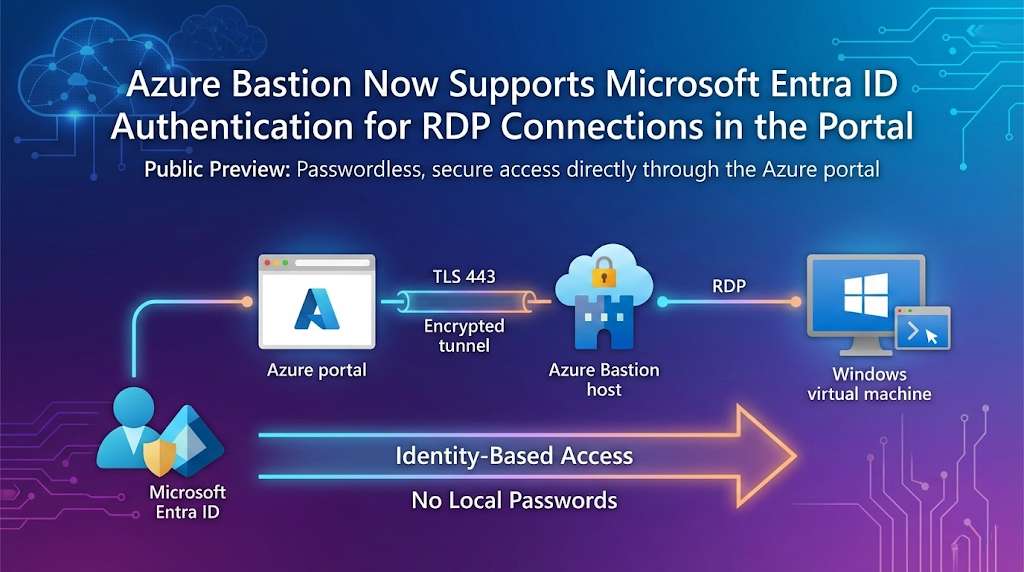
Microsoft has expanded Azure Bastion's capabilities with a significant security enhancement: Microsoft Entra ID authentication support for RDP connections directly in the Azure portal. This feature, announced on November 24, 2025, is now in public preview and represents a major step forward in simplifying secure access to Windows virtual machines while strengthening organizational security posture.
What Changed?
Previously, Azure Bastion supported Entra ID authentication for RDP and SSH connections via native client applications, and for SSH connections through the portal. However, when connecting to Windows VMs via RDP through the Azure portal, users had to authenticate using either VM passwords or credentials stored in Azure Key Vault.
Now, with this public preview release, RDP connections to Windows VMs through the Azure portal can use Microsoft Entra ID authentication, bringing the same passwordless, identity-based access experience to browser-based RDP sessions.
Why This Matters: The Security Case for Entra ID Authentication
Eliminating Local Credentials
The traditional approach of managing VM passwords creates several security challenges:
- Password sprawl across multiple virtual machines
- Risk of weak or reused passwords
- Lack of centralized credential management
- No built-in password rotation mechanisms
- Increased attack surface for credential theft
By integrating Microsoft Entra ID authentication, these challenges largely disappear. Authentication becomes identity-based rather than credential-based, eliminating the need to manage and secure local VM passwords.
Smooth User Experience
Users benefit from a one-click sign-in experience when connecting to Windows VMs. Instead of remembering and entering VM-specific passwords, they authenticate using their existing organizational identity—the same credentials they use for Microsoft 365, Azure portal access, and other corporate resources.
This smooth experience doesn't just improve user productivity; it also reduces support burden related to forgotten passwords and credential reset requests.
Centralized Identity Management
Integrating with Microsoft Entra ID means VM access becomes subject to the same centralized identity governance as other organizational resources:
- Conditional Access policies can enforce requirements like multifactor authentication, device compliance, or location-based restrictions
- Role-based access control (RBAC) determines who can access which VMs with what level of privilege
- Audit logs provide comprehensive visibility into who accessed which VMs and when
- Just-in-time access can be implemented through Privileged Identity Management (PIM)
Alignment with Zero Trust Principles
This enhancement directly supports Zero Trust architecture by:
1. Verifying explicitly - Every connection is authenticated against Entra ID
2. Using least privilege access - RBAC roles ensure users only have necessary permissions
3. Assuming breach - No local credentials to compromise; identity-based access with continuous verification
How Azure Bastion Works
Before diving into the Entra ID authentication specifics, it's worth understanding why Azure Bastion exists and what problems it solves.
Azure Bastion is a fully managed PaaS service that provides secure RDP and SSH connectivity to Azure virtual machines without exposing VMs to the public internet. Traditional approaches required:
- Public IP addresses on VMs or jump boxes
- Network Security Group rules allowing RDP/SSH from the internet
- Management of bastion hosts or jump servers
Azure Bastion eliminates these requirements by providing connectivity directly through the Azure portal over TLS on port 443. This means:
- No public IP addresses needed on VMs
- No RDP/SSH ports exposed to the internet
- No agent or client software required on VMs
- Built-in integration with Azure portal
Prerequisites for Entra ID Authentication
To use Microsoft Entra ID authentication with Azure Bastion, several prerequisites must be met:
1. Azure Bastion Configuration
- Azure Bastion must be deployed in the virtual network (or a peered virtual network) where the target VM resides
- Standard SKU or higher is required for custom port support (though the default RDP port 3389 works with any SKU)
2. VM Extension
The AADLoginForWindows extension must be enabled on the target Windows VM. This extension can be:
- Enabled during VM creation by checking the "Login with Microsoft Entra ID" box
- Added to existing VMs through the Azure portal or infrastructure-as-code templates
3. Role Assignments
Users must have appropriate RBAC roles assigned:
For VM access:
- Virtual Machine Administrator Login - for administrative access
- Virtual Machine User Login - for standard user access
For Bastion usage:
- Reader role on the virtual machine resource
- Reader role on the VM's network interface (NIC)
- Reader role on the Azure Bastion resource
- Reader role on the virtual network (if Bastion is in a peered VNet)
4. Network Configuration
The VM must have appropriate inbound port access:
- Port 3389 (RDP) open by default, or
- A custom port if configured (requires Standard SKU or higher)
5. User Rights on VM
For non-administrator access, users must be added to the Remote Desktop Users group on the target Windows VM. Local administrator users automatically have necessary rights.
Connecting to VMs with Entra ID Authentication
Once prerequisites are met, the connection process is straightforward:
1. Navigate to the VM in the Azure portal
2. Select Connect → Bastion from the VM's overview page
3. Microsoft Entra ID will appear as the default Authentication Type (if prerequisites are met)
4. Configure connection settings:
- Protocol: RDP
- Port: 3389 (or custom port if configured)
- Authentication type: Microsoft Entra ID (Preview)
5. Optionally select "Open in new browser tab" for better multi-VM management
6. Click Connect
The connection opens in your browser using HTML5 over port 443, with all traffic encrypted and routed through the Azure Bastion service. No client software, VPN, or public IP exposure required.
Current Limitations
Being in public preview, there are some limitations to be aware of:
1. Portal RDP Only for Windows
Microsoft Entra ID authentication for RDP connections in the portal is currently only supported for Windows VMs. For Linux VMs, Entra ID authentication via SSH is supported and documented separately.
2. No Concurrent Session Recording
RDP connections using Entra ID authentication in the portal cannot be used concurrently with graphical session recording. Organizations requiring session recording will need to use traditional authentication methods or native client connections.
3. Preview Status
As a preview feature, there's no SLA coverage. Organizations should evaluate the feature in non-production environments before broader deployment.
Architecture and Security Considerations
How Authentication Flows Work
When using Entra ID authentication with Azure Bastion:
1. User initiates connection through Azure portal
2. Azure portal authenticates user via Entra ID (already authenticated for portal access)
3. Authorization checks verify user has required VM access roles
4. Azure Bastion establishes secure connection to VM
5. VM's AADLoginForWindows extension validates user's Entra ID identity
6. If authorized, Windows grants access based on assigned role (Admin or User)
7. RDP session is established through browser over encrypted channel
Network Isolation Benefits
This approach provides defense in depth:
- VMs require no public IP addresses
- RDP port (3389) need not be exposed to internet
- All traffic flows through Azure's backbone network
- Connection originates from Azure Bastion's managed infrastructure, not user's potentially insecure network
Identity-Centric Security
Moving to identity-based authentication enables:
- Continuous authentication - Sessions can be subject to ongoing Conditional Access evaluation
- Risk-based access - Entra ID Protection can flag risky sign-ins and require additional verification
- Unified audit trail - All access attempts logged centrally in Entra ID logs
- Automated response - Integration with Microsoft Sentinel or other SIEM solutions for threat detection
Implementation Best Practices
1. Adopt a Phased Rollout
- Start with non-production environments
- Test with small pilot user group
- Validate Conditional Access policies don't block legitimate access
- Gradually expand to production workloads
2. Configure Conditional Access
Create targeted Conditional Access policies for VM access:
Policy: Require MFA for Azure VM Access
Assignments:
  - Users: All VM administrators
  - Cloud apps: Azure Management (includes VM access)
  - Conditions: Include Azure IP ranges
Access controls:
  - Grant: Require MFA
  - Session: Sign-in frequency = 4 hours
3. Implement Just-in-Time Access
Use Privileged Identity Management (PIM) for "Virtual Machine Administrator Login" role assignments:
- Users request temporary elevation when admin access needed
- Access automatically expires after approved duration
- All elevation requests logged and auditable
4. Monitor and Audit
Enable diagnostic logging for:
- Azure Bastion (connection logs)
- Entra ID sign-in logs (authentication attempts)
- VM activity logs (actions taken during sessions)
Create alerts for suspicious patterns:
- Access attempts from unusual locations
- Failed authentication attempts
- Off-hours VM access
5. Document Domain-Joined VM Requirements
For domain-joined VMs, ensure users are formatted correctly: `username@domain.com`. Document this requirement in your runbooks and user guidance.
Integration with Broader Zero Trust Strategy
This feature fits naturally into a comprehensive Zero Trust implementation:
Identity as Control Plane
- All access decisions based on verified identity
- No implicit trust based on network location
- Continuous verification throughout session
Least Privilege Access
- Separate "Administrator" and "User" roles
- Time-limited privileged access via PIM
- Principle of least privilege enforced at identity layer
Explicit Verification
- MFA required through Conditional Access
- Device compliance checks before granting access
- Session risk evaluation during connection
Micro-Segmentation
- Network-level isolation via private networking
- Application-level isolation via RBAC
- Identity-level isolation via Entra ID groups
Real-World Use Cases
Managed Service Providers
MSPs managing customer VMs can grant temporary access via PIM, enforce MFA, automatically revoke access, and provide audit logs.
Enterprise IT
Large enterprises can eliminate password-based access, enforce device compliance, integrate with Conditional Access policies, and implement location-based restrictions.
Development Teams
Teams benefit from self-service access, automatic access based on group membership, no shared credentials, and simplified onboarding.
Looking Ahead
This public preview represents another step in Microsoft's ongoing effort to integrate identity-based security across Azure services. As the feature matures, we can expect:
- General availability with SLA support
- Expanded platform support for additional operating systems
- Enhanced logging and monitoring capabilities
- Integration with Microsoft Defender for Cloud for security recommendations
- Support for concurrent session recording with Entra ID authentication
Getting Started Today
The feature is available now in public preview. To try it:
1. Ensure Azure Bastion is deployed (Standard SKU recommended)
2. Enable AADLoginForWindows extension on target Windows VMs
3. Assign appropriate RBAC roles to users
4. Navigate to VM → Connect → Bastion
5. Select Microsoft Entra ID (Preview) as authentication type
6. Connect and provide feedback to Microsoft
Conclusion
Microsoft Entra ID authentication support for Azure Bastion RDP connections eliminates a significant security gap in cloud VM management. By removing the need for local credentials and centralizing authentication through organizational identity, this enhancement strengthens security posture while simplifying user experience.
For organizations pursuing Zero Trust architecture, this feature is a natural fit—providing identity-based access control, explicit verification, and least privilege principles for VM connectivity. As the feature moves from preview to general availability, it's likely to become the standard approach for secure RDP access to Azure VMs.
The combination of Azure Bastion's network isolation, Microsoft Entra ID's identity governance, and Conditional Access policy enforcement creates a strong, modern approach to VM access management—one that eliminates password-related risks while improving usability and operational efficiency.
Resources: