In any organization, not all user accounts carry the same level of risk. Your executives, finance leadership, and key administrators are high-value targets for sophisticated cyberattacks like whaling and business email compromise. Microsoft Defender for Office 365 provides a powerful feature called User tags to help you identify, prioritize, and provide enhanced protection for these critical users.
This guide will walk you through what User tags are, how to apply them, and why they are a critical component of your security posture.
What Are User Tags?
User tags are identifiers that allow you to group and categorize specific users in Microsoft Defender. By default, Microsoft includes one system tag: Priority account.
This tag is designed to mark your most important users—executives, company officers, or any user who has access to highly sensitive information. Tagging these accounts as "Priority" enables enhanced security features and provides better visibility in reports and alerts.
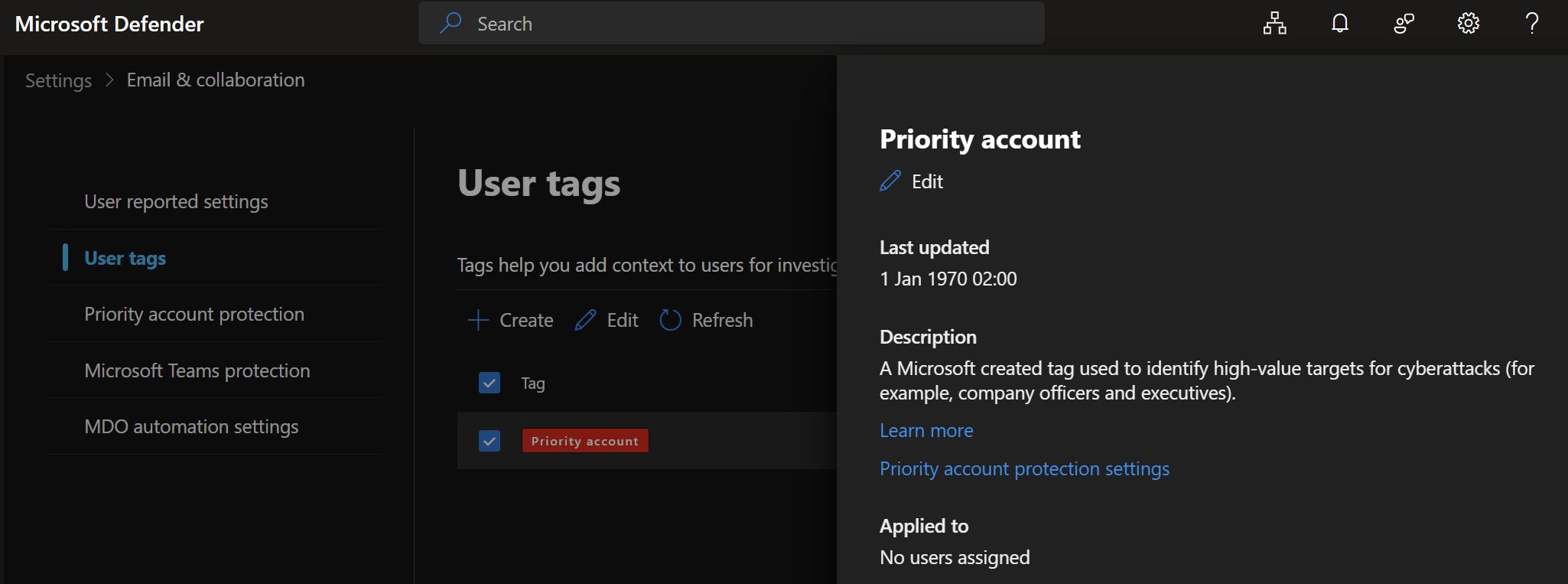
You can manage your tags from the Microsoft Defender portal under Settings > Email & collaboration > User tags.
Screenshot 1: User Tags Page
How to Apply User Tags
Applying a tag, like "Priority account," to your users is a straightforward process.
1. From the User tags page, select the tag you want to edit (e.g., "Priority account").
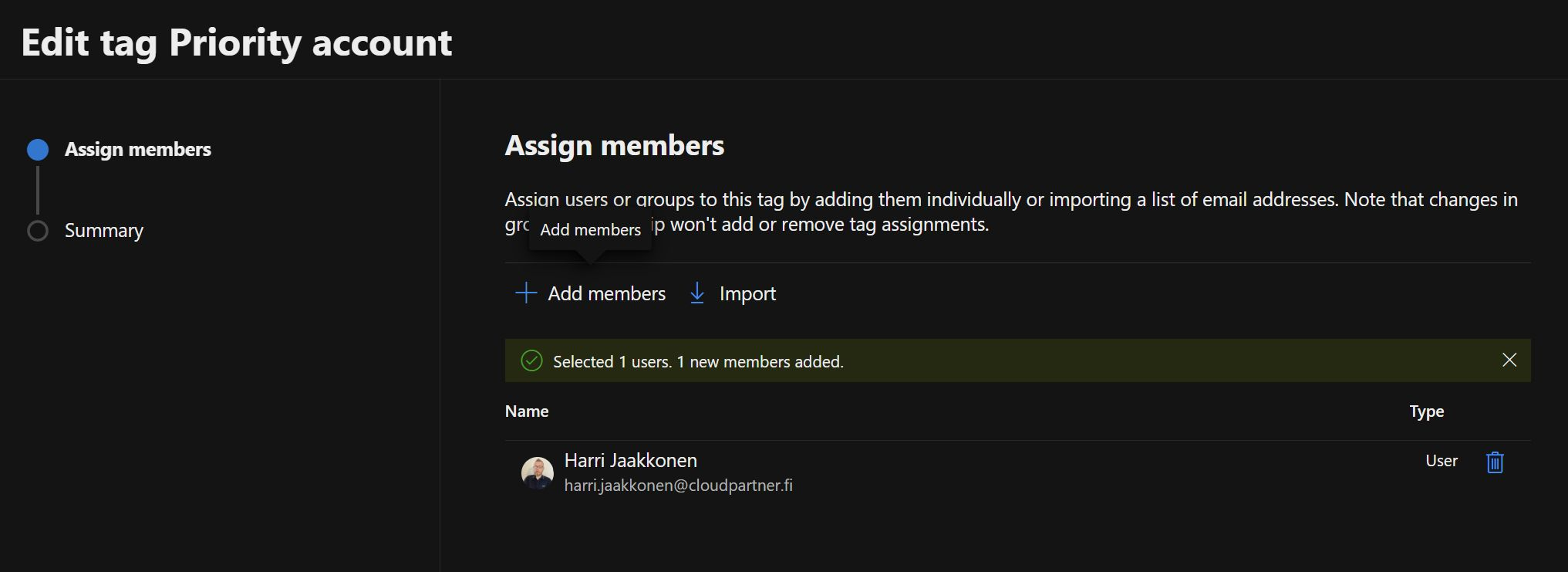
2. Click Edit and navigate to the Assign members step.
3. Click Add members and search for the users or groups you wish to tag.
4. Select the users from the list to add them.
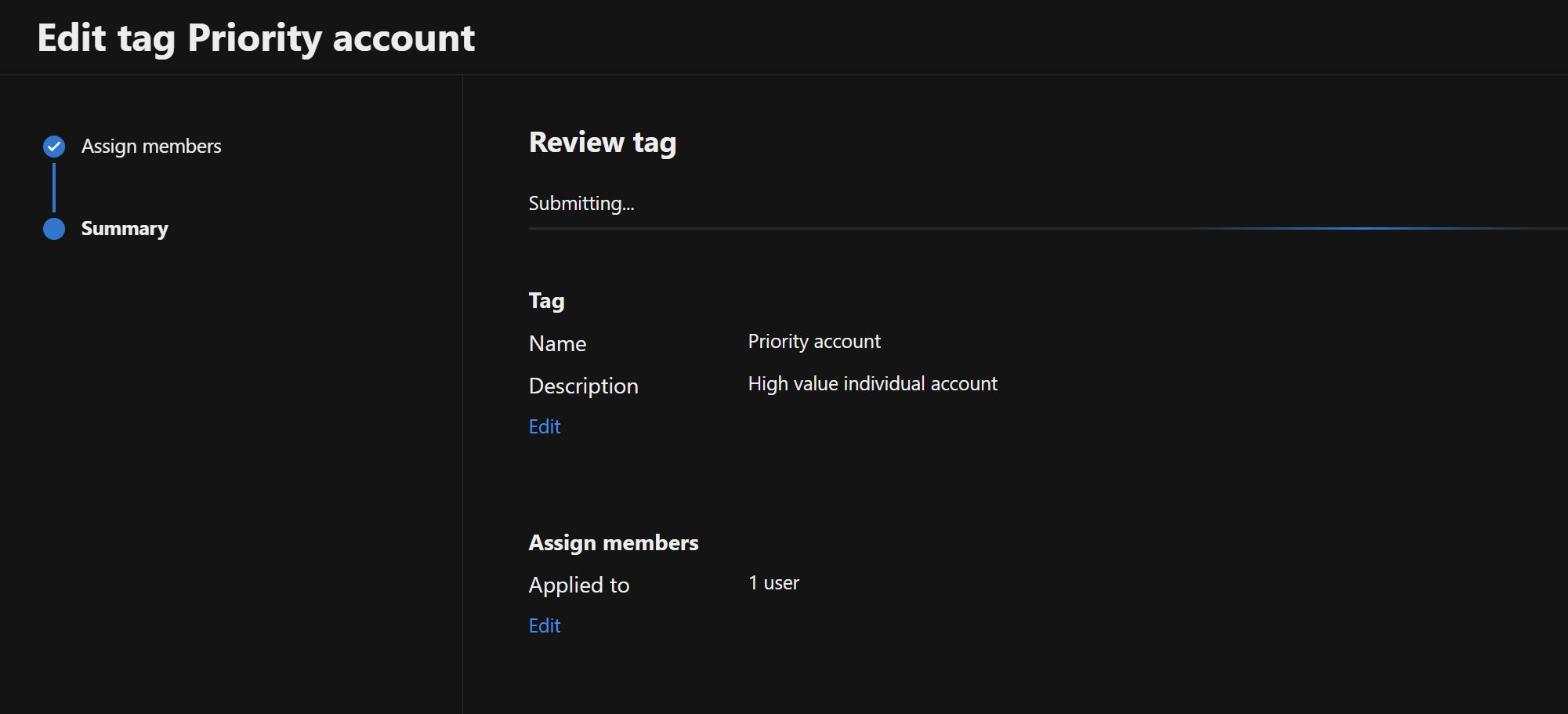
Once you have added your members, you will proceed to a final summary screen to review your changes. After you click "Submit," the tag will be applied to the selected users.
Screenshot 2: Adding Members to User Tag
Screenshot 3: Member Selection
Why User Tags Are Essential
The real power of User tags comes from how they are integrated into the rest of the Defender portal. Once your Priority accounts are tagged, you can:
1. Filter Reports and Alerts
Quickly filter alerts, investigations, and reports to focus on incidents that involve your high-value users. This allows your security team to prioritize their response.
2. Enable Priority Account Protection
Defender for Office 365 Plan 2 uses the "Priority account" tag to apply differentiated protection. This includes fine-tuning heuristics to be more aggressive against threats targeting these individuals.
3. Enhance Microsoft Teams Protection
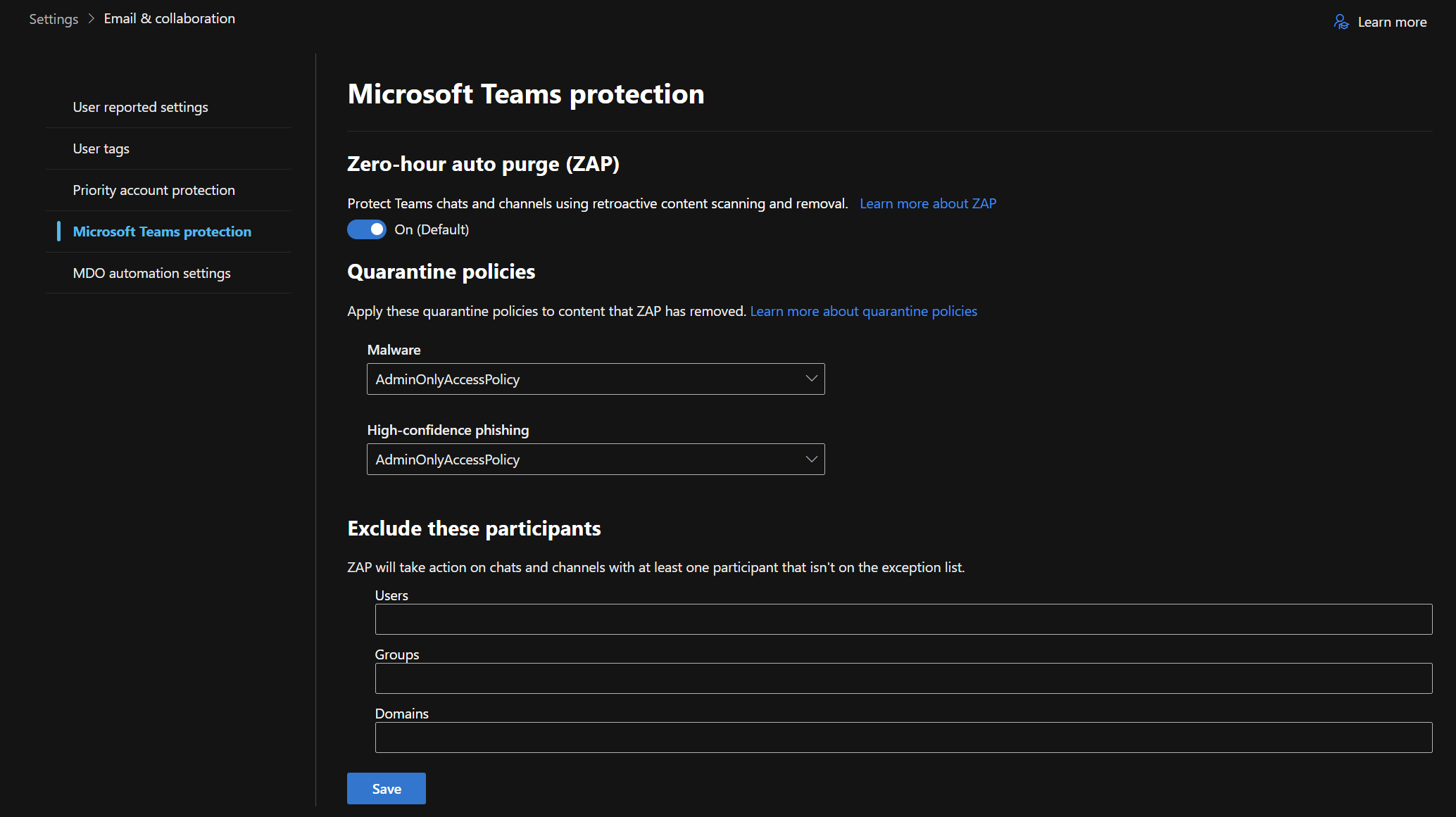
The "Priority account" tag also enhances Zero-hour auto purge (ZAP) in Microsoft Teams, providing more aggressive protection against malware and high-confidence phishing messages sent in Teams chats and channels.
Screenshot 4: Priority Account Protection Features
Conclusion
By taking just a few minutes to apply the "Priority account" tag to your organization's key members, you significantly enhance your ability to protect them, identify threats against them, and respond faster when an incident occurs. It's a simple step that adds a critical layer of focused security.
Summary:
- User tags help identify and protect high-value accounts
- The "Priority account" tag enables enhanced security features
- Integration with reports and alerts improves response times
- Simple to implement but powerful in impact
---